
Create a company profile
Open Companies from the contact tools. These are customer or prospect companies, not your own account’s billing identity. Access depends on your account permissions.
- Search first to avoid creating a duplicate company.
- Choose the new-company action and enter its name. Add the website, phone, email and address you need.
- Save and check that the company appears in the directory. If saving fails, keep your input and read the error before retrying.
- Open the relevant contact profile, choose the company in the contact’s company field and save. A company record alone does not associate every matching contact automatically.
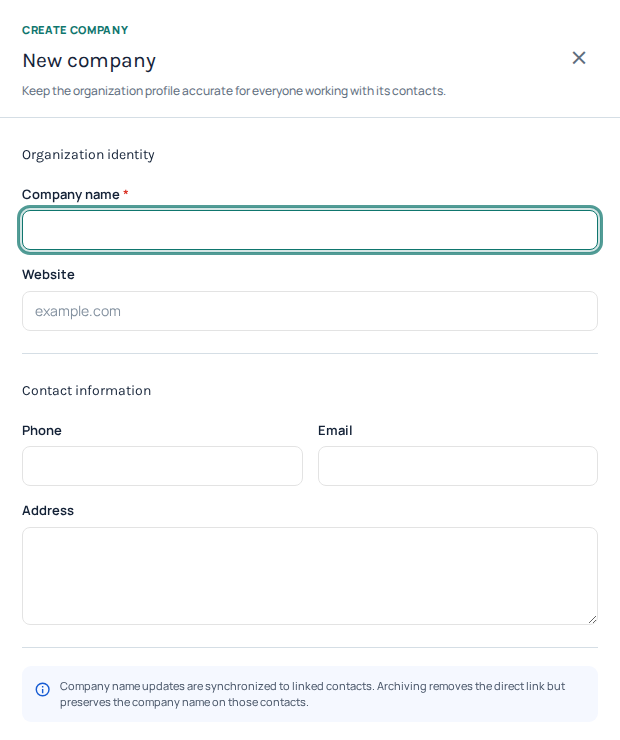
New company collects a name and optional website, phone, email and address. This is an empty, unsaved form. Open the image for a larger view.
Edit or archive a company
Use Edit on the intended company and review its details before saving. Use the directory’s search and page controls to find other results. Archiving removes the company from the active directory and removes its company association from linked contacts; it does not delete those contacts. Review the confirmation and do not use archive as a way to merge duplicates.
Choose fields your team will actually use
Open Custom Fields. Review the existing core fields before adding extra fields. Give each field a clear label, choose its type and add a placeholder or short help text when useful. Available types include text, multiline text, email, number, URL and date.
Use the sort value to organize fields and mark a field Required only when contacts should be expected to provide it. Save the definitions, then reopen a contact to check the resulting form. Creating a field defines a place to store information; it does not fill in values on existing contacts.

Core field definitions include the label, type, placeholder, help text, sort order and required setting. Account-specific text is hidden; no definitions were changed. Open the image for a larger view.
Change definitions carefully
Changing a label does not convert the meaning of old data. A type change can be rejected when existing values do not match the new type; correct the affected values or use a separate field rather than forcing unrelated data into it. Removing an extra field takes it out of active contact forms; do not treat this as proof that all historical copies or exports have been erased.
Check import mappings and export columns after changing fields. Do not reuse an old field for a different purpose without reviewing existing contacts. Avoid storing passwords, payment-card secrets or unnecessary sensitive information in notes and custom fields.
See contact management for the contact workflow. If an option is unavailable, ask your account owner about permissions rather than creating another account.
Plan a contact-field change before saving
A custom field can be used by people entering contacts, CSV imports and API integrations at the same time. Before changing its type or making it required, identify those writers and inspect representative existing values. Renaming a label is usually a different task from changing what the field means.
- Open the existing custom-field configuration and identify the field you intend to edit. Keep its definition identity rather than deleting and recreating it for a cosmetic rename.
- Check existing values, including blank and older records. For a type change, identify values that would not fit the new type. Do not assume the Portal will silently convert all stored content.
- Check each import mapping and integration that supplies the field. API integrations should use current workspace metadata and stable identifiers or slugs, not a human-facing label copied from a screen.
- Edit the intended label, help text, type, required state or display order. Save the complete configuration carefully, retaining fields you still need.
- Reopen the configuration and an appropriate contact to verify the result. Before a larger import, use its mapping preview and check that the intended custom field still receives the correct column.
Keep the field identity stable
Editing an existing definition preserves its stored ID and slug while its display label can change. An integration should not infer a new API key from the renamed label. If you deliberately create a replacement field for a new meaning, treat it as a separate migration: decide how old values are copied, update every writer, verify the new values and only then consider retiring the old definition.
If a type change is rejected
The Portal checks existing stored values before accepting a changed field type. Read the error and correct the conflicting data through the normal contact workflow, or retain the current type. Do not remove the field merely to get past validation; that can break mappings and hide useful information. Export or retain the data you need before a deliberate migration.
Required does not backfill old contacts
Making a field required does not invent values for existing blank records. Update data and integrations deliberately, and verify the validation behavior of the actual form, import or API workflow you use. A successful settings save is not proof that every historical contact now has a meaningful value.
If an import fails after the change, compare its mapped column and sample value with the current definition. If an API write fails, refresh workspace metadata and inspect the returned field error. Keep customer data out of shared debugging logs.
Related guides
Reviewed 12 October 2026 against the current IllyVoIP controls, implementation and applicable references. Available options depend on account permissions and service state.