
An operator can select a message in Microsoft Teams and request an IllyVoIP SMS without copying account credentials into Teams. This guide builds a deliberate notification workflow: select a message, write a short summary, review the intended recipient and send once after approval. It uses Power Automate’s Teams trigger and the IllyVoIP HTTP API.
This is not Teams Direct Routing, a native Teams SMS inbox or Bria Teams. It does not forward every chat message, and incoming SMS replies are outside this workflow.
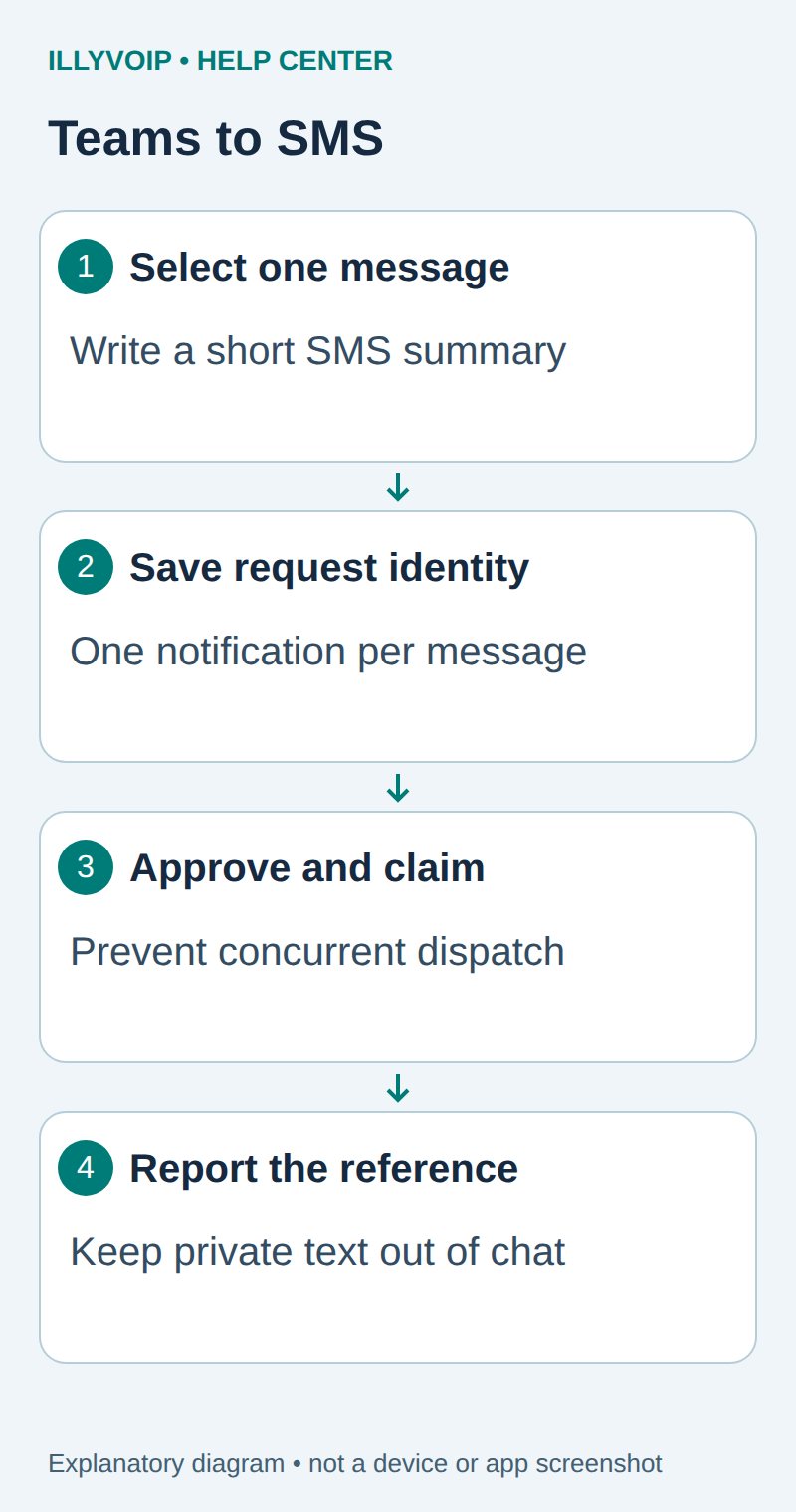
1. Check the environment and choose one notification use case
You need IllyVoIP SMS access, sufficient balance, a permitted sender and an API key. In the Portal, open Account Settings → Developer tools and the API-key area; the direct account-settings URL uses ?tab=api. Follow the verification prompts before revealing a key. A SIP password is not an API key. Keep permanent keys in a server-side secret store and check the destination’s current SMS price and encoding requirements before a real send.
You need a tenant that permits Teams workflows, SharePoint storage, Approvals and the ordinary HTTP action. Check the required licensing and data-loss-prevention policy with the tenant administrator. Microsoft’s selected-message flow must be created in the default environment to appear in Teams, and the required Power Automate Actions app must be enabled.
Start with a fixed recipient such as an authorized duty phone and a fixed permitted sender. Store both in restricted configuration. A Teams user must not be able to turn a message action into an arbitrary recipient dialer. Choose a small set of permitted requesters and a separate authorized approver; do not assume membership of any Teams channel grants spending permission.
2. Create two private lists for request identity and dispatch
In a restricted SharePoint site, create SMS Requests and SMS Attempts. Grant the flow’s connection account the required access; give ordinary requesters no edit/delete access to these records. For each list, also map its default required Title field to a short request label or the event key; do not leave a required field empty. These are your application’s records, not IllyVoIP Portal screens.
| List | Required columns |
|---|---|
| SMS Requests | EventKey: required single line of text with Enforce unique values = Yes. Sender and Recipient: single line of text. Message: multiple lines of plain text. State: choice (Review, Rejected, Approved, Submitted, Needs review). MessageId: single line of text. SourceReference: plain text. ApprovalReference: plain text. |
| SMS Attempts | EventKey: required single line of text with Enforce unique values = Yes. RequestId: number. State: choice (Attempting, Submitted, Needs review). MessageId: single line of text. Record only minimal response details needed for recovery. |
The two uniqueness constraints have different jobs. The first prevents duplicate business requests; the second prevents two flow runs from dispatching the same approved request. A “Get items, then create if absent” check alone is not an atomic claim. The unique create must succeed before the flow advances. Test the constraints with two deliberate local test rows before connecting a paid action.
3. Create the selected-message flow
- In Power Automate, create an instant cloud flow with the Teams connector’s For a selected message trigger.
- Give it a recognizable name, for example Request duty-phone SMS.
- Use the trigger’s adaptive-card input editor to ask for one required short text value named SMS summary. Add guidance that this text is sent externally and can incur an SMS charge.
- Do not automatically copy the entire Teams message, attachments, mentions or HTML into that field. The requester should write only the necessary notification.
- Save the flow and test the action from the message’s More actions menu with a permitted user.
The exact placement of workflow actions varies with the Teams client. If the flow is missing, first check the default environment, the enabled app, sign-in and sharing permissions. Do not solve visibility by granting the whole organization owner access to the flow or its secret connection.
4. Authorize the requester and freeze the request
Use the trigger’s authenticated user identifier to check a controlled requester allowlist. Reject requests from everyone else before writing a sendable record. Inspect the trigger output with synthetic data so that the selected message’s stable ID and conversation context are correctly mapped; display names and the visible message text are not stable identifiers.
Construct a logical EventKey from a fixed tenant/integration prefix, the chat or channel context and the selected message ID. Validate that it fits the unique text column; stop on missing or over-length identity rather than silently shortening it. Define this first version as one SMS notification per selected Teams message. Two users selecting the same source message should find the same request, not produce two notifications.
Validate SMS summary as nonempty text within a 500-character application limit. Use SharePoint Create item to save EventKey, the fixed sender/recipient, the exact summary, a minimal source reference and State = Review. If the key already exists, show the prior reference and stop. Treat a timeout or unexplained create failure as needing investigation. Do not mint a new UUID merely because a previous run failed.
5. Ask for approval of the actual SMS
Add Start and wait for an approval and choose Approve/Reject – First to respond. Assign the controlled approver and show the saved summary, sender, destination and request reference. Include the potential charge and tell the reviewer to reject text that discloses more than the recipient needs.
Continue only for the exact approved outcome. Save the approval reference and State = Approved. Rejection, timeout or a broken approval action must stop dispatch. Keep the stored payload immutable after review. Editing the Teams message or the adaptive-card input in a later run must not change what an earlier approval authorized.
6. Claim the approved request
Create one SMS Attempts item with the same unique EventKey, the original Requests item ID and State = Attempting. The send action runs only after this create succeeds. A duplicate key, lost create response or failed write requires reconciliation and must not fall through to HTTP.
This unique attempt protects against concurrent selections, flow retries and resubmissions. Setting flow concurrency to one is useful operationally but is not equivalent to a durable claim. Keep the Attempts list when moving flows or restoring backups.
7. Submit the frozen payload once
Add the ordinary HTTP action in the successful claim branch. Set its retry policy to None for this first version. Use POST and the following Production URL only when you are ready for an authorized, potentially chargeable submission:
https://api.illyvoip.com/api/v1/sms/messages| Header | Value |
|---|---|
| Content-Type | application/json |
| X-Api-Key | The secret supplied by your approved secret-management connection. |
| Idempotency-Key | A stable value such as m365sms- followed by the numeric SMS Requests item ID. Use one central Requests list for this integration; if you have several lists, add a stable list-specific prefix. |
Build the body as an object using the stored Sender, Recipient and Message. The recipient value must be an array even for one number. The following is the shape, not a copy-and-send request:
{
  "from": "YOUR_PERMITTED_SENDER",
  "to": ["YOUR_APPROVED_RECIPIENT"],
  "message": "Your reviewed notification text."
}
Use structured dynamic-content fields or a JSON serializer. Do not concatenate unescaped message text into a JSON string. Test quotes, backslashes and line breaks. Enable Secure inputs/outputs where appropriate, restrict flow owners and ensure later actions do not print the API key or private text into logs. HTTP with Microsoft Entra ID is not a substitute for IllyVoIP API-key authentication.
8. Save the result and follow delivery
Require an HTTP success plus an API success body with queued_count = 1 and exactly one nonempty queued_message_ids entry. Save that identifier to both records and set them to Submitted. Inspect invalid_numbers if the result does not match your one-recipient expectation. A green HTTP action alone does not prove delivery.
Configure failure and timeout handling with the designer’s run-after settings. A timeout, unreadable response, unexpected result or failed write-back leaves the request needing reconciliation. The Attempts item remains in place; do not delete it and resubmit. Use the saved time, request key and available SMS records to establish whether a message was accepted. A failed final SharePoint update can occur after a successful SMS submission.
Follow delivery in the Portal or the documented status/webhook workflow. Submitted, delivered and read are different states. IllyVoIP acceptance is not proof that the recipient has read the message. This design intentionally stops uncertain outcomes for an operator instead of trying to recover by sending a new paid request.
9. Return a useful result and test the unhappy paths
Return a minimal status to the initiating user through a permitted Teams action or the request record: the reference and whether it is awaiting approval, submitted or needs review. Do not publish the recipient, API key or full message into a channel just to report success. A failed Teams notification after a successful SMS must not cause another SMS send.
- Test an unauthorized user, blank summary and missing source identity. None should reach approval or dispatch.
- Select the same synthetic message twice, including from two permitted users. Confirm the unique request and attempt gates hold.
- Reject the request, let an approval expire and simulate an HTTP timeout. Confirm each stops automatic sending.
- Test punctuation and line breaks in the JSON payload using a mock response before enabling Production HTTP.
- Make one explicitly approved real test only after reviewing the charge and recipient permission, then check the resulting message reference and delivery outcome.
For a genuinely new notification about an old conversation, create a new source message under the agreed workflow. Do not erase a prior attempt to make the old message send again. If routine editing or multiple notices per source are required later, add an explicitly reviewed notification-version design that preserves the old record.
Related IllyVoIP guides
- Send an IllyVoIP SMS from Microsoft Power Automate
- Send an SMS with the IllyVoIP API and track delivery
- Check SMS encoding, message parts and converted text before sending
- Verify IllyVoIP webhook signatures in a Node.js receiver
Sources and verification
- Microsoft: trigger a flow from a selected Teams message
- Microsoft: approval actions
- IllyVoIP API reference
Reviewed 11 October 2026 against current IllyVoIP documentation and the linked primary sources. Use the options available in your own account. Documentation and local checks do not establish a delivered SMS, a completed live call or a certified third-party integration.