
When an IllyVoIP phone-number order needs supporting documents, continue that existing order rather than placing another purchase. The API has separate operations for appending documents to an eligible pending order and resubmitting supported rejected regulatory information.
This guide is for a backend developer using the authorized account owner’s API access. It explains the current product workflow, not the legal requirements of every country. Use the requirements actually requested for that order and keep identity documents inside the authorized secure process.
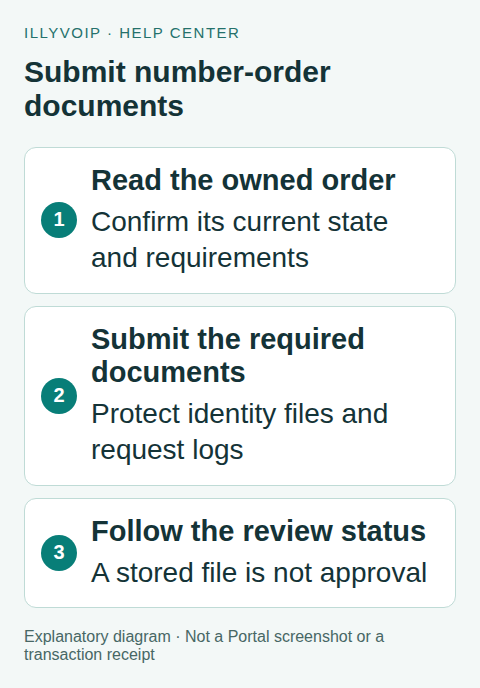
1. Find the existing order and requested action
Use GET /api/v1/dids/orders with the account’s X-Api-Key and inspect the returned owned orders. Retain the real order ID and current status. Do not substitute a phone-number ID, catalog product reference or another account’s order ID.
Compare the API result with the order’s requested action in the Portal when clarification is needed. An order awaiting activation is different from one explicitly asking for documents or one rejected during regulatory review. Do not assume every pending order needs the same upload.
The current list operation returns the account’s order list; do not invent unsupported status or pagination parameters. Follow the current public reference if that contract changes.
2. Prepare only the requested documents
Collect the required file from the authorized person and confirm it is readable, complete and intended for this order. Use a private backend process to encode the file. Base64 represents binary data; it is not encryption.
Each document entry contains name, type and value. Use an appropriate document label, the actual MIME type and the documented base64 representation. The example below is a shape illustration with no real document:
{
  "order_id": 123,
  "documents": [
    {
      "name": "proof_of_address",
      "type": "application/pdf",
      "value": "base64:REPLACE_WITH_ACTUAL_FILE_BASE64"
    }
  ]
}
Replace 123 with your returned order ID. Include the type field explicitly. Do not relabel a file extension to make an unsupported file appear valid. Check the current upload limits and requested formats for the actual workflow; limits from number porting or another service are not automatically this endpoint’s limits.
Keep the complete JSON, file contents and API key out of ordinary request logs, error trackers and screenshots. Avoid temporary publicly accessible document URLs. Retain files only for the period required by your own authorized process.
3. Append to an eligible pending order
For an existing order that accepts additional documents, send the prepared body to POST /api/v1/dids/orders/documents with JSON content type and the account key. The service checks order ownership and state.
The current append operation rejects completed/active, cancelled, disabled or rejected order states. A conflict is therefore not an instruction to keep retrying. Re-read the current state and use the applicable order action.
A successful response reports document storage with the order ID and a stored count. It does not establish provider acceptance, regulatory approval or number activation. Store that result in your integration’s order timeline and continue observing the existing order.
4. Use regulatory resubmission only where supported
If the existing order specifically offers a supported rejected-regulation correction workflow, use POST /api/v1/dids/orders/resubmit-regulation. Supply the owned order ID and the requested corrected documents using the documented fields.
This is a separate workflow from appending a document. It is not a universal “reopen any rejected order” endpoint, and its availability depends on the actual order/provider process. If address or identity details beyond the public document shape must be corrected, follow the Portal’s requested action or ask Support which supported submission is required; do not invent API fields from a form label.
Read the returned message carefully. It can explain that documents were saved for manual review and that another submission is unnecessary. Do not repeatedly resubmit while a team or provider is already processing the correction.
5. Handle uncertain responses without duplicating work
Store your own submission reference, order ID, timestamp and a safe file fingerprint before uploading. If a request times out, mark its result uncertain. Do not create a second order or assume a new idempotency header makes these document operations exactly-once.
Check the current order timeline and available response/status information. Document contents are not returned by this API, so absence of a file body in a later response is not proof the upload failed. Contact Support with the order reference and sanitized timing if the outcome remains unclear.
A missing permission, ownership failure or closed-state conflict needs correction through the appropriate account/order workflow. Repeatedly encoding the same file or changing its label does not resolve those conditions.
6. Wait for the next real state
Track document receipt, manual/provider review and activation as separate milestones. An HTTP success means the operation reached its reported result. It does not guarantee a review deadline or that the number can already receive calls.
Once the number becomes active, configure and test its incoming destination through the normal number workflow. Do not begin routing assumptions while the order is still waiting for review.
Test checklist
Use synthetic files and local request fixtures to check JSON encoding, wrong order ID, wrong owner, missing documents, closed-state conflicts and uncertain responses. Do not upload invented identity documents into a real order as a test. A real customer submission needs its legitimate documents and appropriate authorization.
Frequently asked questions
Should I place another order to upload a correction?
No. Continue the existing order and its requested action.
Does “Documents stored” mean approved?
No. Storage, regulatory review and activation are distinct.
Related guides and references
- Find, quote and order a phone number by API
- How to order a DID Number and start making calls
- Official reference: api.illyvoip.com
Reviewed 8 October 2026 using current IllyVoIP implementation and official references. Check your installed version and account options before applying settings. Examples do not certify a physical device or completed live integration.