
Use Power BI Desktop to turn a completed IllyVoIP call-history export into a small, auditable report. This workflow keeps the API key outside the report file and makes the reporting window visible. It is suitable for an administrator who already has authorized access to call history and a private export.
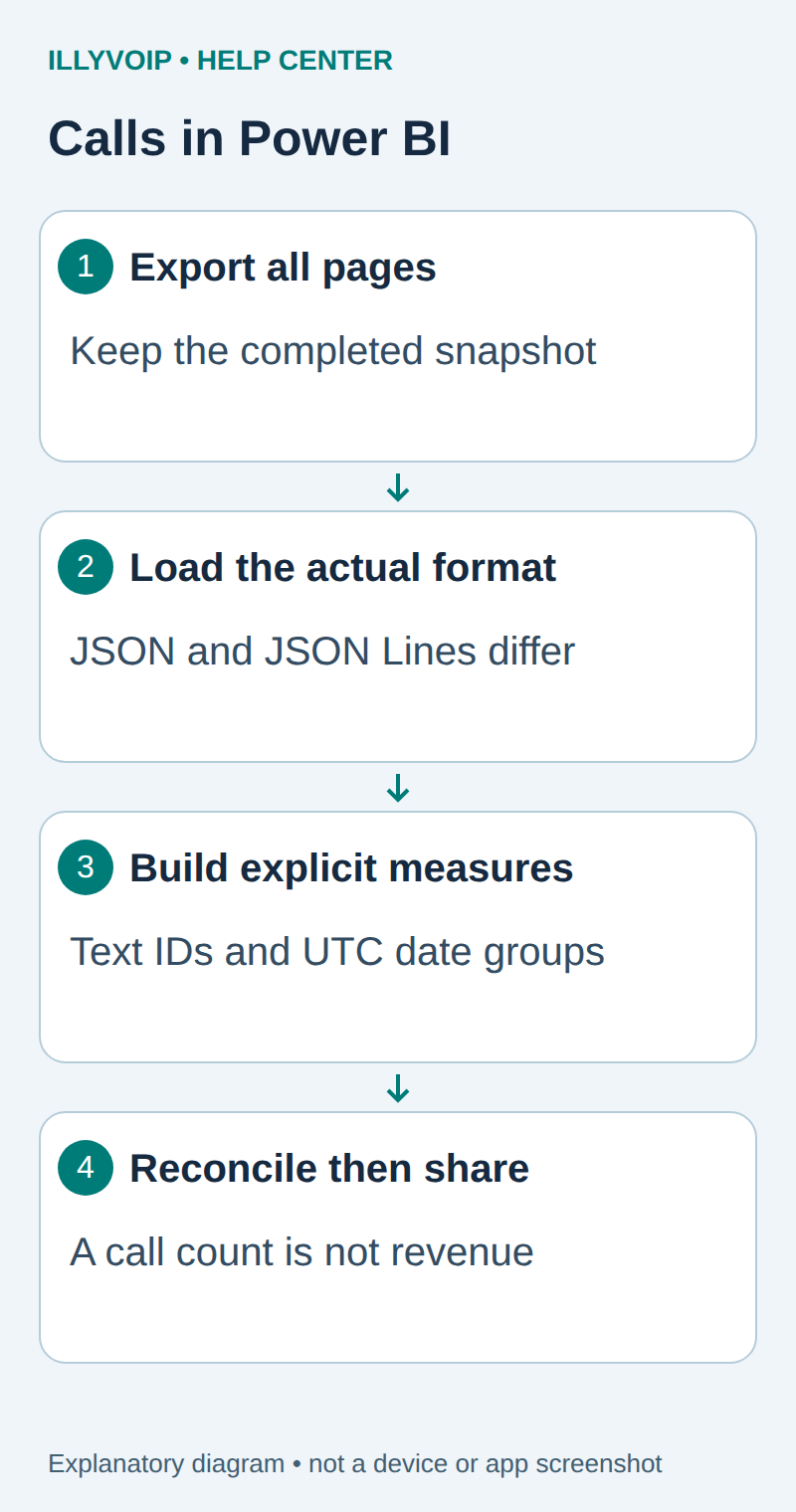
1. Export the complete reporting window
Follow the call-history API export guide first. The API uses a bounded 1–31-day window and opaque cursor pagination; a successful first page is not necessarily the full result. Keep the original export, requested window, fetch time and any SIP-identity filter together.
Only use a completed export. Do not replace yesterday’s good report with a file left partial after a network error. CALL- identifiers are opaque text and started_at uses UTC. Call records do not by themselves establish settled invoices or collected revenue.
2. Import the actual file format
In Power BI Desktop, use Home → Get data → JSON for a regular JSON document. Choose Transform Data so you can inspect the shape before loading. An API response object contains a calls list; expand the list and then its records. A standalone JSON array has a different top-level shape.
The exporter in our related guide writes JSON Lines: one complete object per line. That is not one JSON document. For that format, create a Blank Query, open Advanced Editor and use the following query, replacing the private file path.
let
    Lines = Lines.FromBinary(File.Contents("C:\Private\calls.jsonl")),
    NonEmpty = List.Select(Lines, each Text.Trim(_) <> ""),
    Records = List.Transform(NonEmpty, each Json.Document(_)),
    Calls = Table.FromRecords(Records),
    Typed = Table.TransformColumnTypes(Calls,
        {{"call_id", type text}, {"started_at", type datetimezone}})
in
    Typed
Name the query Calls. A malformed line should fail the refresh rather than vanish. For an empty export, retain an explicit empty schema or report “no records”; do not invent a sample call to make a visual work.
3. Preserve identity and define the date
Inspect the imported fields and data types. Keep telephone numbers and SIP identities as text. Remove automatic conversions that turn a long identifier into a number. Preserve null values as unknown rather than replacing every missing value with zero.
Add a date column for the reporting convention you actually use. This example deliberately derives a UTC date from started_at:
Date.From(DateTimeZone.RemoveZone(DateTimeZone.SwitchZone([started_at], 0)))Name it CallDateUTC and set its type to Date. If you need business-local reporting, build an explicit daylight-saving-aware conversion upstream and document it. A fixed offset is not a complete timezone rule.
4. Build measures you can explain
Select New measure on the Calls table and add:
Distinct calls = DISTINCTCOUNT(Calls[call_id])
Export rows = COUNTROWS(Calls)
Duplicate rows = [Export rows] - [Distinct calls]
Reject or investigate blank call IDs before relying on these measures. DISTINCTCOUNT can include a blank value; it does not repair a corrupt export. A duplicate-row count above zero also requires review, particularly if two copies contain different states.
Add a card for Distinct calls, a card for Duplicate rows, and a column chart with CallDateUTC on the axis. Add a date slicer. If adding status or duration charts, inspect the current API fields and units first; do not guess a billing measure from a similarly named column.
5. Reconcile before sharing
- Clear all visual filters and compare distinct IDs with the completed export.
- Review a few known CALL- references against the Portal using the same window and timezone.
- Check calls around midnight and confirm the UTC grouping is intentional.
- Display the export time and reporting scope in the report.
- Inspect access to the PBIX file: imported rows can contain personal data even though the API key is absent.
Save a working copy before replacing the source file. Refresh against a new completed snapshot and repeat the count checks. Do not append overlapping rolling windows without deduplicating by call ID.
Refresh and troubleshooting
This is a file-based report. Publishing to Power BI Service does not automatically make a private local file available for scheduled refresh; a gateway or another deliberately configured source may be necessary. Confirm those settings separately before promising unattended updates.
| Item | Meaning or action |
|---|---|
| JSON import fails | Check whether the file is JSON Lines and use the matching query. |
| Totals changed unexpectedly | Inspect slicers, duplicate IDs, partial export state and date boundaries. |
| Missing fields | Use the actual current export schema; do not fabricate values. |
| File is locked or missing | Restore access to the approved private path and retain the last verified report. |
Related guides and reference
Microsoft JSON connector; Power BI measures. IllyVoIP API reference. Reviewed October 12, 2026. Examples are instructional: local checks do not establish a completed paid request, live third-party integration or production PBX acceptance.