
Add a Read aloud action for an authorized text message in your application by generating audio through the standalone IllyVoIP Speech API. Your backend validates access and requests speech; the browser receives playable audio through your own protected route. Keep the message text available so audio is an optional way to read it.
Use a backend with authorized account API access and keep X-Api-Key out of browser code. The API base is https://api.illyvoip.com. Check HTTP status and the JSON result. Examples below are request templates, not records of completed transactions.
1. Authorize the message before generating audio
Send a stable message ID and version to your backend, then load the text from your own authorized store. Do not let a browser replace that text with arbitrary input under another person’s message ID. Check access on generation and again whenever saved audio is served.
- Confirm the signed-in user may read this message.
- Choose the exact message version to synthesize.
- Exclude text that should not be spoken or sent for processing under your product’s policy.
- Limit the text to the Speech API’s 2,000-character maximum.
- Tell the user that generation may take a moment and is a billable service operation.
Keep the original text visible if the message is too long or generation fails. Do not automatically divide arbitrary content into a series of paid requests. This feature handles application messages; existing IllyVoIP recordings already have their own integrated Transcript and AI Summary workflow.
2. Choose a standalone language and voice
Read /api/v1/tts/languages and /api/v1/tts/voices using context=speech_api. Use the exact returned language and voice values together. Do not substitute a voice that exists only in the live-call context or assume the service translates the text.
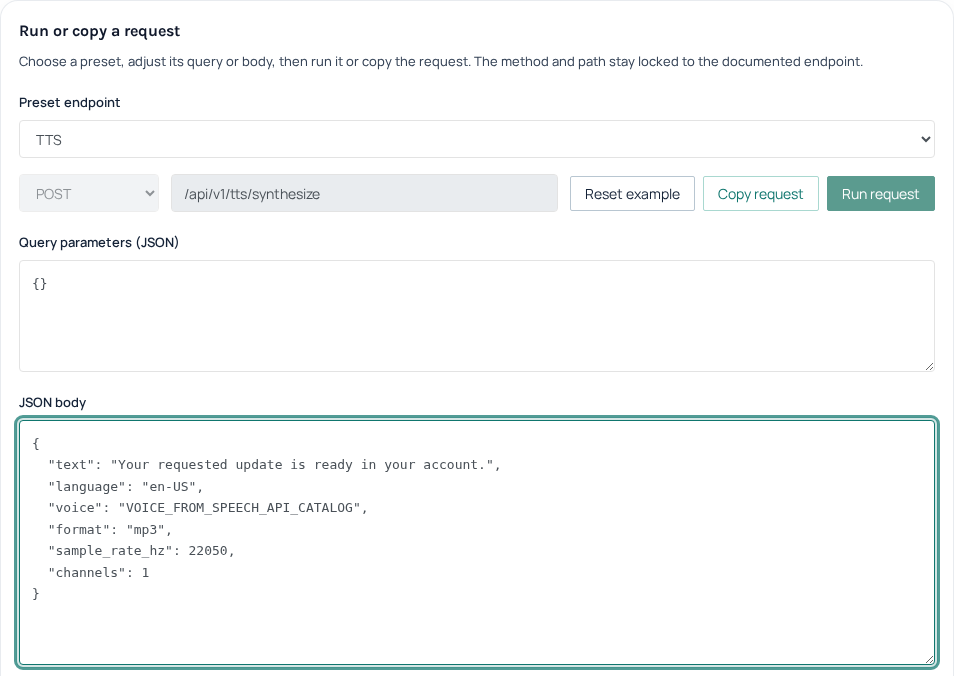
POST to /api/v1/tts/synthesize. This example uses an illustrative voice placeholder that must be replaced with a returned catalog value:
{
  "text": "Your requested update is ready in your account.",
  "language": "en-US",
  "voice": "VOICE_FROM_SPEECH_API_CATALOG",
  "format": "mp3",
  "sample_rate_hz": 22050,
  "channels": 1
}
Synthesis is billed by submitted characters. Keep a durable application operation identity for the account, message version, language, voice and output settings. This is your own ledger identity; the standalone endpoint does not document the same idempotency-header contract as SMS or Voice call-control actions.
3. Save the result before preparing browser playback
After HTTP and API success, validate mime_type and decode nonempty audio_base64. The response is JSON, not a ready-to-play MP3 body. The existing JavaScript synthesis guide provides a decoder and receipt-first file workflow. Retain a private successful receipt so a local file or player failure can be repaired without synthesizing again.
Validate the resulting format before serving the audio. Cache it only within the authorized account and message version, under a deliberate retention policy. Avoid shared public caches for private messages. Replaying an already generated audio file through your application is different from making another synthesis request.
4. Offer explicit playback controls
Serve the validated file through a same-origin authenticated route in your application, with the appropriate audio content type. Provide an accessible label and native browser controls. This illustrative route is yours to implement; it is not an IllyVoIP endpoint:
<p>Read this message aloud</p>
<audio id="message-audio" aria-label="Read this message aloud"
       controls preload="none"
       src="/account/messages/message-example/audio">
  Audio playback is unavailable. Read the message text instead.
</audio>
Keep Generate audio, Audio ready and Playing distinct. If JavaScript calls play(), await its promise and handle rejection; browsers may require another user action after asynchronous generation. Do not claim playback started because the synthesis request succeeded. The text alternative should remain usable throughout.
5. Cancel presentation without losing the paid request
Changing the selected message, account or session must invalidate pending UI results. Use a generation value bound to that context and ignore any older response. Stop current audio with pause(), remove its source and release any object URL when the audio owner is disposed. Avoid overlapping private messages playing at once.
Canceling a browser fetch does not prove the backend stopped synthesis or that no charge occurred. Keep the backend operation state and reconcile uncertain results before offering another Generate action. If the receipt is complete but playback fails, diagnose decoding, MIME type, authorization and browser format support using that saved result.
6. Test access and playback separately
Test another user requesting the audio route, message edits during generation, logout before completion, malformed base64, a rejected playback promise and a local decoding failure after a saved receipt. Confirm none causes automatic paid regeneration or exposes another account’s audio. Then arrange a deliberate synthesis and listening check for the intended voice; local fixtures do not establish pronunciation or live service quality.
Related guides
- Convert text to speech with the IllyVoIP API and save the audio
- Generate and save speech in JavaScript with the IllyVoIP TTS API
Reference
Current instructions and technical reference: IllyVoIP API documentation, MDN: audio playback and rejected play requests.
Reviewed 13 October 2026 against the current IllyVoIP controls, implementation and applicable references. Available options depend on account permissions and service state.