
Open Billing → Rewards to redeem available IllyVoIP points for a reward or convert them to account balance. Check the quote before confirming: points that are pending or reserved are not the same as points you can spend.
Before you begin
Sign in to the account that earned the points. The Rewards page shows the options currently available to that account. A product in the catalogue is not a promise of stock, delivery to every country or immediate approval. Use the current price, terms and delivery estimate on the reward itself.
1. Check which points are available
- Open Rewards and read Available points.
- Open the information button beside the points heading to see the breakdown.
- Use available points when deciding how much to convert or which reward to choose. Pending points are still within the applicable waiting period. Reserved points are held for a reward or conversion that is being processed.
- If the totals differ from your expectation, open Activity and review the dated entries before submitting another request.
A points adjustment can affect the usable total. Do not calculate spending power by adding available, pending and reserved points together.

2. Convert points to account balance
- Select Convert to balance, when available.
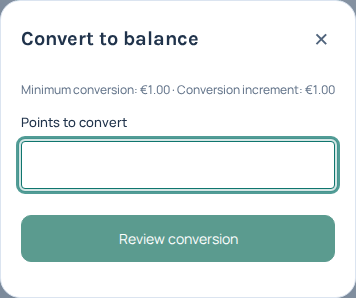
- Read the minimum conversion, increment and any maximum shown in the dialog. These are the current terms; do not assume an old conversion rate still applies.
- Enter the amount in Points to convert. Review the displayed balance credit.
- Select Review conversion. Compare the points deduction and account-balance amount in the final review.
- If correct, select Confirm conversion once. Wait for the result.
- Check My rewards and the account balance. A processing message means the request is underway; the balance changes only after confirmation.
Unused fractions remain in the points balance where the quote indicates this. Converting to IllyVoIP account balance is not a cash withdrawal or a transfer to your bank.
3. Redeem a catalogue reward
- Open Browse rewards, select an item and read its details and terms.
- Check the points price and availability. Out of stock and Not enough points are different conditions; neither is fixed by repeatedly clicking the item.
- Select Redeem if enabled. For a physical reward, choose an offered delivery country and complete the requested shipping details. Review the address and confirm the delivery-details checkbox.
- Select Review reward where shown. Check reward points, shipping points, total points, delivery details and terms together.
- Select Confirm redemption once. Open My rewards to follow the saved request.
For an eligible digital reward, its order may offer Show code / download. Keep the code or download link private. Physical rewards may show tracking after dispatch; a saved request is not a dispatched parcel.
4. Follow progress or request a change
Expand the item in My rewards to review its status and timeline. Use Refresh if an earlier request is still being checked. If offered, Change delivery details opens a new review before saving the change. After approval, follow the displayed instruction to contact support instead.
Use Request cancellation or Request return only when that action is offered for the order. A request does not itself prove that points have been returned or a delivery has stopped; check the resulting status and Activity.
If something does not look right
- Conversion is unavailable: check the account's offered options and current terms. Having pending points does not make them available.
- The quote is rejected or has changed: refresh, review the current totals and obtain a new review before deciding whether to continue.
- You lost the response after confirmation: inspect My rewards and Activity first. Do not create another redemption to test whether the first one worked.
- A request remains unresolved: contact support with the order reference, date and visible status. Do not send a reward code, password or unrelated payment records.
Related guides
For adding account credit, see billing and payment options. Rewards and referral credit are separate programs; follow the terms shown for each.
Reviewed 10 October 2026 against the current IllyVoIP Portal and service implementation. Options depend on account access and current service availability.