
Use the Portal’s Request Account Manager page when you want IllyVoIP to review your business calling requirements and the available account-management arrangement. The request form gathers contact details and destination requirements. Submitting it does not guarantee approval, a particular rate or immediate assignment.
1. Check the current account-manager state
- Sign in to the intended account and open the Account Manager page.
- If a manager is already assigned, use the displayed manager contact information instead of submitting another application.
- If a previous request is pending, read that state and keep its details. Do not submit duplicates through another account.
- If the page reports that requests are unavailable or restricted for your account, follow the displayed guidance. A hidden form is not permission to bypass the account’s eligibility rules.
An approved request and an assigned manager are distinct states. Read both the decision and any manager contact card. Approval of the application is not evidence that every requested commercial figure has become an active calling rate.
2. Enter contact information
- Enter your first and last name accurately.
- Choose the offered contact method, such as WhatsApp or Teams, and enter the corresponding contact detail in the form. Make it usable for that method.
- Add the company name when applicable. Use the organization associated with the request.
- Review any prefilled values before continuing, especially if another person previously managed the account.
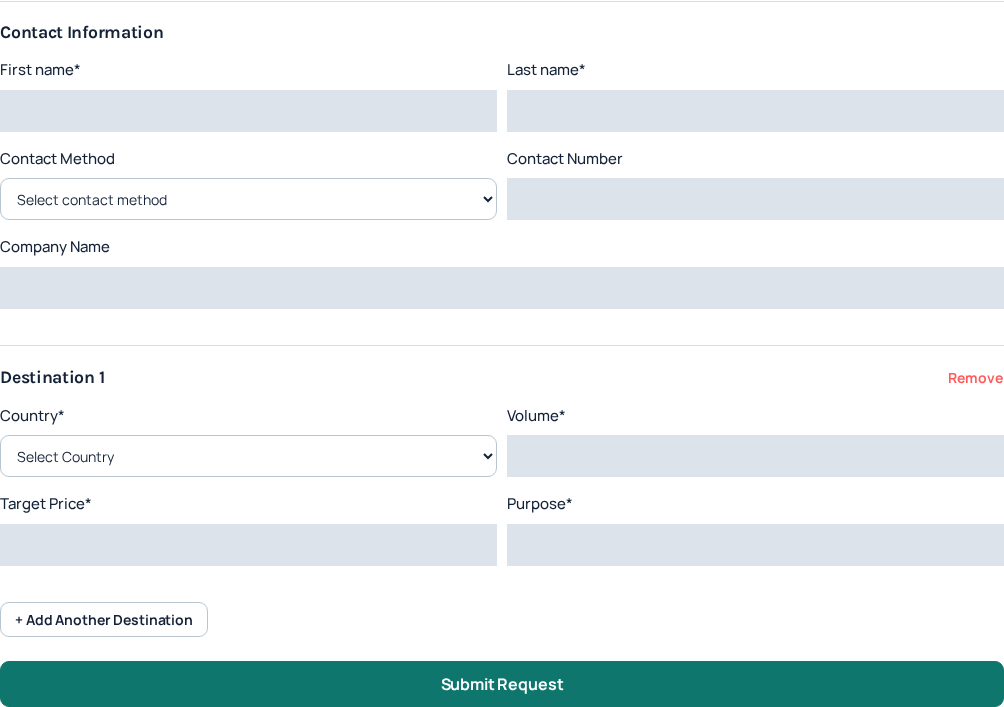
The illustration shows the actual form with account-specific values hidden. Do not put passwords, API keys or private customer lists in the contact or purpose fields. This application is for business requirements, not a secure place to share telephony credentials.
3. Describe the destinations and intended use
- For the first destination, select the country from the offered list.
- Enter the requested volume and make the intended period clear where the field permits it. Describe real expected usage rather than an unsupported maximum.
- Enter the target price in the numeric format requested by the field. It is a requested figure, not an accepted offer. If the displayed form leaves a commercial unit unclear, clarify it with the account team rather than assuming one.
- Describe the purpose of the calls concretely so the team can understand the intended service use.
- Use Add Another Destination for another relevant destination. Remove an accidental empty row before submitting.
Keep the request focused on destinations and services you actually intend to use with IllyVoIP. A target price does not override current prices, destination restrictions, caller-ID requirements or account policies. Continue to use the currently displayed service terms until a separate change is confirmed.
4. Submit once and follow the decision
- Read the completed form and correct missing or inconsistent fields.
- Submit the request once and wait for the Portal result.
- Revisit the page to confirm the saved state. If the browser loses the response, check whether a pending request already exists before submitting again.
- When a decision is available, read the displayed explanation and any assigned contact details.
If denied and the page allows another submission, read the reason first and correct the relevant information before resubmitting. Sending the same request repeatedly without addressing the reason is unlikely to clarify the requirement. If approved but no manager is yet shown, follow the displayed next step or ask Support about assignment; do not infer a promised response deadline.
When to use Support instead
For an active calling fault, billing discrepancy or access problem, use the normal Support route with the relevant reference and time. An Account Manager application does not replace a technical incident report. Keep the two requests distinct so a commercial review is not mistaken for resolution of an operational problem.
Related guides
Reviewed 12 October 2026 against the current IllyVoIP controls, implementation and applicable references. Available options depend on account permissions and service state.