
To request a higher daily SMS allowance, open SMS → Messages → Manage SMS → SMS limits, select New request and explain the volume and purpose you need. The request must be approved before the higher allowance is available. Submitting it does not change the limit immediately.
This guide covers the English web Portal and its administrative review workspace, checked October 9, 2026. It is separate from Communication reviews, Sender ID approval and API request-rate limits.
1. Check whether a daily allowance is the issue
On SMS → Messages, read the daily SMS allowance area when available and the exact error or notice shown for your send. An unavailable usage reading is not proof of zero usage. A failed message can have another cause, such as balance, destination availability or an account restriction.
Estimate your intended daily volume from a real workflow. For example, a clinic might need 300 appointment reminders on its busiest day, with occasional reschedules. Explain that pattern rather than requesting an arbitrary very large number. Multiple recipients and message parts affect sending and cost; use the Portal’s counters and quote rather than assuming one API request equals one SMS.
2. Open the request form
- Open Manage SMS → SMS limits. The SMS limit requests link in the allowance area is another entry point when shown.
- Select the SMS limits tab and check existing requests.
- Use View for an existing pending request rather than creating a duplicate.
- Select New request when a new request is appropriate.
3. Explain the requested volume and messaging purpose
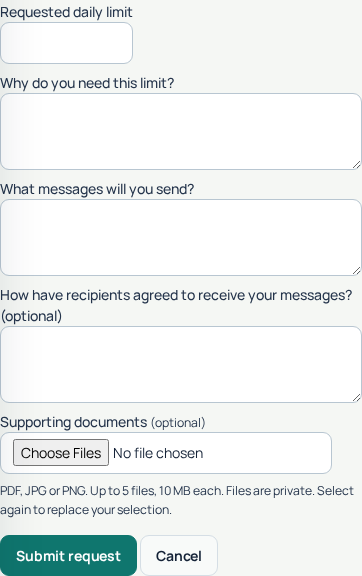
- Enter a positive whole number in Requested daily limit. This is the daily limit you are asking for, not an amount of money or an extra allowance to add to the current limit.
- Complete Why do you need this limit? with the expected volume and business reason.
- Complete What messages will you send? with a specific description, such as appointment reminders and rescheduling notices.
- Use How have recipients agreed to receive your messages? (optional) to explain the actual consent process. Do not describe consent that you have not obtained.
- Attach relevant supporting evidence if useful, then select Submit request.
The reason and message-purpose fields are required. The consent-explanation and initial document fields are optional in the form; a reviewer can still request further information. Text fields accept up to 4,000 characters. A clear, short explanation is more useful than unrelated background.
An example explanation is: “We send appointment reminders to existing patients who opt in during booking. Our current peak is 240 reminders per day; we request 300 to cover rescheduling. We stop reminders when a patient withdraws consent.” Adapt the numbers and process to what your business actually does.
4. Add supporting documents when relevant
The form accepts PDF, JPG and PNG, up to five files per submission and 10 MB per file. Files are private review attachments. Supply documents relevant to the request or the reviewer’s question, and avoid unnecessary customer details or credentials.
Select all intended files together: choosing files again replaces the current selection. A renamed extension does not convert an unsupported file type. If an upload fails, check its real format and size before retrying.
5. Track the review and respond in the same request
The list shows the requested SMS/day amount, status and submission time. Select View to read the note, conversation and attachments. Use Older requests or Older messages if those controls appear.
- Pending review: your request is awaiting a decision. Keep using only the allowance currently available.
- Information required: read the reviewer’s note, write Your response or attach the requested documents, then select Submit response.
- Approved: return to Messages and verify the current allowance before planning additional traffic.
- Declined: read the reason. If you have new relevant information, use Additional information for reconsideration in the same request.
A response needs text or a document. Once saved, it returns the request to Pending review; it does not approve the increase. If the page says the review changed, refresh and read the latest decision before replying again.
6. Verify the effective allowance before resuming traffic
- Reopen SMS → Messages after approval.
- Check the displayed daily allowance and usage. Refresh if the old value is still shown.
- If the approval and current allowance disagree, ask Support to check the request; include its details and the observed values privately.
- Resume your authorized workload in controlled batches and monitor message results. Keep normal message/destination validation and delivery tracking in place.
A higher daily limit does not provide free SMS, replenish balance, approve a Sender ID, remove a Communication review, guarantee destination support or increase an API rate limit. Do not spread the same workload across repeated submissions to bypass a restriction.
Troubleshooting and common questions
Why does New request open or refer to an existing request?
A pending limit request already exists. Review its current state and answer there if information is required. A duplicate does not speed up approval.
How long does approval take?
This guide does not promise a fixed review time. Check the request’s status and contact Support if you need clarification about a planned send.
Can I send the extra volume while the request is pending?
No. Base your workload on the currently effective allowance. Requesting a number is not permission to use it.
What if sending still fails after approval?
Use the exact error to separate daily allowance from balance, encoding, destination or account-policy issues. The SMS sending guide and Communication review guide cover the adjacent workflows.