
Choose the contact first
Open the contact profile’s Appointments section, or load the intended contact in Agent Workspace and choose Follow-up. Check the name and phone number before entering details. Your permissions determine which contacts and appointments you can manage.
Create an appointment
- Choose the date and time using the form. Check your selected account timezone before saving, especially when working across countries or around daylight-saving changes.
- Write a short description explaining the reason and next action. The Workspace description is limited to 200 characters; use a saved contact note for longer context.
- Select Create appointment and wait for confirmation.
- Check the appointment in the contact’s activity or appointment list. Do not create it again simply because a notification has not arrived.
A saved appointment is a follow-up record, not proof that the customer received a calendar invitation, that a call has been placed or that another employee accepted responsibility. Agree who will handle it and leave clear contact notes.
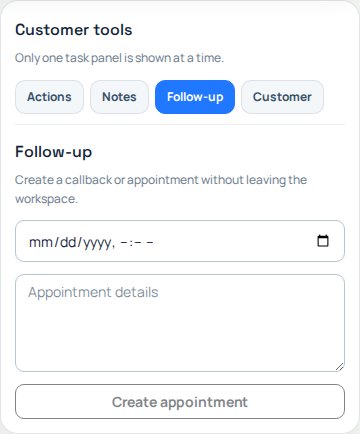
The Follow-up panel contains the date, time and short description for an appointment. Select a contact first: Create appointment is disabled in this empty workspace. Open the image for a larger view.
Reminders and visibility
Review appointment notification preferences in Account settings where available. The owner’s team policy and your allowed preferences determine notifications and reminder timing. Device notification permissions also matter. Reading a reminder does not complete the follow-up, and a reminder is not an incoming-call alert.
Use the contact and dashboard appointment views to check saved work. If an appointment is missing, check the contact, account, permissions and timezone before creating another record.
Change plans without duplicate callbacks
The current Portal flow offers creation and deletion; do not assume there is a general Reschedule or Mark complete button. To replace an ordinary appointment, review the old entry, remove it using the available action if authorized, confirm the result and create the corrected entry. Deleting a record does not notify the customer that plans changed.
A campaign callback is different: record it through the campaign’s callback/disposition flow with the required time. Do not use an unrelated appointment to change campaign dialing behavior. If you need to change a queued campaign callback and no suitable action is offered, ask your supervisor or Support rather than resetting all contacts.
Related: Agent Workspace and campaign operation.