
Check the current call state
Open Contact Center → Agent Workspace. Review the current line, caller and status before using the call controls.
If the phone is active on another device, resolve the intended calling session before trying to place a call. Use Full phone for the full webphone and its device controls.
Use the contact worklist
Search
Find a contact, company or number and load the intended record.
Recent
Return to contacts from recent work.
Pinned
Find contacts you have pinned for access.
Queue
Review deferred callers waiting in the workspace worklist.
The workspace states that an exact incoming match can open automatically. If no contact is loaded, search and confirm the person before saving information.
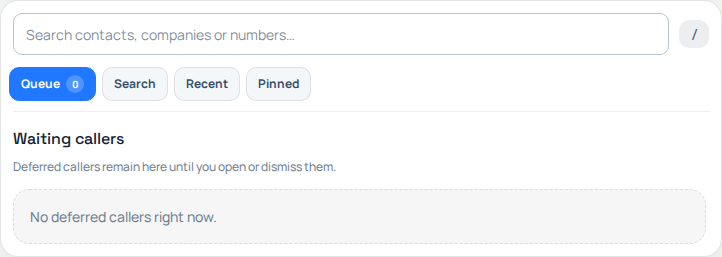
Use Search, Recent, Pinned and Queue to find the intended contact or deferred caller. This captured Queue view is empty; no contact or call was opened. Open the image for a larger view.
Work with the loaded contact
The Customer tools area shows one task panel at a time: Actions, Notes, Follow-up or Customer.
Actions follow the current customer and call state. Use the full-profile or edit-contact link when you need more context. A disabled call control is a reason to check the current state, not to repeatedly retry it.
Save notes and arrange follow-up
The Notes panel lets you draft locally while speaking, then use Save note to attach the note to the contact. Treat a local draft as unfinished until it has been saved.
Use Follow-up for the next action and review the details shown before confirming it. Appointment reminder preferences control timing and delivery channels separately from browser call alerts.
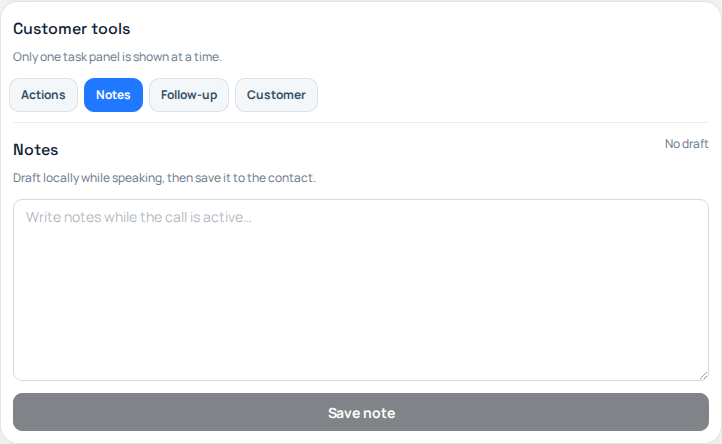
Customer tools shows one task panel at a time. Notes are drafted here and saved to the selected contact. Save note is disabled in this empty workspace; no customer note was created. Open the image for a larger view.
Leave useful context for the next person
Before moving to another contact, check that the intended record is still loaded, save any final note and confirm the agreed next action.
For a workspace problem, report the browser, time and timezone, current status and relevant call or contact reference. Keep credentials and unrelated customer records out of the request.
Finish the contact work before moving on
A note drafted while speaking is not saved until you select Save note and receive confirmation. Check the loaded contact before saving, scheduling a follow-up or placing a call. Opening another contact is not the same as transferring the conversation to another person.
For a campaign contact, use the available outcome or callback controls and supply any required follow-up time. A note is not a call disposition. Keep a short, factual handoff: reason for contact, agreed action and who will follow up. See appointments and follow-ups for timing and reminders.