
When an IllyVoIP phone or PBX works on another network but fails behind a FortiGate, identify the policy and SIP inspection path before changing the firewall. FortiOS can process SIP through a VoIP profile, a legacy session helper or other inspection settings. Removing one setting does not necessarily remove the other processing.
This guide is for the administrator of the affected firewall. It uses the FortiOS 7.6 documentation model; confirm the installed release, virtual domain and configuration ownership before running commands. Keep a private backup and an agreed maintenance window for any change that could interrupt calls.
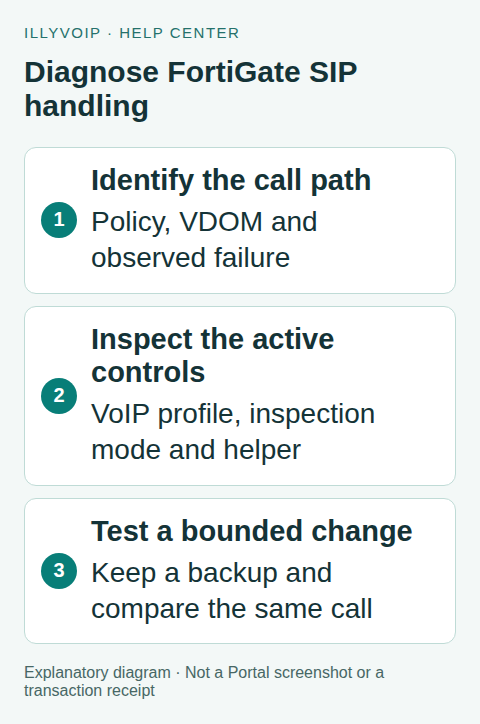
1. Define a single failing call
Record the direction, time and timezone, endpoint model, SIP transport and IllyVoIP public call reference. State the actual symptom: registration timeout, rejected call, one-way audio, failed transfer or disconnection after answer. Those symptoms are not interchangeable.
From Services → SIP Lines, obtain the intended line’s current server and connection settings. Compare the same device and destination on a working path if possible. A browser speed test does not establish that SIP signaling and media are reaching the PBX correctly. Use only an authorized test destination; ordinary calls can incur charges.
2. Find the matching policy
Use the FortiGate’s traffic/session information to identify the policy that actually matches the phone or PBX. Check the source network, destination, interfaces, NAT and selected transport. A policy with the right name may not be the policy handling this connection.
Within the correct virtual domain and administrative context, these commands illustrate read-only inspection. Replace the policy ID with the observed value:
get system status
show full-configuration system settings
show firewall policy YOUR_POLICY_ID
show system session-helper
show voip profile
Review output privately; configuration dumps can expose network details. Find default-voip-alg-mode, any policy voip-profile or ips-voip-filter, and the actual SIP session-helper entry. Do not assume that an entry numbered 13 on another appliance is the same entry on yours.
3. Understand which component is active
In the documented FortiOS model, proxy-based selects SIP ALG behavior where the policy does not override it. kernel-helper-based can select the legacy helper in the appropriate policy combination. An applied VoIP profile or IPS VoIP filter changes that decision.
Changing only the global mode is therefore not a reliable “disable everything” procedure. Likewise, a profile with SIP inspection disabled can still leave helper processing in use. Follow the official table for your release and write down the current combination before deciding which component to investigate.
Encrypted signaling also matters. A trace of TLS application data will not show readable SIP headers. Do not disable TLS or SRTP merely to make this comparison easier; use an authorized endpoint log or an appropriate diagnostic provided by the administrator.
4. Compare evidence across the firewall
Collect a short, approved diagnostic around one test. Compare the signaling addresses, Contact information and SDP media addresses visible at the appropriate points. Look for an address or route that became unreachable, an unexpected rewrite, a blocked response or media that does not return.
Keep the capture location with the result. A packet missing from one capture does not prove it never existed elsewhere. A successfully registered phone also does not prove that in-dialog signaling or RTP works. If the observed fault is simply a missing permitted route, repair that route rather than changing SIP inspection without evidence.
5. Make one controlled correction
- Save the current matching policy, profile/helper settings and the reason for the proposed change.
- Choose the release-specific Fortinet procedure for the component that the evidence implicates.
- Prefer a narrowly scoped policy/profile adjustment when the release and topology permit it. A global helper change can affect other SIP users.
- Arrange how the affected test session will be recreated. Existing sessions may continue to reflect earlier state; do not flush the entire session table just for this test.
- Apply the approved change through the firewall’s normal configuration process and repeat the same comparison.
This guide does not prescribe blanket ALG disablement. If the change does not improve the observed fault, restore the saved configuration before trying another theory. Do not combine a firewall change with new phone codecs, new credentials and a different SIP server.
6. Verify the complete call path
Check registration, outgoing and incoming calls, two-way audio, clean hangup and any transfer/hold action that originally failed. Keep the call active beyond the previous failure point if it disconnected after a consistent interval. Verify other affected users during the maintenance window.
For Support, provide the IllyVoIP call reference, FortiOS version, matching policy ID, transport, sanitized comparison and exact before/after observation. Exclude credentials, SDES key material and unrelated traffic.
Frequently asked questions
Is SIP ALG always the cause?
No. The same symptoms can come from routing, endpoint configuration, media policy or a remote call leg. The inspection path is one hypothesis to test.
Should I open all UDP ports?
No. Use the documented connection requirements and a scoped firewall policy. Broad access obscures the cause and is not a diagnostic result.
Related guides and references
- Check SIP ALG on TP-Link Deco When Troubleshooting IllyVoIP
- Fix One-Way or Missing Audio on SIP Phones and PBXs
- Official reference: docs.fortinet.com
Reviewed 8 October 2026 using current IllyVoIP implementation and official references. Check your installed version and account options before applying settings. Examples do not certify a physical device or completed live integration.