
If a Yealink T54W shows Do Not Disturb, turn DND off for the affected line and then test the incoming path. DND is one possible reason a phone does not alert; the same symptom can also come from registration, ring volume or the destination configured for your IllyVoIP number.
This guide covers the T54W’s standard SIP-phone interface, using Yealink’s current DND instructions checked October 9, 2026. Provisioned firmware can change the controls or synchronize DND with a management system. It is a documentation-based walkthrough, not a claim that this particular phone was hardware-tested here.
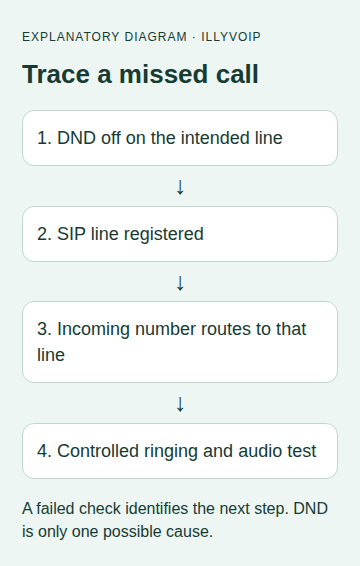
1. Identify the affected line and symptom
Before changing anything, note the incoming IllyVoIP number, the T54W line that should receive it and what the caller hears. Check whether the screen shows a DND indication and whether that line is registered. If the phone has several accounts, another working line does not prove that the intended IllyVoIP line is ready.
- DND: a call-handling setting that can prevent normal incoming alerts.
- Mute: concerns your microphone during a call; it is not the same as DND.
- Ring volume: the phone may receive a call but be too quiet to hear.
- Registration: an unregistered line needs a connection check even if DND is off.
Record the starting state so you can tell which change made a difference. Avoid a factory reset: it can erase a working configuration and create a second problem.
2. Disable DND using the T54W controls
- On the phone, press DND if that control is shown, or open Menu → Features → DND.
- Select the intended line if the phone asks which account to change.
- Disable DND and save/confirm if prompted.
- Return to the idle screen and check that the relevant DND indication has disappeared.
These are the T54W steps in Yealink’s DND instructions. Follow the line or phone scope actually displayed. Do not assume a change on one account disabled DND on every account.
If the control is missing, unavailable or immediately returns to its previous state, ask the person who provisions the phone to check its DND policy and synchronization. Do not repeatedly overwrite managed settings, guess an administrator password or use an undocumented star code.
3. Check ringing without changing the SIP account
With the phone idle, check that its ringer volume is audible and that the intended account remains registered. Keep the existing SIP server, authentication and transport settings unless you have evidence they are wrong. Turning DND off does not require replacing credentials.
If the account is unregistered, follow the Yealink setup guide. Use the actual SIP details for that line, not the Portal login password. Do not disable a firewall or expose the device’s administration interface to the Internet as a ringing fix.
4. Verify the IllyVoIP incoming destination
- In IllyVoIP, open the incoming number and inspect its saved destination.
- Check that the route reaches the SIP line used on this T54W, directly or through the intended queue/menu.
- If a queue, schedule or Voice Agent is in the path, inspect that path rather than assuming a phone setting controls it.
- Check the number’s current availability and any notice shown in the Portal.
The incoming-number destination guide explains these checks. A registered phone and an active number still need to be connected by the correct route.
5. Make one controlled incoming test
Arrange a test from a number you control or with an authorized colleague. Normal call charges may apply. Call the incoming IllyVoIP number and note the time, then check:
- Does the T54W display the incoming call on the expected line?
- Is the ringer audible?
- Can you answer and hear audio in both directions?
- After hanging up, does the phone return to its normal registered state with DND still off?
A successful direct call to the phone does not test every menu or queue path. If your customers use an incoming number routed through other components, include that actual route in the test.
If the phone still does not ring
- Incoming call appears silently: check the ringer and local audio settings. This differs from a call that never reaches the phone.
- Caller receives busy/rejection: check DND on the correct account and the route’s rejection behavior. The symptom alone does not identify its origin.
- Phone receives no indication: compare the saved number destination, SIP registration and available call records.
- DND returns: investigate provisioning or synchronization with the device administrator.
- Call answers but has no audio: handle that as a media-path issue, not evidence that DND remains enabled.
For Support, collect the T54W firmware version, affected line identifier, timestamp/timezone, incoming number and the result of each check. Share sensitive call details privately and never include the SIP password.
Common questions
Can I use an IllyVoIP dial code to turn DND off?
This guide does not specify a DND dial code. Use the documented phone controls or the provisioning policy for your deployment.
Does disabling DND fix every missed incoming call?
No. It removes a local condition only when DND is the cause. Registration, destination routing and audible ringing need their own checks.