
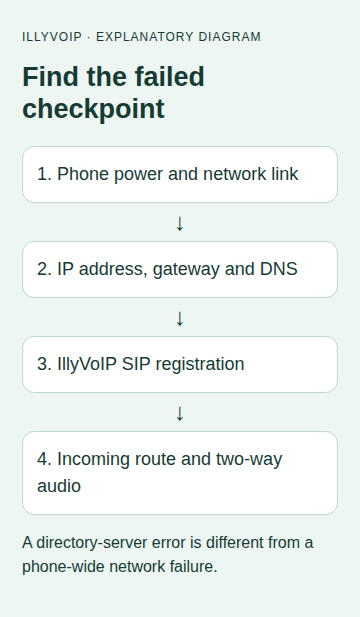
If a Yealink phone displays Network unavailable, start with the connection between the phone and the network. Replacing the IllyVoIP SIP password will not repair a disconnected Ethernet cable or a missing DHCP address.
This walkthrough is for Yealink SIP desk phones, with the T54W as the physical setup example. Menu wording varies by model and firmware. It helps separate a local network problem from SIP registration and call failures; it does not assume that every unavailable message has the same cause.
1. Identify where the message appears
Record the exact text and where you see it. A message on the idle/status screen is different from a failure while opening a remote phonebook. The phonebook can fail to reach its directory server while SIP calling still works.
Check whether the phone has an IP address and whether any configured line is registered. If calls already work but a directory does not, use the directory troubleshooting path instead of replacing SIP settings. If the phone is registered but outgoing calls are rejected, use the outgoing-call guide.
2. Check power and the physical link
- Confirm that the phone has stable power through its supported adapter or PoE connection.
- Check that the office network cable is connected to the phone's network/Internet port, not only its PC pass-through port.
- Inspect the cable and network socket. Reseat an obviously loose connector without disturbing a call.
- Ask the network administrator whether the switch port is enabled and assigned to the correct network.
- If permitted, compare with a known-working cable or switch port in the same intended network.
A lit display proves that the phone has power; it does not prove a data link. A working laptop attached to the phone's PC port can also follow a different VLAN policy, so it is evidence to investigate rather than proof that the phone's voice network is correct.
3. Inspect the assigned network information
Open the phone's status/network information and note the address, subnet, gateway and DNS settings. On the T54W, the idle-screen status shortcut can help you find the current address. Use your installed firmware's status menu if the shortcut differs.
| Observation | Next check |
|---|---|
| No address or an address inconsistent with the intended network | Ask the administrator to check DHCP, the switch port and VLAN assignment. |
| Address looks appropriate, but local management is unreachable | Compare the computer's network, management access rules and the exact current phone address. |
| Local access works, but external destinations do not | Check gateway, upstream access and applicable network policy. |
| IP connectivity works, but the SIP hostname cannot resolve | Investigate DNS separately using the DNS troubleshooting guide. |
Do not copy a colleague's static address: duplicate addresses create another failure. Do not guess a voice VLAN or disable its policy. If the installation uses DHCP options, LLDP or provisioning, the administrator should check which authority supplies each setting.
4. Check Wi-Fi separately, if you use it
For a Wi-Fi-capable SIP model, confirm that it joined the intended network and obtained usable network settings. A guest network may require a captive-portal login or prevent access needed by a phone. Correct Wi-Fi credentials are not enough if network policy blocks the service.
Where authorized, compare with a wired connection on the intended office network. Keep the result precise: if wired works and Wi-Fi fails, investigate that difference before changing the SIP account. Do not infer that any public Wi-Fi network is an appropriate replacement.
5. Check the IllyVoIP endpoint after connectivity works
In the Portal, open Services → SIP Lines → Technical endpoints and compare the configured regional hostname, destination port and transport with the phone. Use the hostname for TLS rather than replacing it with an IP address to bypass a DNS or certificate problem.
Now inspect the intended account's registration. If network connectivity is restored but registration still fails, preserve the exact SIP error and follow the registration guide. Local network access, SIP authentication and call authorization are separate checkpoints.
The Portal's connection test runs from the device/browser that opens it. A passing test on a laptop does not prove that a desk phone on another VLAN has the same access. Treat it as supporting evidence with its location clearly recorded.
6. Confirm the repair through the normal call path
Once the phone has stable connectivity and registration, make a controlled outgoing call and an incoming call through the intended IllyVoIP number. Check rates first; normal charges apply. Confirm two-way audio and record the successful test time.
For an intermittent issue, note whether it returns after an idle period, a network switch or a power cycle. Change one variable at a time so you can explain what actually improved the result.
What to send to Support or your network administrator
Provide the model/firmware, message location, wired or Wi-Fi connection, when it began, whether the phone has a valid address, registration state, and the result of an authorized comparison test. Share private network details through the appropriate private channel. Include a public call reference only if a call attempt reached the stage that produced one.
A factory reset, broad firewall disablement or a new SIP password is not the starting point for this symptom. Preserve the working configuration and investigate the failed checkpoint first.
Related guides and references
- Set up a Yealink desk phone with IllyVoIP
- Fix SIP Registration Failed on an IllyVoIP Phone or PBX
- Test your connection to IllyVoIP
Reviewed 9 October 2026 against current IllyVoIP source and the linked documentation. Use the settings available to your account and installed version. These instructions are not a claim of a completed physical-device or live-service test.