
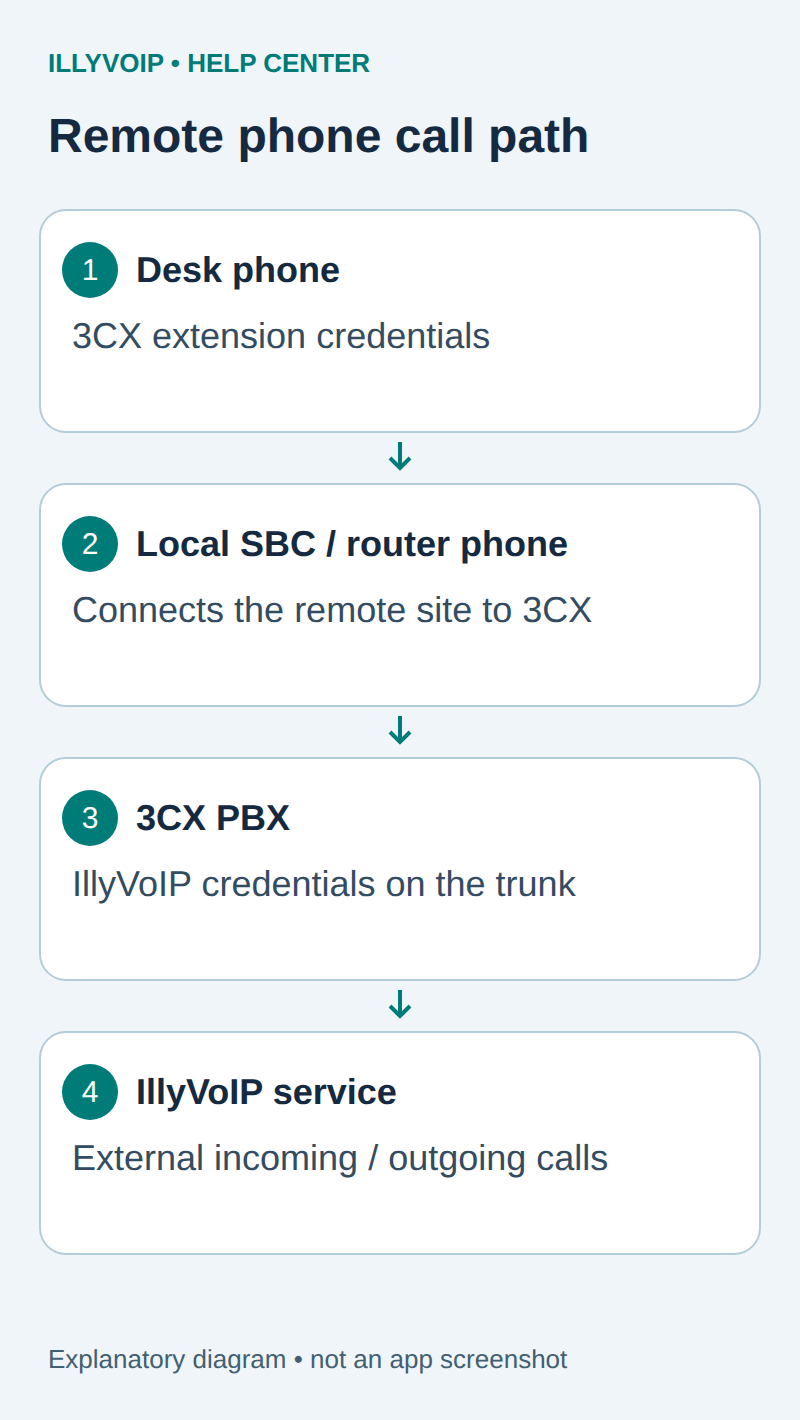
If your desk phones are in a different location from your 3CX PBX, connect them through a supported 3CX SBC or router phone, then use the PBX’s IllyVoIP trunk for external calls. The desk phones use 3CX extension credentials. Your IllyVoIP SIP credentials stay on the PBX trunk.
This guide covers the remote-phone side of a 3CX V20 deployment. First complete our 3CX trunk and outbound-rules guide. Follow the current 3CX documentation for your edition, hosting arrangement, operating system and exact phone model; access to generic trunks and administrative controls depends on that deployment. This is not a claim that IllyVoIP is a 3CX-certified provider.
1. Establish a working baseline
Before adding remote phones, confirm that a known working 3CX extension can make an external call through the intended IllyVoIP trunk. If you need incoming calls, also check that an active IllyVoIP number reaches the correct PBX destination. A new SBC cannot repair an unconfigured trunk or a missing incoming-number destination.
- Have administrator access to 3CX and the remote site’s network, plus a supported phone and a test extension.
- Record the PBX version, public FQDN and hosting arrangement. Use its configured hostname, not an IP address copied from an example.
- Keep a backup of the PBX configuration and a record of the phone’s existing assignment. Reprovisioning can replace the phone’s current settings.
- Choose one test phone before migrating a whole office. Arrange a change window if that phone already carries calls.
- Confirm the IllyVoIP account’s balance, permitted caller ID and intended destination rate before a chargeable test.
2. Choose a dedicated SBC or a router phone
A dedicated SBC is a separate always-on machine at the phone site. A router phone is a supported IP phone that also provides the SBC function for nearby phones. Ordinary phones do not gain this role simply because they have two Ethernet sockets.
Check the current SBC guide and phone provisioning guide for supported hardware, firmware and sizing. Assign the chosen SBC device a stable LAN address. Consider the effect of switching off, moving or rebooting a router phone: other phones using it can lose their PBX connection.
The SBC belongs on the phones’ local network. It does not replace the IllyVoIP trunk, turn the PBX extension password into a provider password, or let a phone register directly to IllyVoIP using the 3CX provisioning URL.
3. Add and install a dedicated SBC
- In the 3CX Admin Console, open Voice & Chat → Add SBC and select the machine type.
- Keep the generated provisioning URL and Authentication Key ID private. These are SBC provisioning details, not the IllyVoIP SIP username and password.
- Download the supported installer or image through the official 3CX guide. Follow that platform’s current installation procedure on the machine at the phone site.
- Enter the provisioning URL and authentication key when the installer requests them. Verify the PBX hostname before submitting them.
- Check that the SBC appears in 3CX and becomes available when assigning a remote phone. If it remains disconnected, resolve its DNS, time, network and provisioning problem before proceeding.
For a router-phone deployment, use the model-specific router-phone provisioning procedure instead of installing the dedicated SBC package on another device. Keep to the firmware version supported by your 3CX release.
4. Provision the test phone to its 3CX user
- Open Admin → Users, select the intended user and open IP Phone.
- Choose Configure a phone. Follow the provisioning flow for the exact supported model and enter the requested device identity accurately.
- For a remote phone, select the SBC or router phone at that phone’s site. Do not select one at another branch merely because its name is similar.
- Complete the model-specific provisioning steps. Allow the phone to restart if the supported procedure requires it, then check its registration in 3CX.
- Call another internal extension. Confirm ringing and speech in both directions before testing the external trunk.
If the supported procedure requires manual configuration, 3CX displays the extension number, authentication ID, password, PBX FQDN/port and remote proxy details. Use those displayed values. Do not substitute IllyVoIP credentials on the desk phone. Avoid publishing provisioning URLs, QR codes or device credentials in screenshots.
5. Verify calls through IllyVoIP
From the remote test extension, call a number you control. Confirm that the intended 3CX outbound rule matches this extension and dialed number, transforms the digits correctly, and selects the IllyVoIP trunk. Check two-way audio, authorized caller ID and a harmless keypad-menu selection separately.
For inbound testing, call the IllyVoIP number from another telephone. Verify its saved destination in IllyVoIP, then the DID mapping and receiving user or group in 3CX. Answer on the remote phone and check speech both ways. Registration, an SBC connection and successful internal calls are useful checkpoints, but none individually proves that the public incoming route works.
Record each test’s time and timezone, extension, called number, selected trunk and available public call reference. Ordinary calling charges apply.
6. Locate the failing part of the path
- SBC unavailable: check its power, LAN address, DNS, provisioning details and the documented PBX connectivity requirements.
- SBC connected but phone unregistered: check the user assignment, exact model/firmware, local phone network and selected SBC.
- Internal calls work; external calls fail: inspect the 3CX outbound-rule match, trunk state and IllyVoIP account, destination and caller-ID checks.
- Outgoing calls work; the incoming number does not ring: inspect the number destination and PBX inbound routing, user status and office-hours path.
- Calls connect without usable audio: determine whether the failure also affects internal calls, then follow our audio troubleshooting guide. Do not disable the firewall as a shortcut.
If a change makes service worse, return the test phone to its recorded assignment using the supported provisioning procedure. Do not restore an old whole-PBX backup over other administrators’ newer changes without reviewing the impact.
Completion and reference
Finish when the phone registers to 3CX, internal calls work, an authorized outgoing IllyVoIP call works, and the intended incoming number reaches the phone with two-way audio. Keep the trunk setup and SBC setup as separate records so future troubleshooting starts at the right connection.
Instructions checked against official 3CX documentation on October 11, 2026. The diagram explains the connection path; it is not a screenshot or evidence of a tested customer installation. Also see the 3CX Firewall Checker guide when its tests are relevant to your deployment.