
The 3CX Firewall Checker tests parts of the PBX's network and NAT configuration. It can help investigate port translation and reachability problems on a system using an IllyVoIP trunk. It does not validate your IllyVoIP credentials, caller ID, destination rate or every part of call audio.
Schedule a maintenance window: running the checker stops and restarts PBX services. It is not a passive status page. Arrange the test with the PBX owner, account for active and incoming calls, and have a recovery path before selecting Start.
This guide follows the current 3CX Admin Console documentation for deployments where you administer the PBX and its network. Hosted services and restricted editions may not expose the same controls. If a hosting provider owns the firewall, have it perform the relevant checks.
1. Establish what you are testing
Record the 3CX version, deployment type, public address arrangement and affected call symptom. A remote phone at home, an office SBC and a cloud-hosted PBX can use different network paths. Running the checker on the PBX does not certify every remote user's router.
Save the current firewall/NAT configuration through the network device's normal backup process. Note who can restore access if a change goes wrong. Avoid combining this investigation with a PBX upgrade, trunk migration or unrelated security-policy change.
Confirm the current requirements in 3CX's firewall/router guide and the actual port configuration on your installation. The PBX's required media range is not necessarily the same as a handset's range or IllyVoIP's provider-side endpoints. Do not copy a universal range from a forum.
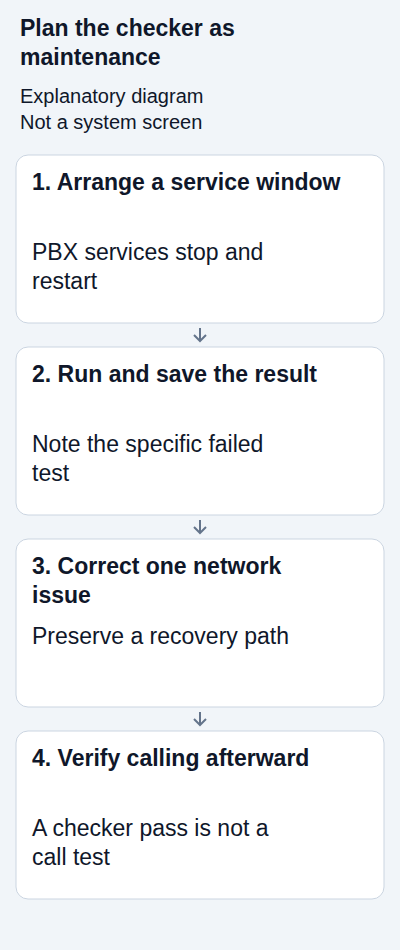
2. Run the checker at the agreed time
- Sign in to the 3CX Admin Console with an authorized administrator account.
- Open Dashboard and locate Firewall Checker.
- Read the on-screen information and confirm the maintenance window is active.
- Select Start and let the tests complete. If you must stop the run, use its Stop control and then confirm normal PBX services recover.
- Save the results with the time, PBX version and network configuration used.
If your console does not show the documented control, check the administrator role, version and hosting arrangement. Do not search for an unofficial script that imitates the checker against production ports.
3. Interpret the failed test, not just the red result
The checker uses STUN exchanges to examine the public address and port mappings. Its configured test server and allowed test endpoints must be reachable under the current 3CX requirements. A failed STUN test is not an IllyVoIP authentication rejection.
- No expected reply: inspect outgoing and return traffic at the PBX and firewall. A missing reply in one view does not prove which device discarded it.
- Port preservation failure: compare the local source port with the public mapped port. The relevant NAT rule may be translating it unexpectedly.
- Full-cone test failure: investigate whether the expected reply from a changed source address/port can reach the mapped PBX port under the documented test conditions.
- Failures in only part of a range: check for incomplete or overlapping rules, another service using the ports, and which range the PBX actually expects.
The checker samples parts of the media range rather than exercising every possible call and port. A pass does not excuse gaps in the full configured range. Match the complete installation requirements with your administrator.
4. Check each network layer that can change the result
Follow the path from the PBX through its host firewall, cloud security rules where applicable, edge router and any upstream NAT. Two routers can each translate traffic. Carrier-grade NAT may prevent you from controlling the public mapping even when your own router looks correct.
On a multi-WAN network, verify which interface carries the test and whether replies return consistently. A port forward on one WAN does not establish the path used by another. Confirm the PBX's current public address settings against the actual deployment.
Review SIP ALG or inspection behavior only when the evidence and device documentation justify it. Keep a record of the original setting. Disabling every inspection feature or placing the PBX in an unrestricted DMZ is not a focused repair.
5. Apply one bounded correction
Have the network administrator correct the demonstrated rule, translation or path issue. Use current vendor documentation for the specific router and firmware. Limit exposure to the requirements of your deployment, and keep administration interfaces protected.
If test traffic itself needs an exception, obtain the current endpoints from 3CX's documentation rather than copying a historical address list. Do not confuse those STUN test endpoints with IllyVoIP SIP/media addresses.
Keep the previous configuration available. Repeat the checker only within the maintenance window because another run can interrupt services again. Compare the same test and record what changed; a different result after several simultaneous changes does not identify which one helped.
6. Verify the PBX and IllyVoIP calls afterward
Confirm that PBX services, extensions and the intended trunk have returned to their expected state. An IP-authenticated trunk can operate without registration, so a status indicator alone is not proof of a working call path.
Make one authorized outbound call through IllyVoIP. Check the intended destination, caller ID and two-way audio, then review the call report. If you use an incoming DID, call it from another phone and confirm the correct PBX destination rings. Include a remote extension test if that was the affected workflow. Normal charges can apply.
If the checker passes but calls still fail, use the call's actual response, routing and audio evidence. If the checker fails while an example call works, investigate the documented network mismatch rather than assuming every future call will work. These are different tests.
What to include in a support request
Share the 3CX version and hosting arrangement, affected workflow, failed test name, time/timezone and a cropped result. Include the matching IllyVoIP public call reference when there is one. Describe NAT layers and recent changes without exposing passwords, full configurations or unrelated customer addresses.
Can I run this during office hours? Only when the service interruption has been planned and accepted by the system owner. Opening the page is different from starting its tests.
Should I disable the firewall? Work with the administrator on the specific failed requirement. This guide does not use a blanket firewall shutdown as a diagnostic step.
Related guides and references
- How to Set Up 3CX with Illyvoip
- Fix One-Way or Missing Audio on SIP Phones and PBXs
- My SIP phone is registered, but outgoing calls fail
- Capture a SIP call trace for IllyVoIP Support with Wireshark
- 3CX Firewall Checker: operation and results
- 3CX firewall and router requirements
Reviewed 10 October 2026 against current IllyVoIP guidance and the official references above. Version-specific commands and menus need to match your installation. This guide does not claim a completed call test on your PBX or network.