
Use the Ring extension on an Algo 8180 G2 to sound an alert when a designated IllyVoIP number receives a call. Ring mode plays an alert while the call is ringing; it does not answer the call and open a live microphone or paging path.
The 8180 also has Page and other alert functions. This walkthrough deliberately configures ordinary ringing. If the aim is to ring a desk phone and the alerter together, plan an explicit PBX ring group; do not assume two devices sharing one SIP password will both receive the call.
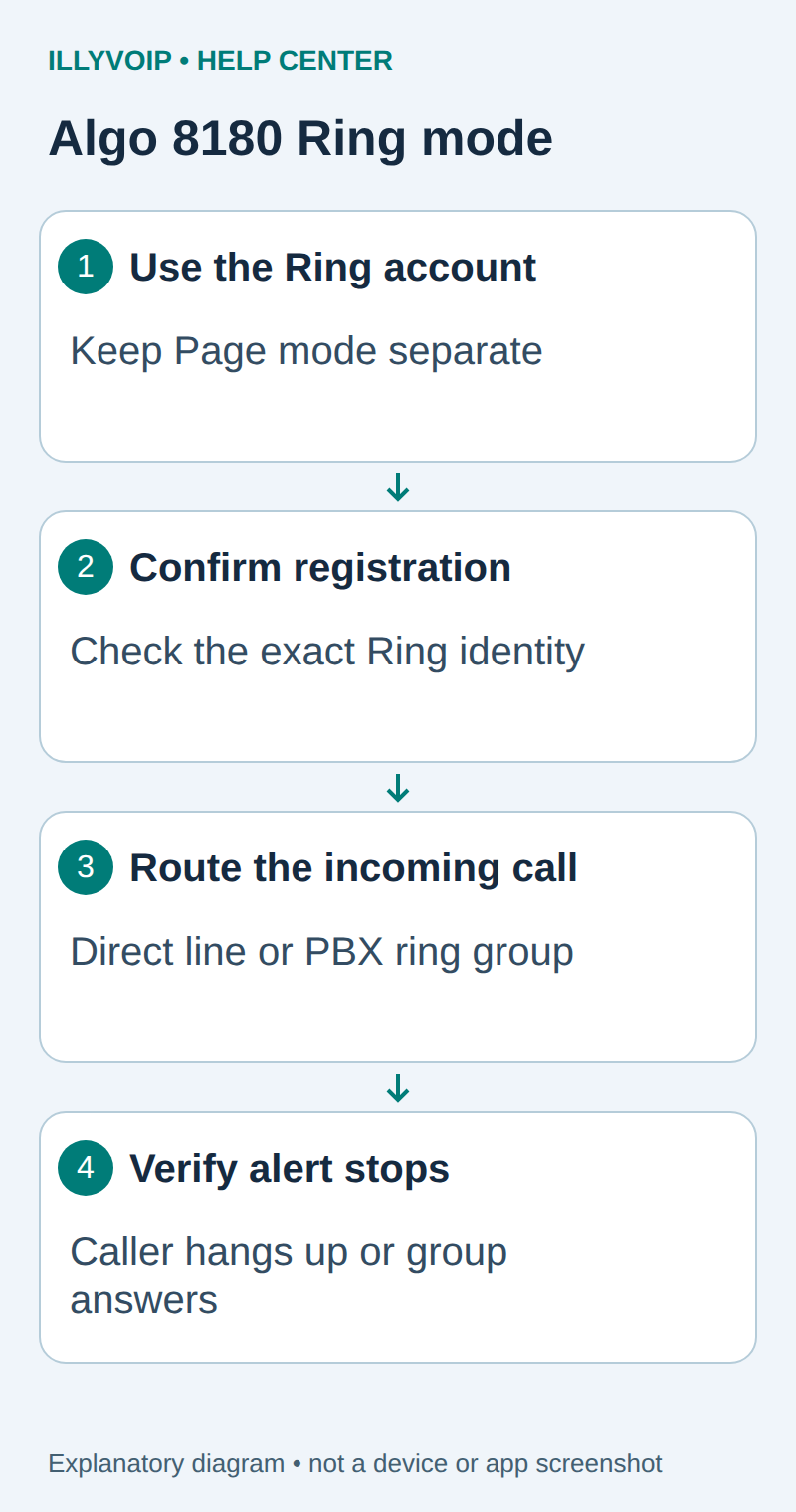
1. Prepare the device and the intended call path
Confirm the unit is the G2 model and record its firmware. The current G2 manual differs from the older G1 documentation. Connect the unit with the power/network arrangement specified by Algo and keep it on the permitted management network.
Prepare a dedicated password-authenticated IllyVoIP SIP line for this test. From Services → SIP Lines → Technical endpoints, obtain the hostname, port and transport. Record the SIP username/password privately and inspect the line's media policy. An active incoming number must be available if you intend to test calls from the public telephone network.
For a PBX deployment, the Algo uses a PBX extension and the IllyVoIP number reaches the PBX trunk. The ring group then calls the Algo extension alongside the appropriate phone. Keep these credentials and destinations distinct.
2. Open the web interface
- Allow the device to finish starting.
- Use the brief IP Addr button action described by Algo to hear its address, or find the known device in DHCP leases. Do not hold the reset button through its reset sequence.
- Open the local address in a browser and sign in with the administrator password.
- Check whether centralized provisioning or Algo Device Management owns its configuration before making local changes.
Choose a modest test volume and tell people nearby before ringing the speaker. Keep the management interface and configuration exports private.
3. Configure the Ring extension
Open Basic Settings → SIP. Use SIP Domain (Proxy Server) for the actual service hostname; follow the documented hostname/port format when a non-default destination port is required.
| Setting | Use for this guide |
|---|---|
| Ring/Alert Events | The mode that monitors ringing on its registered SIP extension, not an unrelated presence/dialog subscription. |
| Ring Extension | The intended SIP identity. |
| Ring authentication ID/password | The corresponding SIP username/password. Ensure you are editing the Ring credentials rather than Page credentials. |
| Page Extension | Leave unused for this ring-only test. |
Save and open Status. Confirm successful SIP registration for the intended Ring account. If the interface has multiple registration entries, identify the exact one instead of relying on another account's success.
Match the configured SIP transport to IllyVoIP. Keep TLS certificate checks when TLS is required. Ring-only behavior does not provide a two-way audio test; if the same device later handles answered calls, verify its media policy for that separate use.
4. Select the alert sound and route the incoming number
Use Basic Settings → Features for the documented alert tone and volume controls. Test the chosen tone locally first, then use an actual incoming call to test the SIP trigger. Keep multicast, relay and emergency-alert functions unchanged unless they are part of a separately designed installation.
In IllyVoIP, open the active incoming number and confirm its destination is the SIP line used by the Ring account. Save only the intended routing change when you are ready to test. For a PBX group, confirm the number reaches the correct inbound route and that the Algo's Ring extension is a member of the intended group.
A number routed only to a ring-only alerter has no answering person on that route. Use it as a dedicated alert test, or provide a deliberate answering destination through the PBX arrangement. The alerter is not itself a desk-phone replacement.
5. Verify ringing and stopping
- Call the designated IllyVoIP number from an authorized telephone.
- Confirm that the 8180 sounds the selected alert and that no Page audio path opens.
- Hang up and confirm that the alert stops.
- For a PBX ring group, repeat and answer on the intended phone; check that the alerter stops when the group call is answered.
- Repeat after a normal idle interval. Record the timestamp and call reference if the result differs.
Do not mark paging or two-way speech as tested by this result. A local button playing a tone proves only the local audio output, not incoming SIP delivery.
Troubleshooting
- No registration: check Ring credentials, hostname, transport and the actual error.
- Registered but silent: inspect the IllyVoIP number destination, selected Ring event mode and alert volume.
- Answers instead of ringing: check that the call reached the Ring identity, not Page.
- Phone rings but alerter does not: inspect the PBX group and the Algo's independent registration rather than duplicating the phone's account.
- Continues after another phone answers: inspect how the PBX cancels the other ringing group legs.
Retain the previous device and routing settings for rollback. Record model, firmware, Ring/Page configuration, timestamp and call reference without sharing passwords.
Reference: Algo 8180 G2 user guide. Reviewed October 11, 2026. This guide does not certify a physical installation or emergency-alert system.