
Use an Algo 8301 to deliver an authorized live announcement from your PBX to a compatible paging amplifier. The IllyVoIP trunk stays on the PBX; the 8301 registers as a private paging extension. This arrangement lets the PBX control who can open the speaker path.
This guide assumes a working IllyVoIP trunk, an administrator-managed PBX and a correctly installed amplifier. It covers ordinary live paging, not emergency notification, scheduled announcements or certification of a building sound system.
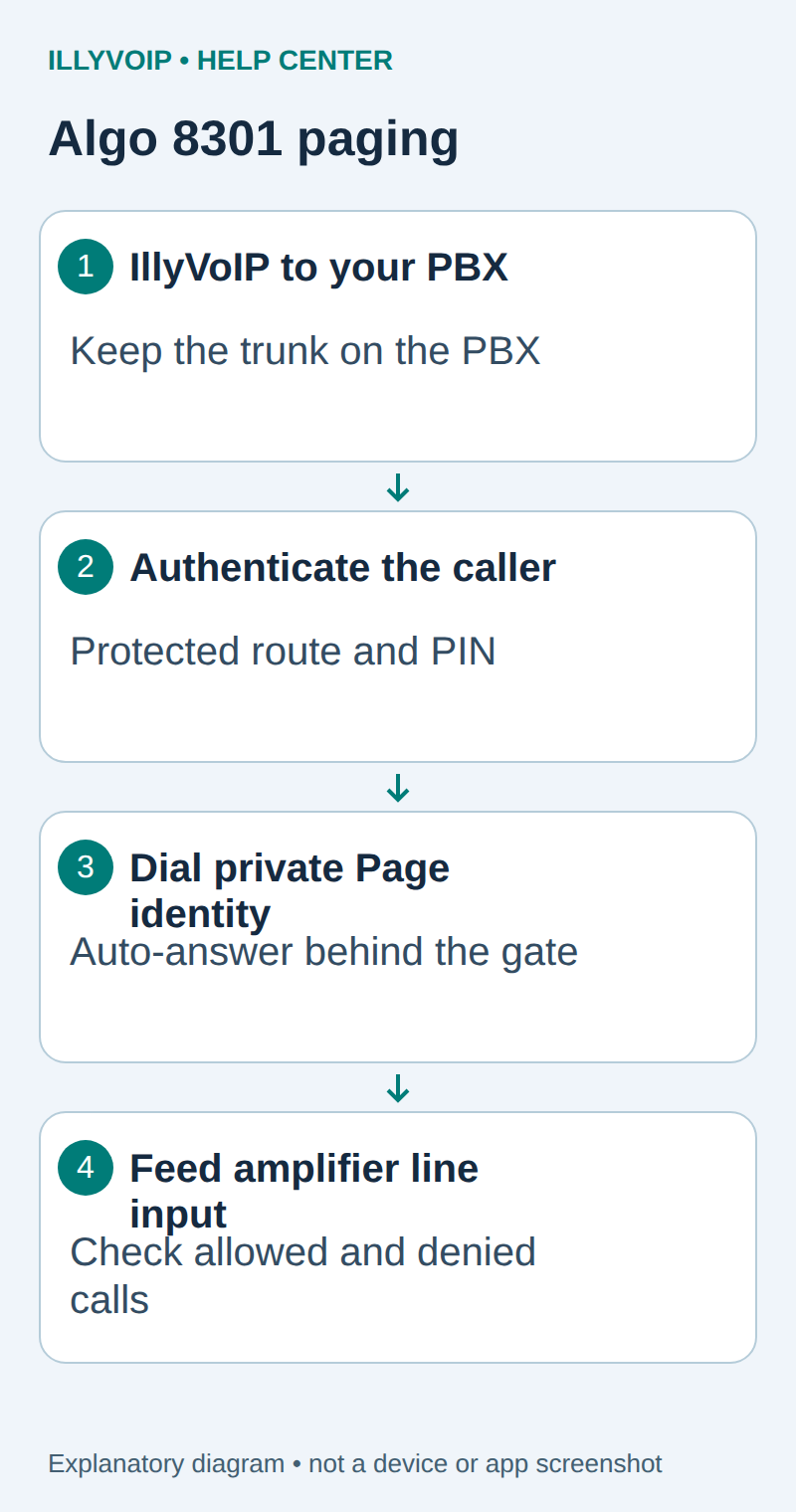
1. Prepare the adapter and audio connection
- Record the 8301 firmware and preserve its current configuration.
- Have the audio-system administrator connect the Line Out to a compatible dry audio input on the amplifier, following Algo's wiring and level requirements.
- Use the intended LAN and power arrangement and obtain the device's IP address from the network administrator or its documented discovery procedure.
- Open its web interface from the management network and sign in with administrator credentials.
The 8301 line output is not a power amplifier for passive speakers. Do not connect it to an amplified speaker output or to mains wiring. If the amplifier needs a separate activation contact, follow the documented adapter/amplifier integration for that equipment.
2. Configure the private paging extension
On the PBX, create the restricted password-authenticated PJSIP extension algo8301, or use your own consistent endpoint name. Record its registrar, transport and credentials. Do not put the IllyVoIP trunk password on the adapter.
In the Algo interface, open Basic Settings → SIP:
| Algo field | Value |
|---|---|
| SIP Domain (Proxy Server) | The private PBX registrar. |
| Page Extension | The dedicated PBX paging identity. |
| Authentication ID | The PBX extension's authentication identity. |
| Authentication Password | That extension's unique password. |
Match the PBX's supported port, transport and media policy in the corresponding SIP options, then save. Under Status, inspect this identity's SIP registration. The expected result is Successful.
Choose the Page identity for live speech. A Ring identity plays a configured alert and does not represent the same call path. Leave extra page identities, outbound dial triggers and multicast zones outside this initial setup unless the site has explicitly configured and protected them.
3. Restrict access before enabling paging
A paging adapter answers calls to its page identity automatically. That is how it creates a live announcement, and it is why a public incoming number must not lead straight to the adapter.
- Restrict the adapter's SIP network access to the PBX and management access to authorized administrators.
- Give the adapter a private PBX extension with a unique password. Its incoming dialplan context must have no external dialing privileges.
- Make the PBX accept calls into the paging route only from the intended trunk or authorized internal users.
- For an external entry point, require authentication before dialing the paging extension. Caller ID alone is not an access credential.
- Block unused direct-IP and multicast paging paths that could bypass the PBX policy.
The following Asterisk example belongs in your PBX's supported custom dialplan location. It uses an existing named PJSIP extension, a private PIN file and a fixed destination. It does not install or configure the IllyVoIP trunk.
[illy-algo8301-authorized]
exten => s,1,Answer()
 same => n,Authenticate(/etc/asterisk/private/paging-pins)
 same => n,Dial(PJSIP/algo8301,15,L(60000))
 same => n,Hangup()
Create the private PIN file with one strong numeric paging PIN per line, readable by the Asterisk service account and inaccessible to unnecessary users. Keep real PINs out of tickets, published examples and call logs. The PBX administrator must verify how its build logs dialplan application data before enabling the route.
Route only the approved incoming number or internal access code to this context's s extension. Do not include the context indiscriminately in every inbound route. Authentication must succeed before Dial runs; the destination is fixed, never derived from caller input. The example limits the answered paging bridge to 60 seconds. Review the PIN policy, retry controls and traffic restrictions for your deployment.
On a managed PBX, use supported custom routes and extension management. Do not edit generated configuration that the PBX will overwrite, and do not restart a production PBX just to load an article example.
4. Verify the allowed and rejected paths
- Choose a quiet maintenance window and warn people who may hear the speaker. Start at a low agreed volume.
- From an authorized internal caller, use the protected entry route and correct PIN. Confirm an announcement is heard clearly and the call ends normally.
- Repeat with an incorrect PIN and with no PIN. The adapter must not receive a paging call and no speech should reach the speaker.
- From an unauthorized internal source, check that direct dialing cannot bypass the protected route.
- If an IllyVoIP incoming number is intended for paging, confirm that it reaches the PBX gate first. Test the approved and rejected paths from an external telephone.
- Check the time limit and remote hangup. An abandoned call must not leave the speaker open.
External calls can incur charges. Registration success alone proves neither safe authorization nor a working amplifier. If a rejected test reaches the speaker, disable the new paging route and correct access control before putting it into use.
Troubleshooting and recovery
Adapter does not register: check its private PBX endpoint, identity, password and transport. PIN is rejected: check the file's format and permissions and negotiated DTMF delivery to the PBX. Call answers but speaker is silent: check amplifier input, level, mute/enable and the negotiated audio path. Unexpected announcements: investigate direct extension, direct-IP and multicast paths rather than just changing the public number.
Keep the original PBX route and device export privately. If the new setup fails, disable only its entry route and restore reviewed settings without overwriting newer changes. Record the time, firmware and failed stage for Support; omit credentials and PINs.
Reference: Algo 8301 official user guide. Reviewed October 11, 2026. The example requires installation-specific PBX, speaker and authorization acceptance; no physical-system test is claimed.