
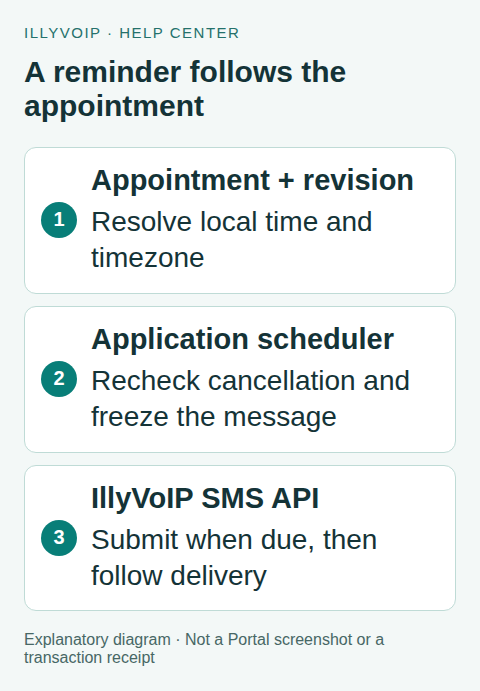
Build appointment reminders by scheduling jobs in your own application and using IllyVoIP’s SMS API when a reminder becomes due. The SMS endpoint sends a message when called; this guide does not describe a native appointment-to-SMS scheduler in the Portal.
This workflow is for developers who already have an appointment database and background worker. You need a reliable scheduler, controlled API credentials, an allowed sender, balance and a clear record that the recipient expects appointment notifications. Avoid putting sensitive medical, financial or personal details in SMS.
1. Store time and message identity explicitly
Keep the appointment’s local date/time together with its IANA timezone, such as Europe/Pristina, and store the resolved UTC instant. A fixed “UTC+1” offset cannot represent both standard and daylight-saving time. Ask for clarification if a local time is ambiguous or nonexistent when clocks change.
Decide whether “one day before” means exactly 24 elapsed hours or the same local clock time on the previous calendar day. Those rules can differ across clock changes. Apply the selected rule consistently, store the due UTC time and display the intended local appointment time in the message.
Give each reminder a durable identity derived from appointment ID, appointment revision and reminder type. For example, appointment-EXAMPLE-v3-day-before. Keep the stable idempotency key, exact recipient, sender and rendered text with that record. An application restart must not generate a different identity for the same reminder.
2. Design the queue before the send loop
| Record | Purpose |
|---|---|
| Appointment revision | Detect that the time, recipient or cancellation state changed. |
| Due time | Store when the worker should attempt submission, in UTC. |
| Frozen request | Keep the exact sender, destination and text for reconciliation. |
| Submission state | Distinguish pending, claimed, uncertain, rejected and accepted. |
| Message ID | Follow the accepted message’s delivery outcome. |
Use an atomic claim so only one worker owns a pending reminder. Set a unique constraint on the reminder identity. A lease that expires after a worker crash is not permission to send again: if the worker may already have submitted, move the record to reconciliation first.
3. Recheck the appointment at dispatch
- Claim a due reminder within a transaction.
- Read the current appointment revision and cancellation state.
- Skip obsolete reminders and record why. Do not send a reminder for an old appointment time.
- Check the recipient’s notification preference, the intended message and any quiet-hour rules your application uses.
- Freeze the final request and key, then persist a sending/uncertain state before calling the API.
Define a lateness cutoff: a worker recovering after a long outage should not send “tomorrow” after the appointment has already started. Quiet hours, cutoff and reminder timing are policies your application must implement, not undocumented IllyVoIP API parameters.
4. Submit the immediate SMS request
At the approved due time, POST the following shape to https://api.illyvoip.com/api/v1/sms/messages, with X-Api-Key, Content-Type: application/json and your persisted Idempotency-Key. Replace every placeholder from the frozen reminder record.
{
  "from": "YOUR_ALLOWED_SENDER",
  "to": ["AUTHORIZED_INTERNATIONAL_NUMBER"],
  "message": "Reminder: your appointment is on 14 October at 10:30, Pristina time. Contact us if you need to change it."
}
There is no invented send_at field in this example. Your scheduler decides when to call the endpoint. Review the actual content’s segment count and destination price before enabling sending. The example date is illustrative, not a live appointment.
5. Handle responses and delivery independently
On HTTP and API success, check accepted IDs and rejected recipients. Persist the returned message ID before marking the reminder submitted. Do not consider it delivered until the status endpoint or a verified webhook reports the relevant outcome.
After a timeout, preserve the same key and payload. Do not reset the record to pending or create a replacement reminder automatically. Reconcile the original attempt first. API idempotency complements your durable queue; it does not replace your appointment history or guarantee that an arbitrary old retry is harmless.
6. Cancel and reschedule without conflicting reminders
When an appointment changes, increment its revision and cancel any unsent reminders for the earlier revision. Create the new reminder only if its due time still meets your policy. If the earlier request is already submitted or uncertain, investigate before sending a correction. You cannot assume that deleting your local job withdraws an SMS already submitted.
A cancellation notice or correction is a separate intended message with its own reviewed content and identity. Avoid two workers issuing different corrections from the same change event. Keep the link between original and replacement records for Support.
7. Test the failure cases
Before enabling paid sends, use local fixtures for duplicate jobs, worker crashes, changed recipients, cancellations, daylight-saving transitions, late jobs, account rejection and an accepted message whose response is lost. Confirm that no scenario silently submits twice. Then perform one authorized real reminder test and inspect the Portal and delivery result.
Frequently asked questions
Will creating a Portal contact appointment send an SMS?
This guide does not establish that behavior. Portal contact follow-ups and this application-managed SMS integration are separate workflows.
Can I promise delivery at an exact minute?
No. Scheduling determines when your application attempts submission; processing, network conditions and the recipient’s device affect delivery.
Related guides and official references
- API access and Playground
- Webhook delivery and verification
- IllyVoIP developer resources
- Portal contact follow-ups
- Timezone handling and daylight-saving transitions
Reviewed on 8 October 2026 against the current IllyVoIP implementation and available official documentation. Examples use placeholders and are not evidence of a completed live transaction. Check your account’s current availability and prices before executing paid requests.