
Configure an existing AudioCodes MP-112 or MP-114 with FXS ports so a connected analog telephone uses an IllyVoIP SIP line. Work on one port first and preserve the gateway's existing routing. An MP-114 can have a different FXS/FXO port arrangement, so the model name alone is not enough.
This walkthrough uses the MediaPack 6.6 manual and the simple per-endpoint registration arrangement. Check your installed release and support status. If the gateway already uses IP Groups, account-based registration or several providers, have its administrator adapt the existing design instead of replacing global routing with this example.
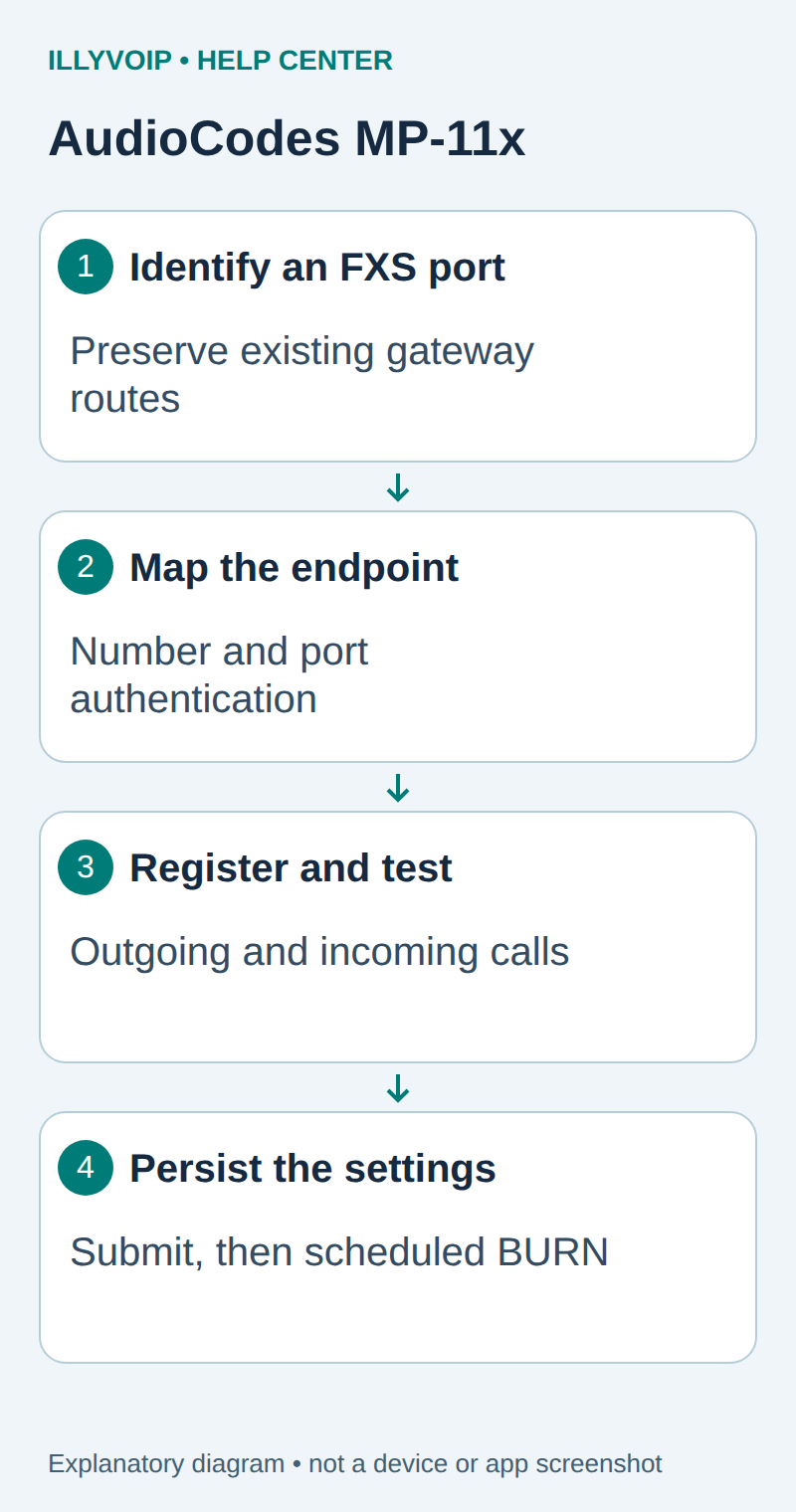
1. Confirm the hardware and preserve the current configuration
Record the exact model, port type, firmware and current management address. Connect an ordinary telephone only to an FXS output. Do not connect a powered FXS output to a live outside line. Leave FXO/PSTN and automatic-dialing functions outside this setup.
Export the current configuration privately and record which ports are in use. Identify a maintenance window: applying and persisting gateway changes can affect current traffic. Do not import a complete sample INI file into a working gateway.
In IllyVoIP → Services → SIP Lines, select the intended password-authenticated line and obtain its SIP identity/password. Expand Technical endpoints for the hostname, port and transport. Check media encryption and allowed caller ID. If this gateway is a PBX extension device, use PBX extension details here and keep IllyVoIP on the PBX trunk.
2. Choose the simple per-endpoint registration arrangement
For the dedicated simple arrangement, use VoIP → SIP Definitions → Proxy & Registration. Enable registration and choose Registration Mode: Per Endpoint. Configure the supplied SIP domain and registrar. Use the actual destination port; do not substitute the gateway's local listening port.
In VoIP → Control Network → Proxy Sets Table, the default proxy is Set 0. Enter the service hostname/port and matching transport. Enable Use Default Proxy for this arrangement. Before applying, confirm that changing the default will not redirect another active port or provider.
These global settings are unsuitable as a blind patch to an existing multi-provider gateway. Record any Serving IP Group and route-table preferences already affecting the selected port; they can take precedence over the simple default-proxy path.
3. Map the physical port to its SIP identity
Open VoIP → GW and IP to IP → Hunt Group → Endpoint Phone Number. For the selected physical FXS channel, enter its unique SIP user identity as the endpoint number and assign the intended hunt group. Keep the mapping limited to that channel; do not fill a channel range unless each resulting identity has been planned.
Then open VoIP → GW and IP to IP → Analog Gateway → Authentication and enter that port's SIP authentication username and password. Submit the changes. Verify the physical port number carefully, especially when comparing an exported INI index with a numbered socket.
Do not rely on a blank authentication row inheriting the right credentials. In this guide, every enabled independent port has its own explicit identity and secret. A public incoming number is not automatically the SIP authentication username.
4. Review routing and media before placing a call
The outgoing path should carry the selected telephone's dialed destination to the intended IllyVoIP endpoint. Check that existing number manipulation does not add a local prefix, remove the country code or redirect the call elsewhere. Retain the service's accepted full international number format.
For incoming calls, confirm the selected SIP identity maps to the intended FXS channel or narrowly scoped hunt group. Inspect existing IP-to-Hunt-Group routing and channel-selection behavior before changing them. Do not add an unrestricted incoming wildcard to make a single test ring.
Match the account's required signaling and media policy. TLS and SRTP are separate, and an older gateway's available ciphers or trust configuration may not meet the current service requirement. Keep certificate verification, correct time and the appropriate trusted certificates. If the installed software cannot meet the required policy, stop and use a compatible intermediary or device rather than weakening the account.
5. Submit, register and test one telephone
- Apply the reviewed changes and inspect registration for the selected endpoint.
- Lift the connected handset and check local dial tone.
- After checking balance and rate, call one authorized destination. Verify permitted caller ID and two-way speech.
- Route the intended active IllyVoIP number to this SIP line, then call it from another phone.
- Confirm the correct physical port rings and that audio works after answering.
- If keypad interaction is needed, test it against an authorized menu and record the negotiated DTMF method.
Use the call timestamp and public call reference to connect the gateway test with IllyVoIP history. A successful registration alone does not establish analog ringing, number routing or usable speech.
6. Persist the reviewed configuration
Submit applies changes to running memory. In the documented interface, use Maintenance Actions → Save Configuration → BURN to retain them in flash. Schedule this with the administrator because saving can disrupt traffic. Follow any restart requirement shown for changed parameters.
After an agreed restart, confirm the same endpoint registers and repeat the incoming/outgoing checks. Keep the private backup until this persistence test succeeds. Restore only the intended configuration if rollback is needed, preserving any later unrelated changes.
Troubleshooting
Settings disappear after restart: check persistence. Authentication fails: inspect per-endpoint mode and the selected port's explicit credentials. Another phone rings: inspect endpoint/hunt-group mapping and wiring. Outgoing calls use another provider: inspect existing IP Groups and route precedence. Speech fails after answer: separate analog audio from the SIP media path.
This guide covers ordinary voice phones on an existing installation. It does not certify fax, modems, alarms, lifts, emergency calling or long-term vendor support for legacy hardware.
Reference: AudioCodes MediaPack MP-11x/MP-124 6.6 manual. Reviewed October 11, 2026. Match the exact installed release before applying settings.