
This guide covers Fanvil X4U V2 and V65 phones. The X4U V2 steps use the Fanvil XU-V2 manual; the V65 section uses the separate V64/V65 manual. Do not assume an X4U V1 or a different X-series model uses identical firmware. Check the device model before applying instructions or downloading updates.
V65: use the model's SIP line controls
This guide also covers the Fanvil V65 using Fanvil's V64/V65 user manual. Keep the original X4U V2 instructions below for that model. V65 and V67 are different products; a V67 Android menu is not a reliable reference for a V65.
- Confirm the V65 firmware and obtain its local IP address from the phone's status information or the network administrator.
- Open the web interface from the permitted management network and sign in with the phone administrator account. Preserve the existing provisioning settings.
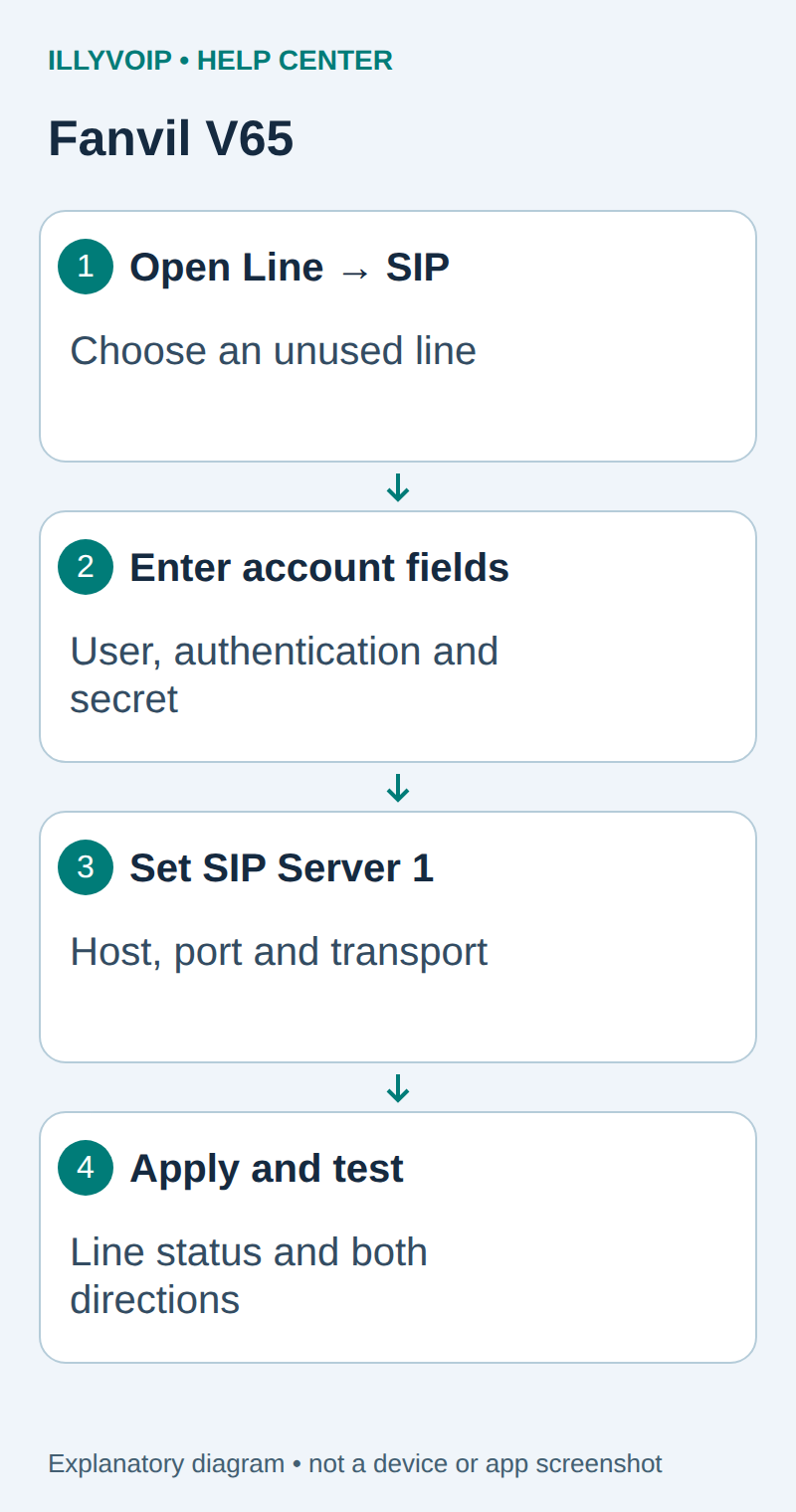
- Open Line → SIP and choose an unused line. Enable Activate.
- Enter Username, Authentication User and Authentication Password for the intended IllyVoIP identity.
- Under SIP Server 1, set Server Address, Server Port and Transport Protocol to the values for your connection.
- Apply the settings, refresh and inspect Line Status. Confirm that the intended account registers.
Keep optional realm, proxy and backup server fields consistent with the supplied connection information; do not add a second region as an improvised backup. If central provisioning restores old values, resolve the managing configuration rather than editing the phone repeatedly.
Use a clear line label, select that line on the phone, and complete the outgoing and incoming checks below. Extra programmable keys do not authorize additional caller IDs or imply support for a PBX's presence/BLF features. A local label can identify the line without changing the number shown to the recipient.
With TLS, use the service hostname, correct time and supported certificate validation. Match SRTP separately. Check headset/speaker selection if the call connects but only one local audio device works.
Reference: Fanvil V64/V65 user manual. V65 expansion reviewed October 11, 2026; no physical-phone acceptance is claimed.
1. Get your IllyVoIP line details
Open SIP Lines and select the line you will use. You need its SIP username, SIP password and server address. Your Portal login password is not necessarily your SIP password. This walkthrough uses password authentication; do not switch an IP-authenticated line without checking which existing devices depend on it.
If you need another line, follow Create a SIP line and review any subscription charge before confirming. Buying a phone number is not required just to register the phone.
2. Configure the phone
- Open the phone’s local IP address from a computer on the same trusted network and sign in as its administrator.
- Go to Line → SIP and select an unused line.
- Enable Activate, complete the account fields and use SIP Server 1 for the server details.
- Apply the changes, then refresh the page to read the current Line Status.
| Phone field | What to enter |
|---|---|
| Username | SIP username |
| Authentication User | SIP username / authentication ID |
| Authentication Password | SIP password |
| SIP Server 1: Server Address | SIP server hostname |
Do not invent a backup server
Extra server and proxy fields are not an invitation to combine unrelated regional endpoints. Use only the connection details provided for your line. Keep Realm and optional proxy values unchanged unless your setup instructions require them. If registration appears unchanged after saving, refresh Line Status before diagnosing a failure.
3. Match connection and audio settings
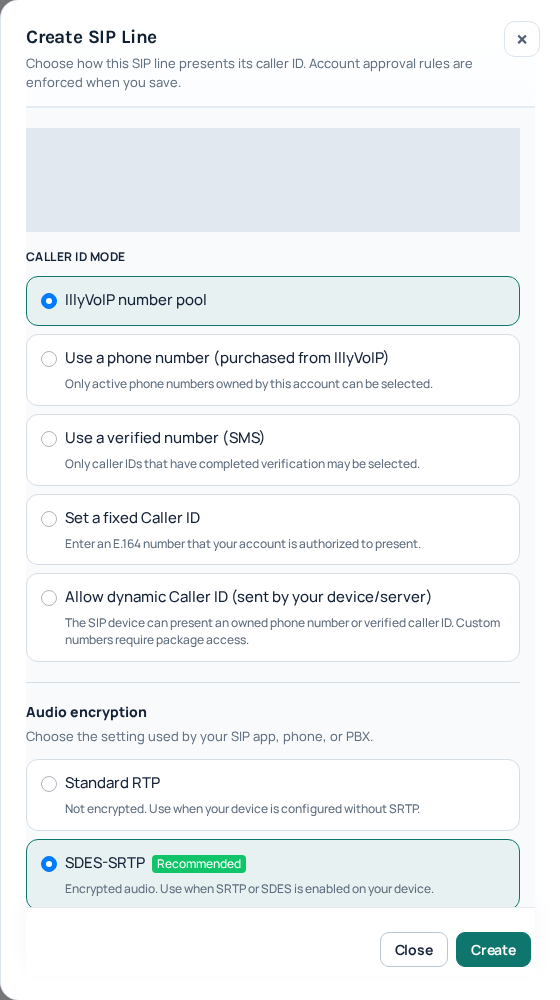
Use the server, destination port and transport shown in your account’s SIP connection details. Do not put the phone’s local IP into the server field. SIP signaling and audio encryption are separate settings: the Portal line’s audio mode must match what the phone supports and uses. Standard RTP is unencrypted; SDES-SRTP and DTLS-SRTP are different modes. Do not select DTLS simply because a browser uses it.
If unsure, ask Support about your exact model before changing an existing working line. Do not disable your firewall or expose the phone administration page to the Internet.
4. Test outgoing and incoming calls
- Once registered, select the configured line and call a number you control using its country code. Check your balance and destination rate first; this can be a paid call.
- Check two-way audio and the outgoing caller ID.
- For incoming calls, route an active IllyVoIP number to this SIP line. Follow phone-number configuration. Registering a handset alone does not change a number’s routing.
If it does not work
No registration: check the server, username, password and authentication mode. Registered but unable to call: check the dialed number, package, balance and caller ID. Connected but no audio: check the network and matching audio settings.
Send Support the model, firmware version, time/timezone, visible error and public call reference if available. Never include passwords or private account screenshots. The SIP code reference helps describe the failure.
Device documentation
Open the official documentation. Based on manufacturer documentation and the current IllyVoIP Portal; not a certification of every model or a claim of physical-device testing.