
Sipnetic is an Android SIP app that can use a telephone-service account such as an IllyVoIP SIP line. Installing it does not create a line or route your incoming number. This walkthrough brings those pieces together for ordinary voice calls.
You need a supported Android device, the official Sipnetic app, microphone access and a password-authenticated IllyVoIP line that you are authorized to use. The app also advertises features such as video and messaging; this guide does not establish that those features work through IllyVoIP. Exact account-screen wording can vary with the installed Sipnetic release.
1. Prepare a line for this phone
- Open the IllyVoIP Portal and go to Services → SIP Lines.
- Select the intended line and check its authentication mode. This guide uses a SIP username and password, not an IP-authenticated PBX trunk.
- Obtain the SIP username and password through the account's authorized controls. Your Portal email and login password are not these credentials.
- Expand Technical endpoints and note the regional SIP hostname, destination port and transport.
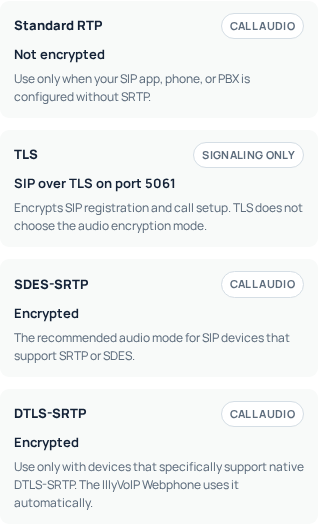
- Check the line's audio-encryption mode and approved outgoing caller ID.
If another handset or app already uses the same identity, review that arrangement first. Copying one account to several independent clients is not a way to create a ring group. Use the SIP-line guide if a separate line is needed, and review its displayed terms before creating it.
2. Add a manually configured account in Sipnetic
Install Sipnetic from its official Android listing. Open its account-management screen and start adding an account. Use the manual account-entry option rather than an unrelated provider preset. If the welcome screen offers account creation, it is creating a configuration inside the app, not a new IllyVoIP subscription.
| Account value | What to enter |
|---|---|
| Domain / SIP server | The IllyVoIP SIP hostname from Technical endpoints, not the Portal website URL. |
| Username / SIP user | The selected line's SIP username. |
| Password | The SIP password for that same line. |
| Authentication username, if separate | The authentication identity supplied for the line, normally its SIP username. |
| Account name / display label | A recognizable local label. It does not authorize an outgoing caller ID. |
Check for accidental spaces when copying values. If the app separates a port from the server field, put each value in its own field. Do not add https://, a website path or a guessed outbound proxy to a SIP hostname. Save the account and select it as the intended calling account if several are present.
3. Match transport and media deliberately
Open the account's connection settings and use the transport/port pair shown for your IllyVoIP connection. Keep TLS certificate verification enabled. A DNS name is particularly important with TLS because certificate identity checks use the hostname.
Match the account's call-audio mode to the compatible option in Sipnetic. TLS signaling and SRTP media are different choices. Do not assume ZRTP, SDES-SRTP and DTLS-SRTP are interchangeable merely because the app offers secure-calling settings. If the matching mode is unclear in your installed version, get the exact supported combination confirmed before changing a working line.
Leave optional STUN, TURN, proxy and number-rewrite settings unchanged unless your deployment needs documented values. Guessing them can hide the original issue. First establish a simple, understood connection.
4. Check Android permissions and registration
Allow microphone access when you intend to make or answer a call. If you denied it earlier, review the app's permission in Android Settings. Contacts access is a separate choice and is not required merely to type a destination number.
Return to Sipnetic and check the account's connection/registration indication. If it fails, record the exact error. A reachable website over Wi-Fi does not prove SIP reachability, and a saved password is not evidence of successful registration.
Android battery restrictions and the app's own background behavior can affect incoming availability. Test your actual device after the screen locks and after an idle period. Do not promise permanent background ringing based on a successful foreground call, or disable every battery safeguard without first identifying the relevant app setting.
5. Test one outgoing and one incoming call
- Select the IllyVoIP account explicitly and dial a destination you control in international format.
- Check your balance and rate before calling; normal charges can apply.
- Confirm two-way audio and the caller ID seen at the destination.
- In the Portal, check that your active incoming number routes to this SIP identity or the intended workflow.
- Call that incoming number from another phone, answer in Sipnetic and test the microphone and speaker.
- Repeat the incoming test after an ordinary idle period, and check Wi-Fi/mobile-data changes separately if you expect to use both.
Changing networks during a call is not guaranteed to preserve that call. Test network changes while idle before relying on them for everyday use.
When the result is different from what you expected
- Account does not register: check username, SIP password, hostname, transport and exact error against the registration guide.
- Outgoing works, incoming does not: inspect number routing, selected identity and the app's actual background availability.
- Call connects without microphone audio: check Android permission, headset selection and the agreed media mode.
- The wrong caller ID appears: review the authorized Portal caller ID; the app's friendly label is not the authority.
Keep the Android and Sipnetic versions, error, test time/timezone and public call reference for Support. Do not share a provisioning QR code or diagnostic export containing credentials. No app screen has been fabricated for this guide; the image illustrates only the actual Portal settings.
Related guides and references
- How to setup Zoiper on Mobile
- Configure Linphone with an IllyVoIP SIP Account
- Set Up Groundwire with an IllyVoIP SIP Account
Reviewed 9 October 2026 against current IllyVoIP source and the linked documentation. Use the settings available to your account and installed version. These instructions are not a claim of a completed physical-device or live-service test.