
Use a Fanvil PA3 paging gateway as a private PBX extension and keep the IllyVoIP trunk on the PBX. This lets the PBX decide who may reach the speaker, instead of making an auto-answer paging endpoint directly reachable through a public number.
The example below uses an existing Asterisk PJSIP PBX. It assumes the PBX already has a working IllyVoIP trunk and an administrator-managed extension environment. It does not install a PBX, change the site's amplifier wiring or configure emergency announcements.
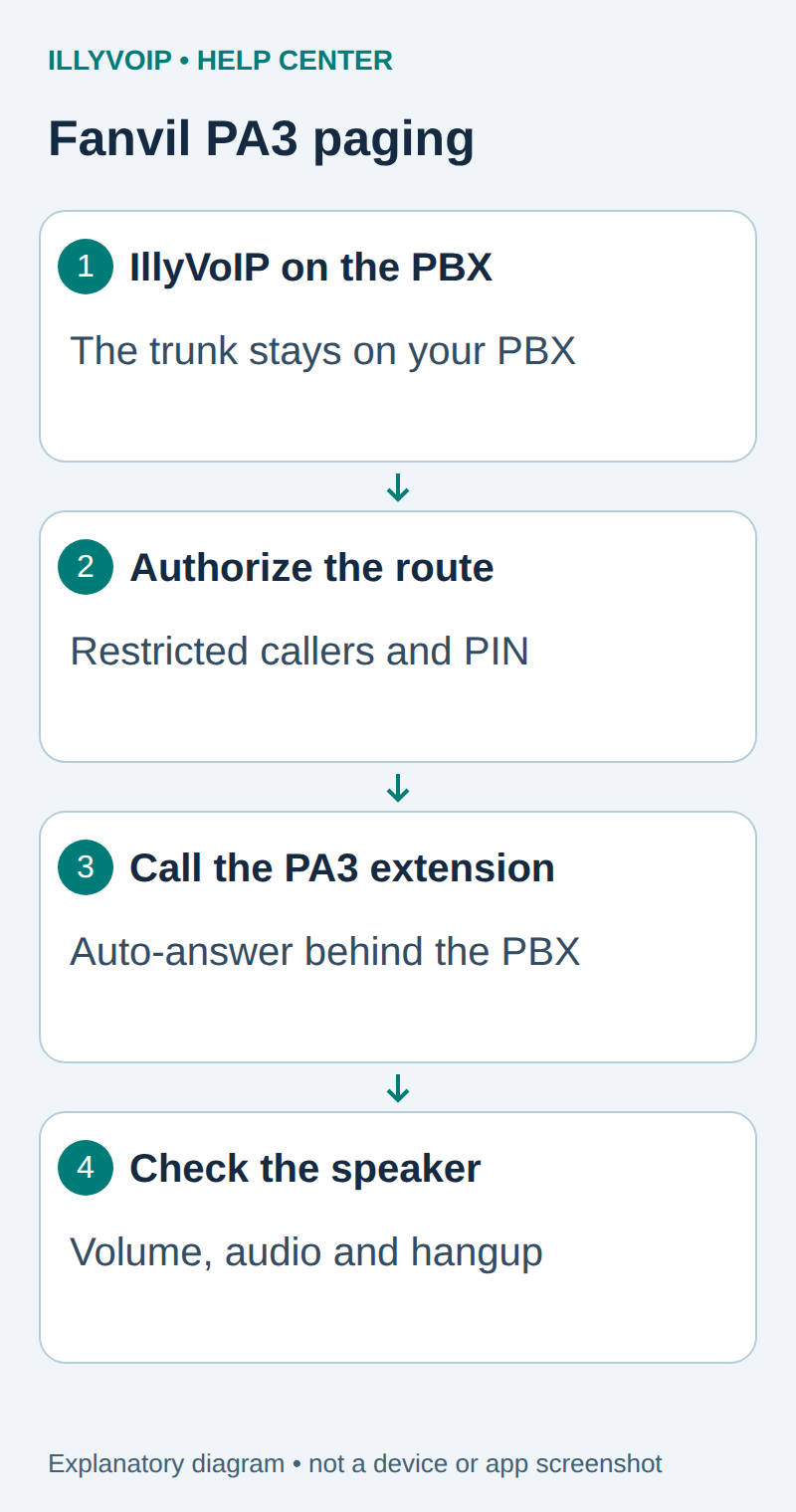
1. Prepare an isolated paging extension
Record the PA3 firmware and existing configuration. Have the site administrator connect its audio output to the compatible amplifier/speaker arrangement specified by Fanvil. Begin at a low, agreed test volume. Keep the PA3 on a network where SIP and management access are limited to the PBX and approved administrators.
On the PBX, create a dedicated password-authenticated PJSIP endpoint named pa3, with a unique strong secret and one registered contact. Give its incoming context no permission to place external calls. The PA3 only needs to receive the controlled paging call in this example. Do not reuse a reception phone's credentials or put the IllyVoIP trunk secret on the PA3.
Use your PBX's supported extension manager to create this endpoint; managed distributions can overwrite hand-edited PJSIP files. Record the PBX registrar hostname, port, transport and extension identity. Preserve the existing IllyVoIP inbound and outbound routes.
2. Register the PA3 with the PBX
Open the PA3's local web interface with the administrator account and go to Line → SIP. Choose the unused account intended for paging.
| PA3 field | Value |
|---|---|
| Username | The PBX extension's SIP identity. |
| Authentication User / Password | The dedicated PBX extension credentials. |
| Server Address / Server Port | The PBX registrar and its corresponding port. |
| Realm | The PBX domain when required. |
| Activate | Enable the intended account. |
Set the account transport and media policy to match the PBX, apply and refresh registration status. Keep backup servers, direct-IP auto-answer and unused accounts outside this test. The device manual's field layout can differ between firmware versions; follow the installed release's labels.
3. Enable auto-answer only for the protected account
Under that SIP line's basic settings, enable Enable Auto Answering and choose an agreed Auto Answering Delay. This answers incoming calls to the account after the delay. It is not caller authorization.
Confirm the firewall and PBX route restrictions before testing. A separate direct-IP call path could bypass the PBX's PIN or extension permissions if it is reachable. Keep unused direct-IP/intercom paths disabled or blocked according to the site's configuration.
4. Add a narrow, PIN-protected Asterisk route
The following route dials only the named PA3 endpoint after successful authentication. Put it in the PBX's supported custom dialplan location and include it only from an administrator-approved route. Do not include it in every inbound context.
[illy-pa3-authorized]
exten => s,1,Answer()
 same => n,Authenticate(/etc/asterisk/private/paging-pins)
 same => n,Dial(PJSIP/pa3,15,L(60000))
 same => n,Hangup()
Create the referenced private file with one strong numeric paging PIN per line, readable by the Asterisk service account and no unnecessary users. Do not put a real PIN in a public example, channel variable log or customer note. Asterisk's Authenticate application hangs up after three unsuccessful attempts. The Dial example limits the connected announcement to 60 seconds; the 15-second argument limits waiting for an answer.
For an approved internal extension, route a dedicated local code such as an unused 880 to this context from that extension's permitted dialplan. Check for a collision before selecting the code. For remote paging, explicitly map one intended IllyVoIP incoming number in your PBX's inbound-route manager to the same context. Verify the actual received DID format and preserve the PBX's existing trunk identification. Do not add a wildcard that sends every incoming call to the speaker.
The PBX must restrict and rate-limit access to the entry route. Caller ID alone is not authentication, and a public PIN prompt can itself receive unwanted calls. Keep remote paging disabled unless the site needs it and has approved those controls. Answering the public call may incur charges even if authentication later fails.
5. Run positive and negative tests
- Confirm the PA3 registration on both device and PBX.
- From an authorized internal phone, call the controlled route and enter a valid test PIN.
- Speak a short announcement and confirm the selected speaker works at the agreed volume.
- Hang up and confirm the audio path closes. Check the duration limit separately.
- Test an incorrect PIN and an unauthorized extension; neither should reach the speaker.
- If remote paging was deliberately enabled, test only the intended IllyVoIP number and verify an unrelated incoming number keeps its original behavior.
Inspect PBX call logs for the selected route and IllyVoIP call history for the external leg. Do not log entered PINs. If audio is missing after answer, inspect the PBX-to-PA3 media path and the physical output separately from the IllyVoIP trunk.
Keep the setup maintainable
Record the endpoint name, allowed callers, route, tested firmware and volume. Back up configuration privately. Roll back by removing the specific new route and restoring the PA3 account settings, without replacing unrelated PBX configuration. This is an ordinary announcement workflow, not a certified emergency or life-safety paging system.
References: Fanvil PA3 manual and Asterisk Authenticate. Reviewed October 11, 2026; real PBX, speaker and paid-call testing remain installation-specific.