
Connect a Fanvil LINKVIL W610W Wi-Fi phone to an IllyVoIP SIP line by joining the wireless network first and configuring one SIP account second. Keeping those steps separate makes it easier to tell a Wi-Fi problem from an account or calling problem.
This walkthrough follows the W610W manual. It is not a provisioning template for Fanvil desk phones or another LINKVIL model. Record the installed firmware and preserve any existing centrally managed settings.
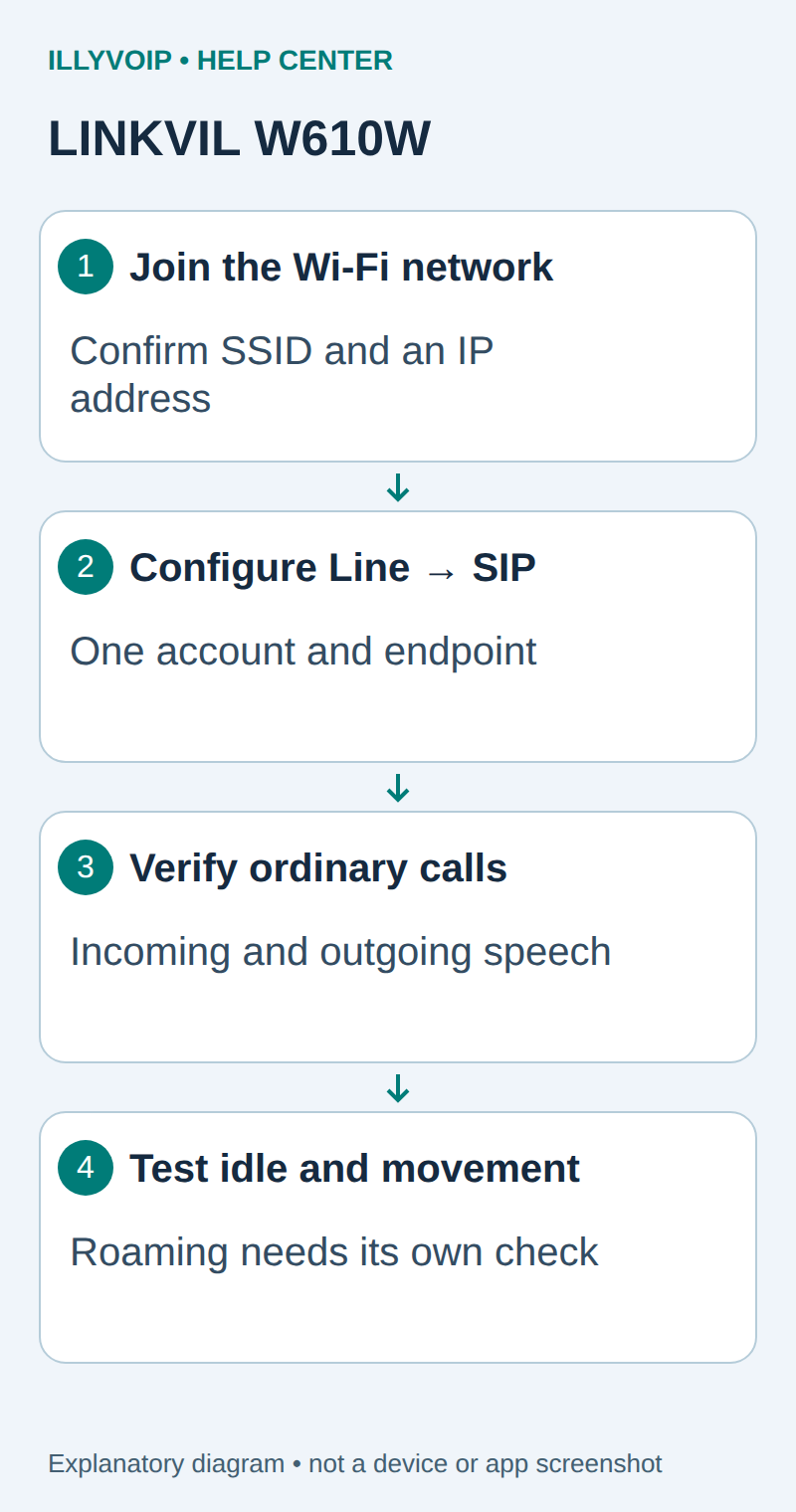
1. Prepare the Wi-Fi network and SIP account
Charge the phone and have the network administrator confirm the intended SSID, authentication method and permitted access. A network requiring a browser-based guest login may need a different onboarding arrangement; do not assume joining the SSID gives the phone usable SIP connectivity.
In IllyVoIP → Services → SIP Lines, select the intended password-authenticated line. Copy its SIP username/password privately and expand Technical endpoints to obtain the actual hostname, port and transport. Check its audio-encryption policy and allowed caller ID. An incoming public number is a separate service and must be routed to this line if you need incoming calls.
If the phone is an extension behind your PBX, use the PBX extension details on the W610W. The IllyVoIP account belongs on the PBX trunk in that arrangement.
2. Join Wi-Fi on the handset
- Open Menu → WLAN and enable WLAN.
- Open Available Network, select the intended SSID and choose Connect.
- Enter the Wi-Fi password and confirm. Keep it hidden when other people can see the display.
- Check the connected-network indication and the assigned IP address in the phone's network status.
The web interface also has Network → Wi-Fi Settings, but you need an initial reachable network connection to use it. Open the phone's known local IP from the permitted management network and sign in with the device administrator account. The web administrator password is not the SIP password.
3. Configure one account under Line → SIP
Select the intended SIP line and map the fields below. Leave unused accounts unchanged or out of the test.
| W610W setting | What it represents |
|---|---|
| Activate | Enable this SIP account. |
| Username | The SIP user identity supplied for the line. |
| Authentication User / Authentication Password | The SIP authentication credentials. |
| Realm | The supplied SIP domain, when required. |
| SIP Server 1: Server Address / Server Port | The actual server hostname and destination port. |
| Transport Protocol | The matching supported UDP, TCP or TLS setting. |
| Display Name | A local caller label, not permission to send an arbitrary caller ID. |
Apply the changes and refresh Line Status. The manual notes that this status is populated when the page loads, so refresh it before relying on an earlier result. Check the account in the phone's status view as well.
Do not populate SIP Server 2, proxy credentials or provisioning URLs with copied example values. Those settings have separate purposes and should follow the actual service arrangement.
4. Check audio and outgoing line selection
Match the line's required media policy to the W610W's supported SRTP settings. TLS signaling and encrypted audio are separate. Keep certificate verification and device time correct when TLS is used. Stop if the installed firmware cannot meet the required policy.
Select the intended account when placing the first call. If more than one account is active, inspect the phone's default outgoing line and confirm the selected account on the dialing screen. Start without Bluetooth or a headset so you can establish a simple handset audio baseline; add accessories afterward.
5. Test calls while stationary, then after idle time
- Check the destination's rate and your balance, then call one authorized telephone using its full international number.
- Have the recipient verify caller ID and speech in both directions. End the call normally.
- Route the intended active IllyVoIP number to the tested line and make an incoming call.
- Lock or idle the W610W for a normal interval and repeat the incoming call.
- If your use includes several access points, test the actual movement route separately and record where a call or registration changes.
Successful registration at one access point is not proof of seamless roaming. Wi-Fi coverage, authentication and network design affect that behavior. Keep a record of the SSID, firmware, time and public call reference without exposing wireless or SIP credentials.
Troubleshooting
No IP address: investigate Wi-Fi authentication, DHCP and the intended network. IP address but no registration: inspect the SIP endpoint, account credentials and transport. Registered but cannot dial: check selected line, number format, permissions and the recorded call result. Missing or broken audio: separate handset/headset settings from network media issues.
If the configuration reverts, check the existing provisioning system before repeating manual edits. Restore the recorded settings if needed; do not factory-reset a managed phone to fix a single account field.
Reference: Fanvil W610W user manual. Reviewed October 11, 2026. This guide documents configuration and acceptance steps; it does not claim a physical handset or roaming test.