
If a phone suddenly cannot register to FreePBX, check whether the PBX has banned its source IP before changing the IllyVoIP trunk. Fail2Ban can block repeated authentication failures, including failures from a legitimate phone with an outdated password. A ban on your PBX and a restriction in your IllyVoIP account are separate things.
This guide is for administrators of a FreePBX system connected to IllyVoIP. It uses Fail2Ban's command-line inspection workflow, with FreePBX 17 on Debian as the installation context. Jail names, log locations and graphical controls depend on installed modules and packaging. It does not install or replace your firewall.
1. Prepare a recovery path and identify the affected connection
Have an authorized console or other recovery connection before touching access rules. Keep a private backup of the relevant configuration. If your only administration session uses the IP being investigated, do not close it until you have a second working recovery method.
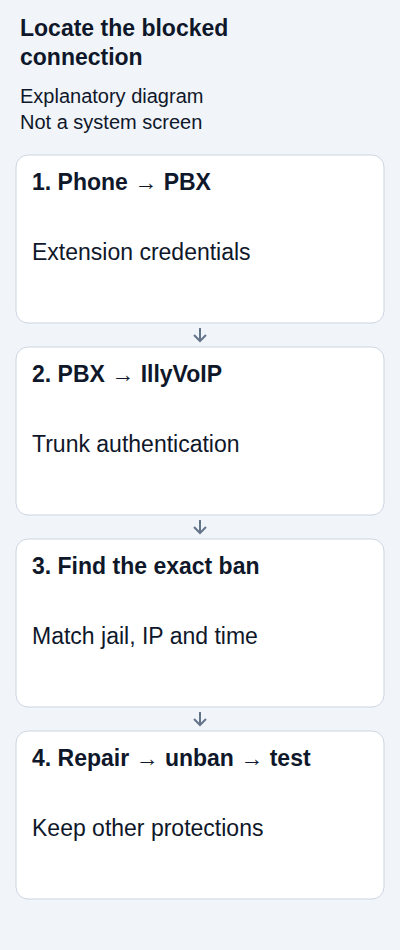
- Phone to FreePBX: the phone uses its PBX extension credentials. Those are not the IllyVoIP trunk credentials.
- FreePBX to IllyVoIP: the trunk uses the authentication method and current endpoints for its IllyVoIP SIP line.
- Incoming trunk traffic: a PBX-side ban might affect traffic from a provider address. Verify the actual source and expected service before making an exception.
Record when the failure began and whether other phones behind the same router are affected. Several remote phones may share one public source IP, so banning that address can affect all of them.
2. Check whether Fail2Ban is running and which jails exist
On the PBX you administer, these commands inspect state:
sudo fail2ban-client ping
sudo fail2ban-client status
A successful ping indicates that the client can communicate with the running Fail2Ban server. The status output lists the enabled jails. A jail combines a failure filter, its log source and a blocking action. Its name is not necessarily asterisk; use the name actually listed on your installation.
If the command is unavailable or cannot connect, investigate the installed package and service with the PBX administrator. Do not install a second firewall or start a replacement configuration to make this example work. The official FreePBX 17 installer includes Fail2Ban, but that does not establish the state of a migrated or customized system.
Some installations expose Admin → System Admin → Intrusion Detection. Sangoma's older documentation describes this screen; its presence and labels are module-dependent. If yours differs, use the supported documentation for your version and the actual jail state rather than following an old screenshot.
3. Match a ban to the failed phone or trunk
Replace JAIL_NAME with one name returned by the status command:
sudo fail2ban-client status JAIL_NAMELook for the currently banned address list and compare it with the source IP seen by the PBX at the failure time. A phone's private address behind a router may differ from that source. Confirm current addressing; a remembered address from yesterday is not enough.
Inspect the corresponding Fail2Ban and authentication events through your installation's supported log viewer or configured log files. Correlate the jail, address, timestamp and repeated failure. A ban count alone does not identify which device produced the failures. If the address is not banned in this jail, inspect other relevant jails and firewall layers before concluding that Fail2Ban is responsible.
4. Correct the cause before removing a ban
For a known phone, check its extension username, authentication identity and password against its provisioning source. A local correction can be overwritten by automatic provisioning. Pause its repeated retries if necessary through the device's normal administration controls, then repair the authoritative configuration.
For a trunk, compare its current IllyVoIP line and authentication mode. Do not change an IP-authenticated trunk into password mode simply to clear an indicator. If incoming provider requests trigger a jail, review the failed authentication and endpoint-matching configuration with your PBX administrator and Support.
An unknown source repeatedly guessing accounts should remain blocked while you investigate. If there are unexpected calls or suspected credential exposure, review the affected credentials and IllyVoIP call reports and fraud-control settings as well. Fail2Ban is one control; it is not a substitute for restricting who may place calls.
5. Remove only a verified false-positive ban
After correcting the underlying fault, an administrator can remove the specific address from the specific jail. This example uses a documentation-only address; replace both placeholders with the verified values:
sudo fail2ban-client set JAIL_NAME unbanip 192.0.2.25
sudo fail2ban-client status JAIL_NAME
Confirm that the address is no longer listed, then let the corrected client make one normal registration attempt. Removing a ban does not repair a bad password or guarantee registration. If it is immediately banned again, stop the retries and return to the log evidence.
Avoid clearing every ban, disabling Fail2Ban or whitelisting an entire provider, office or Internet range as a quick fix. An exception bypasses that protection for the specified source. If an exception is necessary, document the verified address, reason, owner and review date through your PBX's supported configuration method. Dynamic carrier addresses require current guidance, not an address copied from this article.
6. Verify the affected calling workflow
Check extension registration separately from trunk readiness. Make one authorized outgoing call through the intended IllyVoIP trunk, confirm two-way audio and the expected caller ID, and review its call report. If incoming service was affected, call an active DID routed to this PBX and confirm the correct extension or destination rings. Normal call charges can apply.
Recheck the jail after the test. Save a small private record of the cause, correction, address, jail and result. A disappearing ban without restored calling means another problem remains; do not progressively weaken security until the symptom disappears.
Questions that come up during troubleshooting
Does a running service prove the PBX is protected? No. The relevant jail must read the right events and its configured action must work. Testing that enforcement belongs in an approved maintenance procedure; do not deliberately lock yourself out on a production PBX.
Should I lower the retry limit? Not as a repair for a legitimate device failure. Aggressive thresholds can block phones sharing an address. Review the failure pattern, ban duration and recovery access before changing policy.
What should I send Support? Share the affected connection, time and timezone, a redacted error and relevant public call reference. Keep passwords, full authentication logs and unrelated addresses out of public posts.
Related guides and references
- Set up an IllyVoIP PJSIP trunk in FreePBX
- How to create SIP & Agents accounts
- Review fraud-control rules
- Fix SIP Registration Failed on an IllyVoIP Phone or PBX
- Sangoma: Intrusion Detection (version-specific GUI reference)
- Official FreePBX Debian installer
- Fail2Ban client command reference
Reviewed 10 October 2026 against current IllyVoIP guidance and the official references above. Version-specific commands and menus need to match your installation. This guide does not claim a completed call test on your PBX or network.