
Understand billed time
The rate sheet separates the initial billing period from the increment used afterwards. Both are shown in seconds. For example, 60/1 has a 60-second minimum followed by one-second increments; 60/60 rounds later partial minutes up to another minute.
See how billed time changes
Enter a whole number from 1 to 3,600. This illustrates time rounding, not a live price quote.
Use the actual initial period and increment for your destination and package. Other services, including voice automation, may have separate charges.
IllyVoIP routing packages offer different rates and calling options. This guide explains how to choose a package, compare rates, understand billing increments and use technical prefixes.
How to access your routing plan settings
Open Settings → Voice → Routing, or select the routing package displayed in the Portal header. Review the available packages and save the package you want to use. Custom packages appear only when assigned to your account.
Your account's current call-capacity limits are shown on this page. Do not assume that another account's limit applies to yours. Use the capacity-request option or contact support if you need a change.
Understanding billing and rates
Open Pricing → Voice and find the destination and package you intend to use. Rates may differ by number prefix, so check the applicable destination rather than assuming one price covers a whole country.
The following examples use an illustrative rate of €0.002 per minute, not a current price quotation:
- 1/1: billing in one-second increments. A 45-second call costs €0.002 × 45 ÷ 60 = €0.0015.
- 60/1: the first 60 seconds are billed in full, followed by one-second increments. A 45-second call is billed as one minute.
- 60/60: billing in whole-minute increments. A 45-second call is billed as one minute; a 75-second call as two.
Review any minimum or connection charge shown with the rate. The call report shows the actual billed result.
Comparing routing plans
Compare the packages offered on your Pricing page for the destinations you call. Select based on both price and your service requirements. A package shown in a guide or another account is not necessarily available to your account.
Checking call quality and Caller ID
Make a small test call to a number you control after configuring your package and an eligible Caller ID. Check the received Caller ID, audio and call report. Contact support with the public call reference if the result is unexpected. Do not rely on old routing-test screenshots as a guarantee of current delivery.
What are technical prefixes and how do you use them?
A technical prefix selects an eligible routing package for a call without changing the default package. Copy the prefix displayed for that package in the current Portal; old examples such as 40001 or 40002 must not be assumed valid.
Dial the displayed technical prefix + the destination number in international format. In a PBX, apply that prefix once in the outbound route. Ensure a second dial rule does not duplicate or strip it. Package access and Caller ID restrictions continue to apply.
Voice region, package and capacity are different settings
In Account settings → Routing, Voice region selects the default region for outgoing calls, standard incoming routing and the webphone. An external SIP-server or SIP-URI destination can have its own incoming-route behavior. A routing package controls the calling offer; it is not the same as the regional endpoint you enter in a SIP device.
Choose only a package available to your account. Dedicated offers may not appear for every customer. If switching packages changes Caller ID eligibility, review the confirmation and affected lines before proceeding. Wait for the saved or completed state rather than assuming the highlighted card alone is proof of a successful change.
Change the voice region step by step
- Open Settings → Voice → Routing and locate Voice region.
- Read the current selection and choose the offered region appropriate to your calling setup. Region and routing package are separate controls; changing one does not select the other.
- Select Save region. Wait for the displayed operation result instead of repeatedly submitting while it is saving.
- Read the status beneath the selector. If the operation needs attention and offers Retry, use that action after reviewing its message.
- Reopen Routing and confirm the intended region and its status. Check the technical endpoints for any external device that needs configuration.
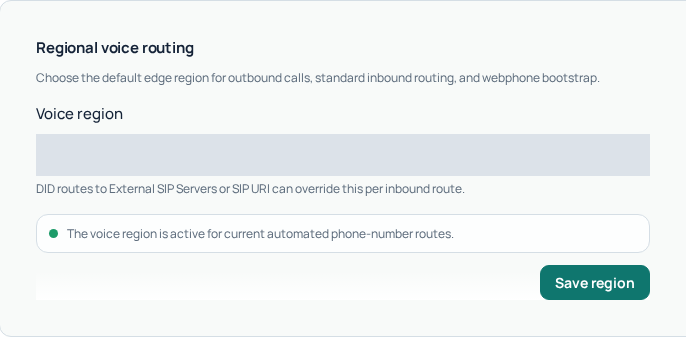
A saved selection and a completed regional change are different checkpoints. If the status remains unavailable or incomplete, retain the message and contact Support rather than assuming the rollout finished. Do not repeatedly switch regions to clear an unrelated calling error.
Check the services affected by a region change
The region is the default for outbound calls, standard inbound routing and webphone bootstrap. Incoming destinations using an external SIP server or SIP URI can follow their own routing behavior. Review the saved destination of the particular number you are investigating.
For a third-party SIP device, use the current connection details for its line. Selecting a region in the Portal does not edit a phone or PBX configuration for you. Once your change is complete, check outgoing calling, incoming routing and two-way audio separately at a safe time. Never use registration alone as proof of all three.
If the problem is a refused destination, inspect the actual call outcome and Fraud Control policy. A different region does not remove a maximum per-minute price, caller-ID restriction or account limitation.
Understand Ports and CPS
Ports describe simultaneous call capacity; CPS describes the permitted rate of starting calls per second. More ports do not automatically grant more CPS, and neither changes the destination rate. The capacity panel shows current values and any request status. Submit a justified increase request if needed and wait for its decision. Pending review does not mean the new limits are active; if request history is unavailable, refresh before submitting another request.
Get a Quick Quote for one destination
- Open Pricing → Voice and find Quick Quote.
- Check the plan shown on the quote card.
- Enter the complete destination in international E.164 format, starting with
+and the country code. - Select Quote and wait for the result.
- Review the returned destination/prefix, per-minute rate and billing increments. Use the displayed number formatting to check that you quoted the intended destination.
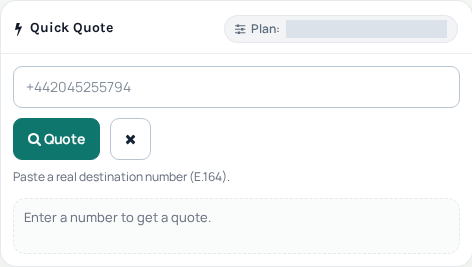
Quick Quote checks the specified destination using the displayed plan. It does not place a call, approve a Caller ID or change your routing package. Number-format information is not proof that the recipient will answer or that the call will pass every account restriction.
Read the duration estimates correctly
The quote can show illustrative costs for one, five and ten minutes using the returned rate and initial/subsequent billing increments. These estimates help compare a destination under the quoted plan; they are not a reservation of that price or a full invoice for every related service.
For example, with a first-minute minimum, a short connected call can be billed for more seconds than it lasts. Use the current quote’s increments and the call report’s actual result. Review any separate charges relevant to your setup rather than assuming the estimate includes number rental, AI processing or every forwarding leg.
If a quote is missing or differs from the call report
Check the complete destination, country code and quoted plan first. An unavailable quote does not establish that a call is free. Wait for the error result before requesting another quote, and clear or replace the input when checking a different number.
For a later billing comparison, retain the quote time, plan and destination prefix alongside the call’s public reference. A different technical prefix, package, duration or billing increment can change the comparison. Ask Support about the specific mismatch rather than repeatedly switching your account’s routing settings.
Reviewed 10 October 2026 against the current IllyVoIP Portal and implementation. Available controls depend on account permissions and service state.