
Open your messages
Open Voicemail in the Portal. Each message shows the caller, received time, duration and mailbox or agent. When more than one mailbox is available, use the mailbox selector to narrow the list; otherwise the selector may not appear.
- Select the relevant mailbox, or show all available agents.
- Find the message using its caller and received time.
- Use the audio player's play, pause and position controls to listen. Check your device's output volume and selected speaker or headset.
- Use Refresh after a caller has finished leaving a new message.
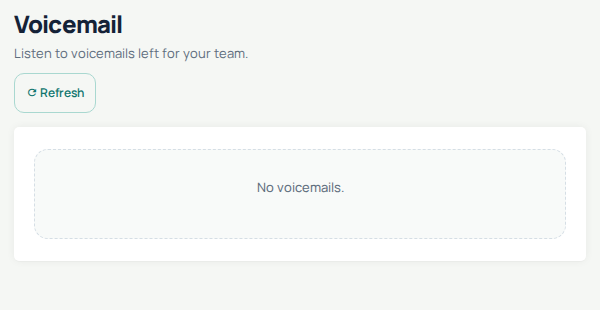
Voicemail shows the inbox and Refresh control. The captured view is empty; it does not demonstrate that a number is configured to receive voicemail. Open the image for a larger view.
Receiving voicemail versus viewing it
This page plays messages already saved to a mailbox. Opening it does not automatically enable voicemail for every unanswered call. Check the incoming number's destination and the relevant line, agent or queue settings to understand where an unanswered call goes.
If a message is missing
Check the mailbox selection first. A missed call alone does not mean that the caller left a recording: the call must reach voicemail and the caller must leave a message. Compare the caller and time with call history. An empty list and an “Unable to load” error are different; use Retry for a loading error before concluding that there are no messages.
If playback fails
Try another output device and refresh the page. If the same message still cannot play, send Support the approximate call time, number and mailbox label. Do not post private voicemail audio publicly.