
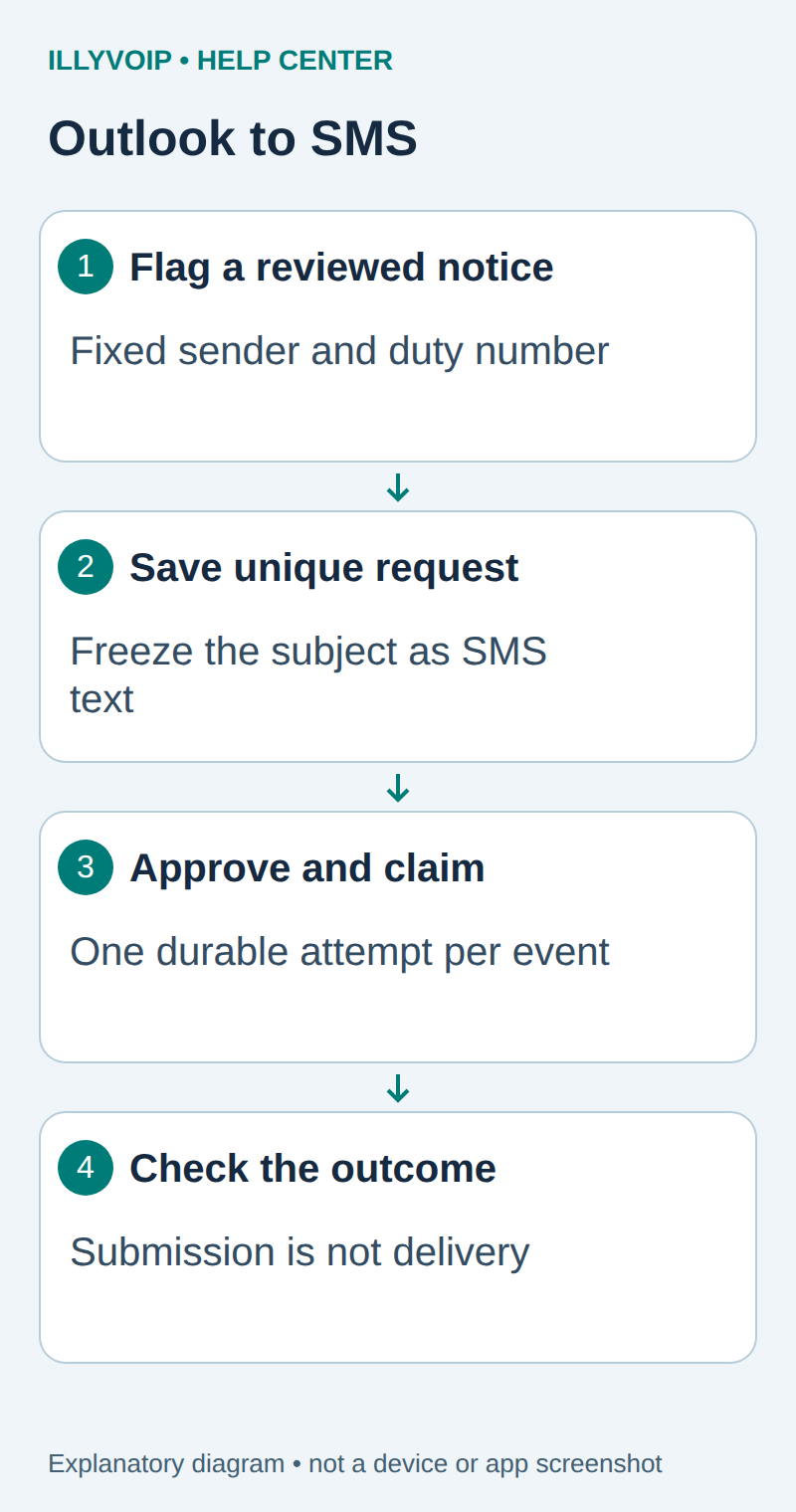
This guide turns a deliberately reviewed Outlook email notification into one SMS through your IllyVoIP account. For example, an on-call operator can flag a short maintenance notice, approve its exact text and send it to a configured duty number. It uses Power Automate, SharePoint and the IllyVoIP SMS API. It does not add an SMS button to Outlook or create a native IllyVoIP email gateway.
1. Prepare the mailbox and account
You need IllyVoIP SMS access, sufficient balance, a permitted sender and an API key. In the Portal, open Account Settings → Developer tools and the API-key area; the direct account-settings URL uses ?tab=api. Follow the verification prompts before revealing a key. A SIP password is not an API key. Keep permanent keys in a server-side secret store and check the destination’s current SMS price and encoding requirements before a real send.
You also need a Microsoft 365 work or school mailbox supported by the Office 365 Outlook connector, permission to create flows and lists, and licensing and tenant policies that permit the HTTP and approval actions. This walkthrough does not assume an Outlook.com personal mailbox has identical triggers.
Create an SMS Review mailbox folder. Use it only for short notices prepared by authorized operators. Do not route arbitrary incoming mail into the folder and automatically treat it as approved. A displayed From address, a subject prefix or a pre-existing email flag is not permission to spend SMS credit. Keep signatures, attachments, quoted conversations and unnecessary customer details out of the intended text.
2. Create two private lists for request identity and dispatch
In a restricted SharePoint site, create SMS Requests and SMS Attempts. Grant the flow’s connection account the required access; give ordinary requesters no edit/delete access to these records. For each list, also map its default required Title field to a short request label or the event key; do not leave a required field empty. These are your application’s records, not IllyVoIP Portal screens.
| List | Required columns |
|---|---|
| SMS Requests | EventKey: required single line of text with Enforce unique values = Yes. Sender and Recipient: single line of text. Message: multiple lines of plain text. State: choice (Review, Rejected, Approved, Submitted, Needs review). MessageId: single line of text. SourceReference: plain text. ApprovalReference: plain text. |
| SMS Attempts | EventKey: required single line of text with Enforce unique values = Yes. RequestId: number. State: choice (Attempting, Submitted, Needs review). MessageId: single line of text. Record only minimal response details needed for recovery. |
The two uniqueness constraints have different jobs. The first prevents duplicate business requests; the second prevents two flow runs from dispatching the same approved request. A “Get items, then create if absent” check alone is not an atomic claim. The unique create must succeed before the flow advances. Test the constraints with two deliberate local test rows before connecting a paid action.
3. Start with the flagged-email trigger
- Create an automated cloud flow and choose Office 365 Outlook’s When an email is flagged (V3) trigger.
- Select the authorized connection and the SMS Review folder where the trigger offers its folder setting.
- During a test, inspect the trigger’s message identifiers and body using synthetic mail. A changed flag or later email change can trigger another run; one flag does not imply one execution.
- Use the mailbox identity plus the email’s Internet Message Id as the logical event key, preserving the exact value. If your trigger does not expose it, obtain it through the connector’s message retrieval action. Stop for review if it is absent.
A SharePoint single-line text value is limited in length. Keep the combined key within that column’s supported limit; reject an over-length key rather than truncating it or switching to a new random ID. A separately reviewed hashing adapter is an alternative for a high-volume implementation. Moving messages can change connector item IDs, which is why a casually chosen folder item ID is a poor long-term duplicate key.
Use the email subject as the proposed short SMS in this bounded workflow. This avoids automatically copying an HTML body, signature or attachment into a text message. An operator who needs different wording should prepare a new reviewed notice before flagging it. The fixed recipient and permitted sender come from protected flow configuration, never from the email’s From or To headers.
4. Save the request before asking for approval
Add SharePoint’s Create item action for SMS Requests. Map the event key, configured sender/recipient, subject text, source reference and State = Review. Validate nonempty text and an application limit of 500 characters first. That limit is not a promise of one SMS segment.
Only the successful create branch may proceed. If the unique key already exists, locate and report the existing request without making a second approval or dispatch. For any other create error, stop and alert the operator. Do not assume every failed create means “duplicate,” and do not generate a replacement event key to make it succeed.
5. Approve the exact saved text
- Add Start and wait for an approval, using Approve/Reject – First to respond.
- Assign an explicitly authorized reviewer; do not derive the reviewer from untrusted message headers.
- Show the saved recipient, sender, exact message, request reference and the fact that an SMS can be chargeable.
- Continue only when Outcome equals Approve. Save the approval reference and mark the request Approved. A rejection, expiry or failed approval must not enter the send branch.
Use the values frozen in the request. Do not retrieve a newly edited email subject after approval. If a change is required, reject this request and prepare a genuinely new notice with a distinct source identity. Keep list editing restricted so another user cannot silently change the approved payload.
6. Claim the dispatch with a unique attempt
Create an SMS Attempts item using the same EventKey, the Requests item ID and State = Attempting. Continue to HTTP only if this create succeeded in the current run. If a duplicate attempt exists, stop and reconcile its result. If the create times out, stop: it may already have committed. A flow restart must not bypass this gate because the request is marked Approved.
7. Submit the frozen payload once
Add the ordinary HTTP action in the successful claim branch. Set its retry policy to None for this first version. Use POST and the following Production URL only when you are ready for an authorized, potentially chargeable submission:
https://api.illyvoip.com/api/v1/sms/messages| Header | Value |
|---|---|
| Content-Type | application/json |
| X-Api-Key | The secret supplied by your approved secret-management connection. |
| Idempotency-Key | A stable value such as m365sms- followed by the numeric SMS Requests item ID. Use one central Requests list for this integration; if you have several lists, add a stable list-specific prefix. |
Build the body as an object using the stored Sender, Recipient and Message. The recipient value must be an array even for one number. The following is the shape, not a copy-and-send request:
{
  "from": "YOUR_PERMITTED_SENDER",
  "to": ["YOUR_APPROVED_RECIPIENT"],
  "message": "Your reviewed notification text."
}
Use structured dynamic-content fields or a JSON serializer. Do not concatenate unescaped message text into a JSON string. Test quotes, backslashes and line breaks. Enable Secure inputs/outputs where appropriate, restrict flow owners and ensure later actions do not print the API key or private text into logs. HTTP with Microsoft Entra ID is not a substitute for IllyVoIP API-key authentication.
8. Save the result and follow delivery
Require an HTTP success plus an API success body with queued_count = 1 and exactly one nonempty queued_message_ids entry. Save that identifier to both records and set them to Submitted. Inspect invalid_numbers if the result does not match your one-recipient expectation. A green HTTP action alone does not prove delivery.
Configure failure and timeout handling with the designer’s run-after settings. A timeout, unreadable response, unexpected result or failed write-back leaves the request needing reconciliation. The Attempts item remains in place; do not delete it and resubmit. Use the saved time, request key and available SMS records to establish whether a message was accepted. A failed final SharePoint update can occur after a successful SMS submission.
Follow delivery in the Portal or the documented status/webhook workflow. Submitted, delivered and read are different states. IllyVoIP acceptance is not proof that the recipient has read the message. This design intentionally stops uncertain outcomes for an operator instead of trying to recover by sending a new paid request.
9. Test before enabling regular use
- Replace the HTTP send action temporarily with a synthetic response. Flag one test message twice and confirm one request and one attempt.
- Confirm unrelated folders, empty subjects and invalid source IDs cannot reach dispatch.
- Reject an approval and verify no attempt is created. Change the source email afterward and confirm the frozen approved text remains unchanged.
- Simulate a lost HTTP response and a failed final write-back. Confirm rerunning the flow does not create a new attempt.
- After restoring the correct request, deliberately approve one real message to a recipient you control, then verify acceptance and delivery separately.
If nothing starts, check the connection, folder and current connector limitations; moving a message into a folder is not always equivalent to its original arrival. If repeated runs appear, inspect the unique event key instead of disabling duplicate controls. Pause the trigger to stop new requests, and pause dispatch separately before maintenance. Preserve Requests and Attempts when backing up or migrating the workflow.
Related IllyVoIP guides
- Build an email-to-SMS workflow with the IllyVoIP API
- Send an IllyVoIP SMS from Microsoft Power Automate
- Send an SMS with the IllyVoIP API and track delivery
- Check SMS encoding, message parts and converted text before sending
Sources and verification
- Microsoft: Office 365 Outlook connector and known limitations
- Microsoft: approval actions
- IllyVoIP API reference
Reviewed 11 October 2026 against current IllyVoIP documentation and the linked primary sources. Use the options available in your own account. Documentation and local checks do not establish a delivered SMS, a completed live call or a certified third-party integration.