
Use a Poly Trio C60 in its Generic/OpenSIP profile to make and receive IllyVoIP calls in a meeting room. The phone registers a SIP line; an incoming telephone number must also be routed to that line in IllyVoIP. A working Teams or Zoom configuration is a different arrangement.
This guide follows the Poly Trio C60 Administrator Guide 9.3.0. Check the installed firmware and your administrator's provisioning policy first. Switching the base profile can change the room's existing service, so schedule the change and preserve the configuration before proceeding.
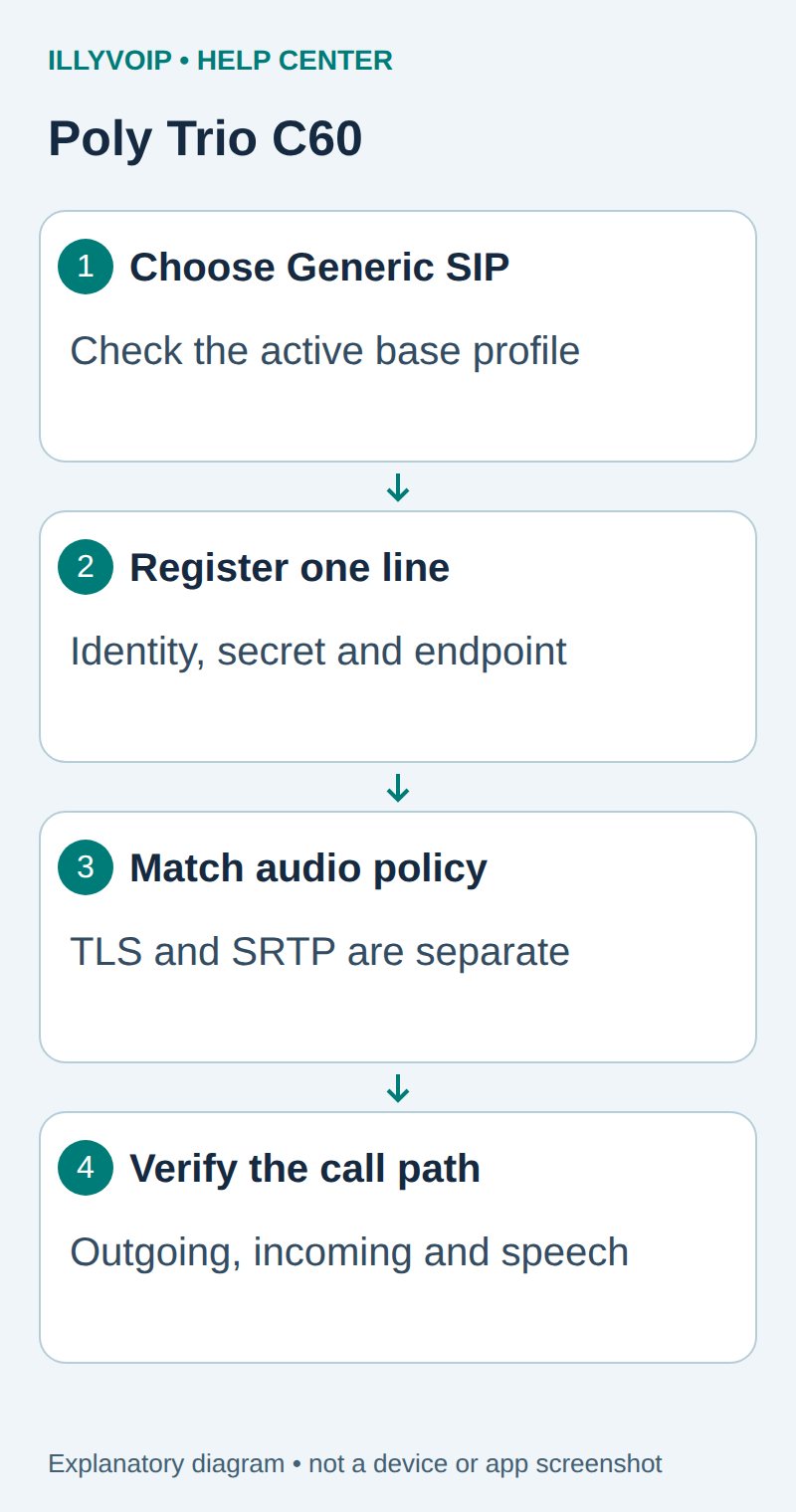
1. Prepare the room phone and SIP line
- Connect the C60 to its intended network and suitable power. Confirm that the display starts normally and the phone receives an address.
- On the phone, open Settings → Status → System Information and record its IP address and software version.
- In IllyVoIP, open Services → SIP Lines. Select a password-authenticated line, obtain its SIP username and password securely, and expand Technical endpoints.
- Record the hostname, destination port, transport and audio-encryption policy. Check the allowed outgoing caller ID and available balance before a chargeable test.
If the room phone connects to your own PBX, use the PBX extension credentials on the C60. The IllyVoIP credentials then belong on the PBX trunk. A Portal email/password is never the phone's SIP login.
2. Check management and the base profile
Open the phone's local IP address in a browser on the permitted management network. Select Admin and sign in with the device administrator password. If a provisioning server manages the phone, coordinate changes there: local web settings can override centrally provisioned values.
In the system web interface, open Simple Setup and inspect Base Profile. For this direct SIP walkthrough, select Generic when supported by the device and firmware. Apply the change using the interface and allow a requested restart during the maintenance window. The guide documents restrictions on changing profiles on Microsoft Teams phones; use the web-interface procedure rather than assuming every profile appears in the handset menu.
If the intended profile is absent or management access is restricted, resolve that with the room administrator. Do not factory-reset the room phone merely to reveal another menu.
3. Configure the SIP server and line
Return to Simple Setup. Configure the SIP server and SIP line identification using your line's actual values:
| Setting | Value |
|---|---|
| SIP Server address and port | The IllyVoIP endpoint hostname and matching destination port. |
| SIP Line Identification: address | The SIP user identity supplied for the line. |
| Authentication user and password | The line's SIP authentication identity and SIP password. |
| Display name or label | A recognizable room label. This does not authorize a caller-ID number. |
| SIP Outbound Proxy | Only a proxy explicitly required by your connection; do not copy another provider's proxy. |
Select Save. If the firmware exposes additional line controls separately, inspect the line-specific server settings as well. In Poly's configuration reference, reg.x.server.y.address, reg.x.server.y.port and reg.x.server.y.transport identify those settings; per-line values can override global server values. Avoid leaving a previous provider's per-line server active underneath a new global server.
4. Match transport and media protection
Select the required transport explicitly. In the documented Poly parameters, UDPOnly and TCPOnly select those transports; TCPpreferred permits UDP fallback and therefore is not the same policy as TCP-only. TLS needs the proper hostname, port, certificate trust and correct time. A changed port by itself does not enable TLS.
Check SRTP separately against the IllyVoIP line's audio setting. A registered TLS account does not establish that audio uses the required encryption. If your configuration cannot meet a mandatory media policy, stop and resolve that mismatch rather than treating unencrypted fallback as success.
5. Verify registration and the room audio
- Check the line's registration state after saving. Keep an exact error if registration fails.
- Call one authorized telephone number in the expected international format. Confirm the account and rate before dialing.
- Ask the other party to confirm the permitted caller ID and whether speech from the room is clear.
- Check the C60 speaker, microphone and mute controls. Test from the seats people will use, not just beside the device.
- If telephone menus are required, test a harmless keypad selection separately. End the call.
A registered line, answered call and usable room audio are three separate checks. An external microphone or accessory also needs its own compatibility and operation check.
6. Route and test the incoming number
In IllyVoIP, verify that the active incoming number points to the SIP line configured on this C60. Call that number from another telephone, confirm the room phone rings, answer and check two-way speech. If several accounts are configured, verify which line receives and places each call.
If outgoing calls work but the room does not ring, inspect the number destination, the phone's line selection and Do Not Disturb before changing credentials. If calls connect but audio fails, inspect microphone/mute state and then the negotiated media path.
Troubleshooting and rollback
- Wrong application or missing SIP controls: check the base profile and managed-device policy.
- Registration fails: compare line-specific server, identity, password, transport and certificate/time settings.
- Settings return after restart: inspect provisioning ownership and persistent configuration.
- One room participant cannot be heard: investigate placement or microphone coverage rather than SIP registration.
Keep the version, profile, timestamp, exact symptom and public call reference for Support. Restore only the reviewed room configuration if the test fails, preserving newer administrator changes. Protect configuration exports because they can contain credentials.
Reference: Poly Trio C60 Administrator Guide 9.3.0. Reviewed October 11, 2026. This is a documented setup workflow, not a physical-room or vendor-certification claim. Related: SIP registration troubleshooting.