
Open a SIP line’s Subscription controls to review its paid-seat status, renew it or change auto-renewal. Begin with the exact line or agent seat you intend to manage: a subscription action can charge the account, and the same person may have more than one calling identity.
1. Identify the seat and its terms
- Sign in as the account owner and open the Portal’s SIP Lines page. Locate the intended line using its label and identifier.
- Open its actions and choose Subscription.
- If the dialog says Included seat, read that explanation. Included capacity and an additional paid seat are different; do not assume that every line needs a manual monthly payment.
- For a paid seat, review Type, Status, Expires, Auto-renew and Monthly fee, including the currency.
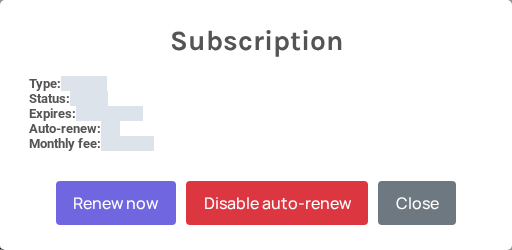
Use the current subscription display for the actual price and expiry. This article does not quote a universal fee or promise a number of included seats. If the subscription is missing or the state is unavailable, resolve that before trying a charge.
2. Renew a paid seat manually
- Confirm that this is the intended seat and that the displayed renewal terms are acceptable. Check the available account funds.
- Choose Renew now only when ready to request the renewal. Do not rely on there being another confirmation after this button.
- Wait for the result and the page refresh. Avoid repeated clicks while the operation is pending.
- Reopen Subscription and check the returned expiry, status and auto-renew setting. Review the corresponding billing record when reconciling the charge.
If the Portal reports Already renewed for this cycle, check the existing renewal and current expiry rather than attempting to force a second charge. If it reports Insufficient balance, address the account funds and then recheck the subscription before deciding whether to renew again. A browser timeout leaves the result uncertain; inspect the saved seat and billing state before retrying.
3. Change auto-renewal deliberately
- In Subscription, read the current Auto-renew value.
- Choose Enable auto-renew if the account should attempt future renewal, or Disable auto-renew if it should not.
- Wait for the response, then reopen the subscription and confirm the saved value.
- Keep a note of the expiry when disabling renewal so you can plan the line’s continued use before its paid period ends.
Enabling auto-renewal is not proof that a future charge will succeed. Funds and the seat’s then-current state still matter. Disabling it changes the renewal preference; it is not the same operation as deleting the line or agent, and it does not request a refund or guarantee service beyond the existing expiry.
4. Handle changed or uncertain state
Another administrator or a scheduled renewal may change the seat while the dialog is open. If the Portal reports that the state changed, close and reopen Subscription to review the latest values before acting. Do not repeat an old instruction against a refreshed expiry without checking whether the intended renewal already happened.
If a renewed seat still appears unavailable, distinguish payment and subscription state from SIP registration and authentication. Retain the seat reference, time, renewal result and relevant charge reference for Support. Do not delete and recreate the employee or change SIP credentials just to clear a billing-state message.
Related guides
Reviewed 12 October 2026 against the current IllyVoIP controls, implementation and applicable references. Available options depend on account permissions and service state.