
Use Sipdroid on Android to register a password-authenticated IllyVoIP SIP line and make a controlled test call. You will enter an existing SIP account manually; creating a PBXes account is not required for this connection.
The field names below were checked against the official Sipdroid 7.0 source. Android permissions, installation availability and background behavior vary by phone and Android version. This guide checks the app in the foreground first, then tests incoming calls after idle time.
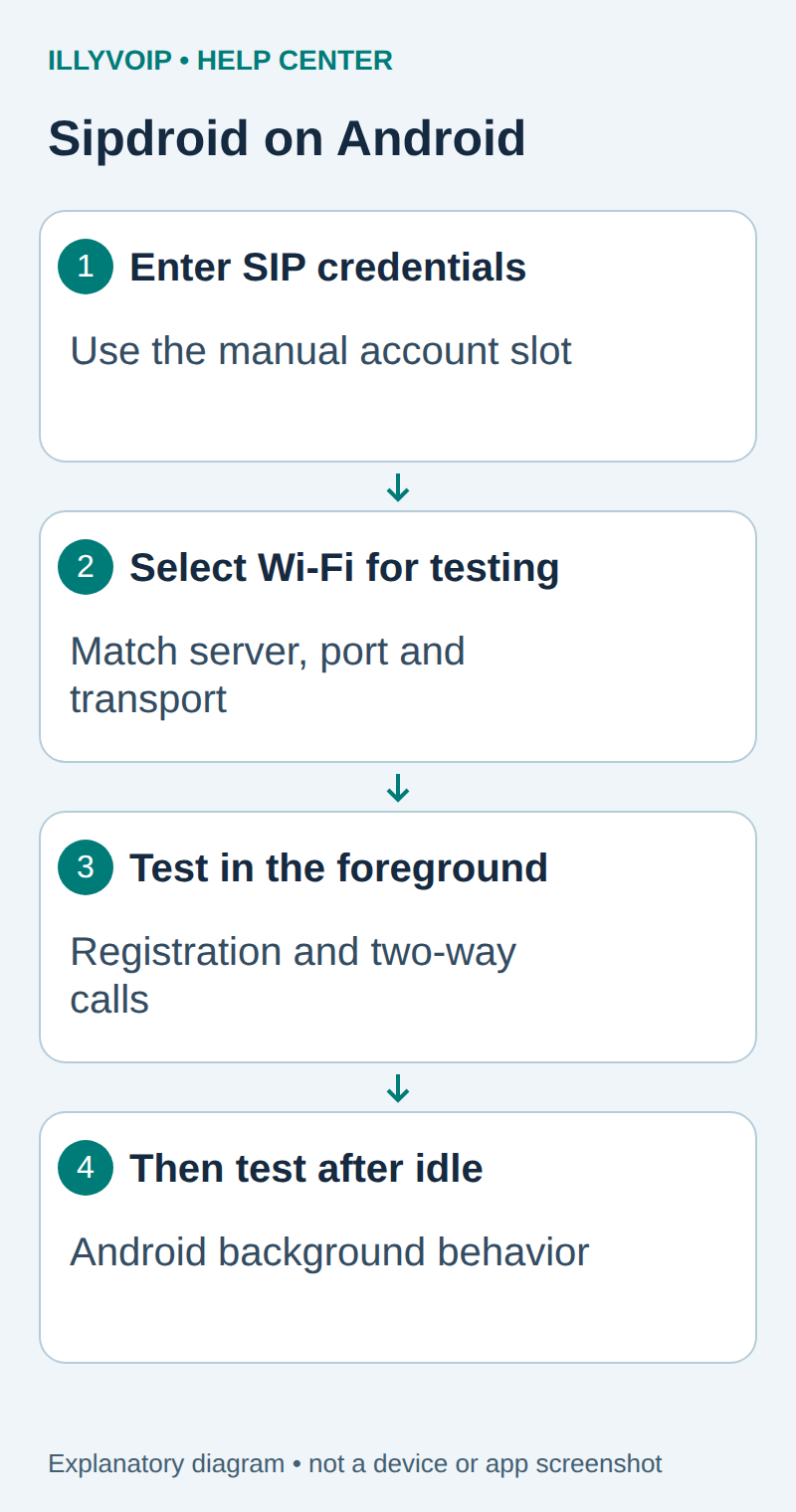
1. Prepare the line and Android phone
Install Sipdroid from a distribution linked by its official project. Avoid repackaged APK sites. Check the app version before following the settings below. Connect the phone to a trusted Wi-Fi network and allow the microphone permission needed for a call. A permission to use the microphone is separate from a successful SIP registration.
In IllyVoIP → Services → SIP Lines, choose a password-authenticated SIP line. Obtain its SIP username and password, then expand Technical endpoints for the hostname, port and transport. Review the line's audio-encryption setting and permitted caller ID. These credentials are different from your email address and Portal password.
Use a dedicated line while testing so another device cannot replace its registration. For an external incoming-call test, you also need an active IllyVoIP number whose destination is this line. Confirm the rate and balance before making a paid outbound call.
2. Enter one SIP account manually
Open Sipdroid's Settings and select the first SIP account slot. Preserve any existing account before editing it. Use the following mapping:
| Sipdroid field | IllyVoIP value |
|---|---|
| Authorization Username | The line's SIP authentication username. |
| Password | The SIP password. |
| Server or Proxy | The supplied SIP server hostname, without a web URL path. |
| Domain | The SIP domain if supplied separately. Sipdroid documents leaving this empty when it is the same as the server. |
| Username or Caller ID | The SIP user identity required by the account. The label does not authorize an arbitrary public caller ID. |
| Port | The destination port for the selected transport. |
| Protocol | The corresponding supported SIP transport. |
Enable Use WLAN for the initial Wi-Fi test. Leave the second account out of the test, and check the app's routing choice before placing a call. The device's mobile/SIM dialer is a different calling path.
If the required transport or media mode is unavailable in the installed build, stop and use a compatible client. Do not silently lower the line's encryption requirements. TLS signaling support, where offered, does not establish SRTP audio compatibility.
3. Confirm registration before dialing
- Return to the main app with Wi-Fi connected.
- Inspect the account's registration indication. If necessary, reopen Settings to confirm the saved server and identity.
- Keep the app in the foreground for the first call.
- If registration fails, correct the exact hostname, port, transport or authentication mismatch before changing audio settings.
A Wi-Fi connection alone does not prove that the SIP server is reachable. Conversely, a registered account does not prove incoming-number routing or two-way speech. Keep those tests separate.
4. Make an outgoing test call
Enter one authorized destination in the number format accepted by IllyVoIP, normally the full international number. Check that Sipdroid uses the intended SIP account rather than a mobile-network call. Have the other party answer, verify speech in both directions, then hang up.
Compare the time and destination with IllyVoIP call history. Confirm the permitted outgoing caller ID at the receiving phone. Editing the app's display name or identity field does not override the line's caller-ID policy.
5. Test incoming calls and Android idle behavior
Open the active IllyVoIP number and verify its destination is the tested SIP line. Call it from another authorized phone while Sipdroid is visible. Answer and check audio. Then repeat after locking the screen and leaving the phone idle for a realistic interval.
If ringing works only while the app is open, inspect Android's per-app battery/background restrictions and any vendor-specific power manager. Allow the background operation appropriate for this device, then repeat the idle test. Do not promise dependable background ringing merely because foreground registration succeeded; this guide does not establish a push-notification service.
Test mobile data separately if you need it. Enable the applicable network options deliberately and consider the mobile plan's data costs. A successful Wi-Fi call does not prove service during a Wi-Fi-to-mobile transition.
Resolve common symptoms
- Wrong account or mobile dialer used: inspect call routing and account selection.
- Registers but outgoing calls fail: check the destination format, allowed caller ID, balance and recorded call result.
- Outgoing works, incoming does not: inspect the number destination, competing registrations and Android background behavior.
- One-way or silent audio: check microphone permission, selected audio device, negotiated media and the network path.
Record Android version, app version, network type, timestamp and public call reference. Never include the SIP password in a screenshot or support message. Restore only the settings changed for this test if you need to roll back.
References: Sipdroid project and official app source and settings. Reviewed October 11, 2026. Physical Android and real-call acceptance must be completed on your phone.