
Use this guide to register a Softphone.Pro desktop client with an IllyVoIP SIP line and verify ordinary audio calling. You need an installed client, permission to configure it, and a working microphone and output device. If your employer manages the application, ask its administrator to add the account instead of replacing a managed profile.
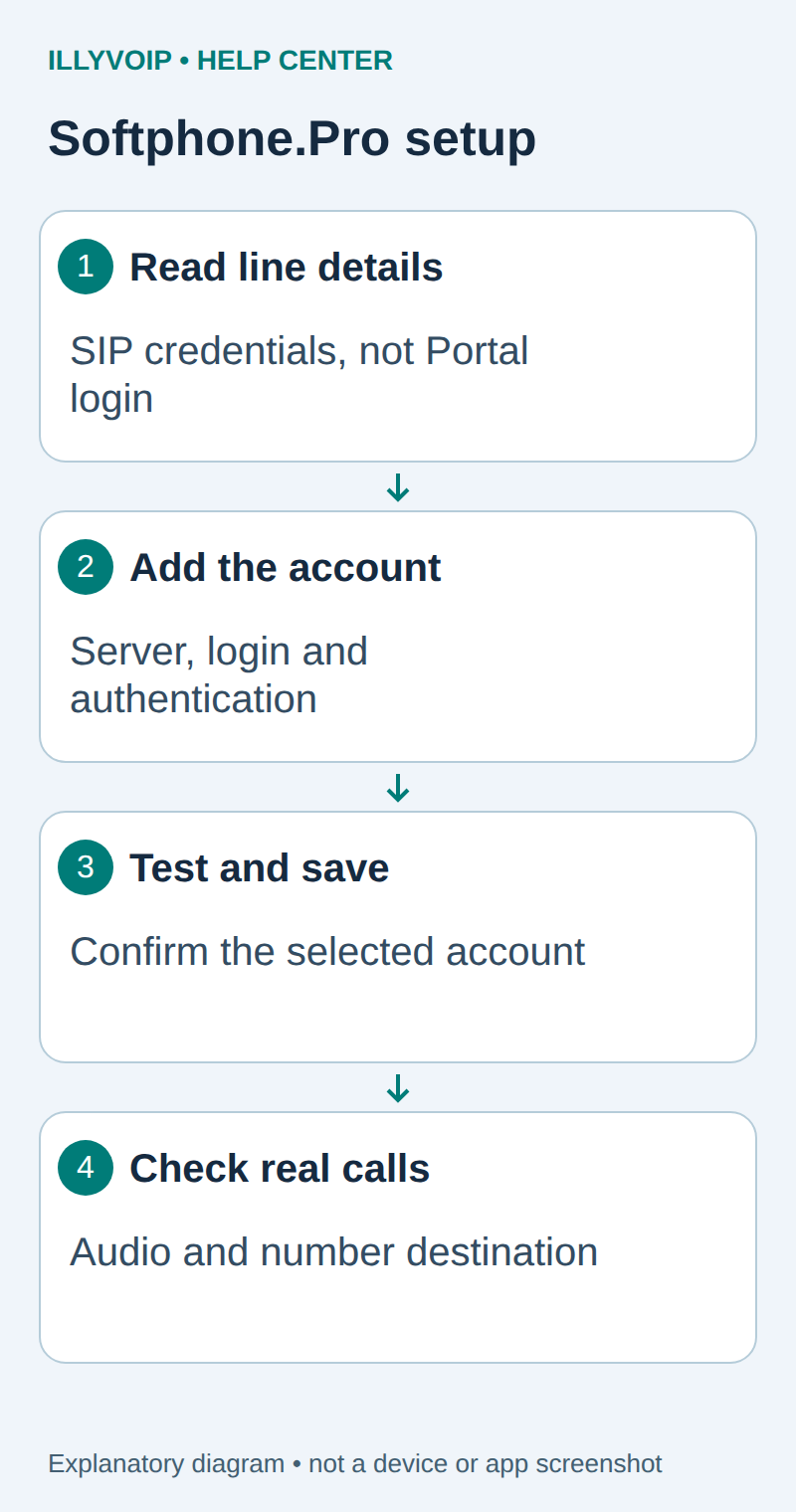
1. Collect the correct line credentials
In IllyVoIP, open Services → SIP Lines, select the intended password-authenticated line and expand Technical endpoints. Copy its SIP username, SIP password, regional hostname, destination port and transport. These are not your Portal login credentials. Keep any existing working devices and IP-authenticated configuration intact.
Record which account will be used for this computer. A shared SIP credential used on several devices can make incoming-call behavior harder to diagnose. Do not reset its password without reviewing other devices that use it.
2. Add the SIP account
- Open the main menu at the upper left and choose Settings; the documented shortcut is Ctrl+S.
- Choose SIP Accounts → Add account.
- Enter a recognizable local account name and map the connection fields below.
| Setting | Value or action |
|---|---|
| Account name | A local label such as IllyVoIP office. |
| SIP server | Your supplied SIP server. Softphone.Pro supports hostname:port when an explicit port is required. |
| Login | Your SIP username. |
| Password | Your SIP password. |
| Authorization name | The authentication ID. The application uses Login when this is blank; fill it explicitly if your supplied ID differs. |
| Domain | The supplied SIP domain when required by your account. |
| SIP proxy | Only the outbound proxy supplied for this connection; do not invent one. |
| Display name | A descriptive label, not permission to present an arbitrary caller ID. |
| Register on startup | Enable if this account should register when the client starts. |
3. Test the configuration and save
Select Test connection. Review the result before clicking Save. A successful connection test is a registration check, not evidence of working incoming-number routing or two-way audio. Reopen the saved account and verify you are using that account for outgoing calls.
Match the transport and media policy to the line. UDP, TCP and TLS describe signaling; standard RTP, SDES-SRTP and DTLS-SRTP describe different media modes. Selecting a TLS port does not enable TLS automatically or encrypt audio. Use the supplied hostname for certificate verification and keep device time and certificate trust correct. Do not disable a firewall or expose the administration interface to the Internet.
The vendor’s basic-account page does not establish every advanced transport control for every release. If the installed client cannot be configured for the transport or media mode required by your line, stop and confirm compatibility with Support instead of silently weakening the line’s settings.
4. Select audio devices and test calls
In the installed client’s audio-device controls, choose the intended microphone and headset/speaker. Check operating-system microphone permission and mute state. Start with a headset to make echo diagnosis easier.
- Confirm registration on the configured account, not merely another account on the device.
- Check your balance, destination rate and permitted caller ID. Call a number you control, using the international format accepted by your routing configuration; the call can be charged.
- Answer and check speech in both directions, the destination and caller ID. Hang up and verify the call ends.
- For incoming calls, assign an active IllyVoIP number to the intended SIP line in its number configuration. Registration alone does not change that destination. Call it from another phone and verify the intended device rings.
If the test fails
- No registration: compare the hostname, destination port, transport, authentication ID and password. A SIP digest challenge can be normal; repeated challenges or a final rejection need investigation.
- Registered but calls fail: check the dialed destination, balance, routing permissions and authorized caller ID before changing credentials.
- Connected with missing speech: inspect codec negotiation, matching media security and the actual RTP path. Successful registration does not prove audio works.
- Incoming call reaches another destination: check the number’s destination and the selected account, then forwarding and do-not-disturb settings.
If you contact Support, include the model, firmware, time with timezone, visible error and public call reference. Remove passwords, authorization headers and private contact details from evidence. Roll back only the settings changed for this setup.
Documentation and scope
Softphone.Pro account settings. Reviewed October 11, 2026. Manufacturer instructions and current IllyVoIP settings inform this guide; physical-device and live-provider acceptance must be completed on your installation.