
An eligible additional IllyVoIP SIP line can use IP authentication for a PBX or SIP system with a stable public signaling source. The current Portal workflow saves that address directly. The primary account identity must remain password protected; do not try to convert it to IP authentication.
1. Check that IP authentication fits this line
- Use the account owner’s access and identify the exact additional line. Read its current authentication state and availability before planning the change.
- Confirm the public IP address from which the PBX’s SIP signaling actually reaches IllyVoIP. A browser’s current internet address can be different from the PBX source, especially with hosting, NAT or a VPN.
- Use a stable public address under your control. Private or reserved ranges and IllyVoIP infrastructure addresses are not valid customer source addresses. Enter a single supported IP address, not a hostname or an assumed CIDR range.
- Schedule the change while the affected devices are idle. Preserve the existing PBX configuration and keep Portal owner access available for recovery.
IP authentication relies on the source identity. Do not use a shared or changing egress address without understanding who else can send traffic from it and how you will maintain control. It is not an appropriate replacement for the app’s password-authenticated mobile line simply because a phone happens to have a public address today.
2. Save the source address in the Portal
- Open SIP Lines and locate the intended additional line.
- Open its actions and choose Switch to IP Auth when offered.
- Enter the verified public source address in the IP-authentication dialog. Recheck each part against the PBX’s actual egress configuration.
- Choose Save once and wait for the result. The current workflow applies the direct authentication change; it does not require an undocumented proof call.
- After Authentication updated and the page refresh, inspect the same line’s saved authentication mode and address.
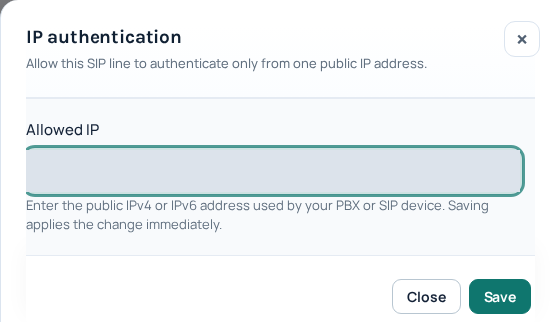
The save confirmation establishes the Portal result, not a completed PBX call. If the request fails or times out, inspect the current line state before repeating it. Do not assume that the previous mode remains active solely because your browser did not receive the response.
3. Align the PBX with the saved authentication mode
- Update the PBX’s IllyVoIP trunk according to its supported IP-authentication setup and the endpoints shown for your account. Do not copy a server name from another provider.
- Make sure the intended public source is still used after any firewall, NAT or VPN change.
- Review whether the PBX should register for this trunk under its documented setup; do not treat a password-registration indicator as the sole success test for an IP-authenticated path.
- With authorization, check the required outgoing call path. If the setup also receives calls, inspect the incoming number’s saved destination and verify that path separately. Normal charges can apply.
Changing authentication does not automatically retarget an incoming number, choose a new caller ID or grant new destination access. Keep those existing service controls in mind when a call fails after an otherwise successful authentication change.
Handle a rejected or uncertain change
- Main account must stay password protected: return to the eligible additional line. Do not weaken the primary identity to force the setup.
- Another account already uses that IP: verify ownership and the intended shared-source arrangement with Support. Do not enter an unrelated address to get past the check.
- Invalid IP address or a private/reserved-address message: correct the actual source information.
- A temporary authentication, backend or recovery message: retain the saved state and allow the indicated recovery or support review. Repeated mode switching can make diagnosis harder.
If you need to revert, use the supported password-authentication action for the same eligible line, read its resulting credential state and update the PBX accordingly. Do not assume old credentials remain the correct recovery value. For a later move of an already IP-authenticated system to another public address, use the dedicated migration guide below.
Related guides
Reviewed 12 October 2026 against the current IllyVoIP controls, implementation and applicable references. Available options depend on account permissions and service state.