
Start with the question you need to answer
Open Team Activity. Use it to review recorded actions and available session or call views. It is different from Realtime Operations, which shows current calling activity, and from Security, where you manage your own signed-in devices.
Find an action
- Select a period that includes the event. Check your account timezone when comparing another system's records.
- Select a team member if you know who performed the action.
- Use the available Activity, Resource, Result and Source filters to narrow the timeline.
- Read the event details and outcome, then use the page controls for more results. Clear filters before concluding an event is missing.
A failed action and a successful action are not equivalent. Read the result rather than assuming that an event's presence proves the change completed. The history shows the events recorded by the platform, not every click or every action in an external application.
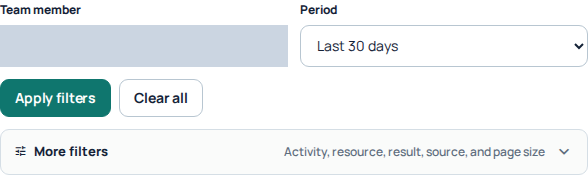
In the All activity view, choose a team member and period, then expand More filters for activity, resource, result, source and page size. The team-member selector is hidden; private events are outside this capture. Open the image for a larger view.
Understand session views
Session history helps you review recorded periods of agent activity. It is not proof that an employee is currently online or continuously working throughout the displayed period. Use live agent presence for current availability and call history for individual call outcomes.
Investigate without changing access accidentally
Review the member, time, action and outcome before changing permissions. If something appears unfamiliar, compare it with the team's work and contact Support with the relevant details. Do not share credentials or unrelated employee information in public screenshots.
For current calls, see live calls and performance. For account access, see SIP lines and agents.
Choose the Team Activity view that matches your question
Team Activity separates Sessions, All, Changes, Security, Views and Calls. Start with the relevant view so you do not confuse a page visit with a saved change or a session with a conversation.
- Open Team Activity.
- Select Sessions for recorded Portal sessions, Changes for recorded modifications, Security for security events, Views for recorded viewing activity, or All for the combined activity timeline.
- Choose a period such as Last 24 hours, Last 7 days, Last 30 days or Last 90 days.
- Use the member and additional filters offered in that view. Calls uses its own reporting controls, so do not assume every timeline filter carries into it.
- Read the individual outcome and event details. Use the page’s navigation to continue beyond the initial results.
Use an event as a starting point, not a complete explanation
For example, to investigate a changed setting, start with Changes and the relevant period. Narrow to the member and resource where available, then check whether the recorded result succeeded. A failed attempt does not prove the current setting changed. Open the actual service to verify its present configuration before deciding what to do.
Views records supported viewing events, not every click or everything a person did outside IllyVoIP. Session duration is not a reliable measure of continuous work, and live presence is a different view of availability.
Read availability warnings before concluding an event is absent
The page can indicate that a source or live session status is unavailable. Results may then be incomplete. Keep that warning with your investigation; do not treat missing rows or a missing active-state indicator as proof of no activity. Clear restrictive filters and check a wider period if appropriate, then contact Support with the relevant view, period, member reference and error.
Reviewed 10 October 2026 against the current IllyVoIP Portal and implementation. Available controls depend on account permissions and service state.