
When an IllyVoIP API request fails, read both the HTTP status and the structured error before changing credentials. A missing or invalid key, disabled API access, incomplete verification and an unavailable owned resource require different fixes. Repeatedly regenerating the key can interrupt other integrations without resolving the original problem.
This guide is for an account owner or developer responsible for an authorized backend integration. Use read-only checks while diagnosing access. Do not resend a paid call, SMS or number-order request merely to see whether authentication now works.
1. Capture a safe record of the failure
Record the request method and endpoint path, environment, time, HTTP status and sanitized error code/message. Keep the application deployment or worker identity so you know which runtime failed. Remove API keys, browser tokens, webhook secrets and unnecessary customer data before sharing logs.
Separate connection failures from HTTP responses. A DNS, TLS or network timeout does not establish that a key is invalid. A 503 response reporting authentication or verification-service unavailability is also different from an authentication rejection.
2. Confirm the environment and key location
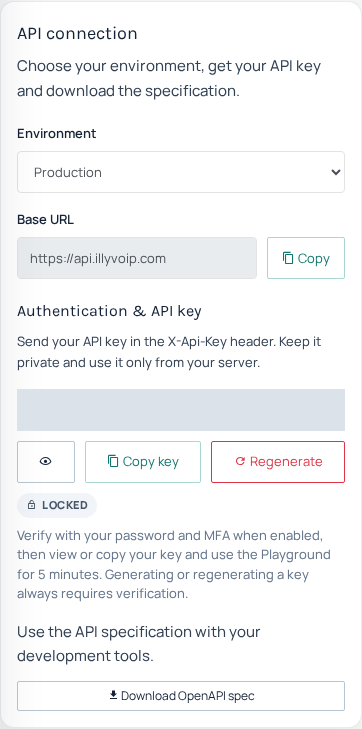
In the Portal, open Settings → Developer tools, available at the account settings API tab. Check the environment and base URL under API connection. Production and Sandbox use separate credentials; a Sandbox credential sent to Production is rejected.
Complete the Portal’s verification prompt if you need to view or copy the current key. Keep it in your backend secret store. Generating or regenerating a key requires verification and changes the credential; it is not a routine diagnostic step.
For public API-key endpoints, use the documented X-Api-Key header. Do not add a key to a query string, where it can leak through URLs, logs and history. Do not confuse a webhook signing secret or a short-lived browser token with the account API key. Browser-bootstrap authentication follows its own documented token contract.
3. Resolve 401 authentication failures
Missing API key: inspect the outgoing request from the failing runtime and confirm the header is populated from the intended secret reference. Check whether a proxy or application wrapper stripped it. Do not print the key as a debugging shortcut.
Invalid API key: check whether the integration is using a retired credential, the wrong environment, a copied placeholder or configuration that was never reloaded. Compare secret versions and deployment records rather than pasting key values into chat.
After a rotation, a process may retain the old key until its normal reload/restart mechanism runs. A successful request from a developer’s laptop does not prove a scheduled worker loaded the replacement. Check each affected consumer.
4. Resolve 403 permission and verification failures
A valid key does not grant every operation in every account state. API access can be disabled globally or for an account. Some operations require the account owner, an eligible service identity or completed verification. Read the specific response instead of assuming another key will help.
If the response requires identity verification or a service agreement, complete the supported Portal workflow. Do not try another endpoint or manipulate parameters to bypass that requirement. If access is disabled unexpectedly, contact Support with the sanitized reference and account context through the appropriate private channel.
An agent’s ability to read documentation is not permission to reveal the owner’s key or execute owner-authorized API operations. Keep application authorization and IllyVoIP account authorization aligned.
5. Distinguish resource and validation errors
A 404 for an owned resource may mean the identifier is wrong, unavailable or outside the account’s access. Do not enumerate other customers’ IDs. Obtain the correct public reference from the account’s own list/read workflow.
Validation and conflict errors need the request or operation state corrected. Rate limits need the documented delay and recovery policy. Neither is normally fixed by key regeneration. Preserve uncertainty if the failed operation could already have performed a paid action.
6. Verify recovery from the actual runtime
Choose an authorized read-only endpoint your integration normally uses. For a SIP integration, listing its available identities is one possible check:
curl --silent --show-error --fail-with-body \
  'https://api.illyvoip.com/api/v1/sip/identities' \
  -H "X-Api-Key: ${ILLYVOIP_API_KEY:?Set the intended runtime key}" \
  > identities-check.private.json
Inspect the response privately and confirm the expected account-scoped result. This request can still be subject to the account’s verification and access rules; it is not a universal bypass probe. Use a protected temporary file and remove it through your normal retention process.
Once access is restored, reconcile previously uncertain operations before resuming side-effecting jobs. Keep their original logical identities and documented idempotency behavior. Restoring authentication does not prove that an earlier send or call was never accepted.
When to contact Support
Escalate when the current key/environment and runtime configuration are confirmed but the account’s access state or service error remains unexplained. Supply time, endpoint, HTTP/error status and sanitized operation references. Never send the API key, account password or full private response file.
Related guides and reference
- Start with the API, Playground and webhooks
- Rotate an IllyVoIP API key without losing track of integrations
- Handle HTTP 429 rate-limit responses from the IllyVoIP API
- Test an IllyVoIP API integration in Sandbox before using Production
- API authentication reference
Reviewed 10 October 2026 against the current IllyVoIP reference and implementation. SDK examples target version 1.4.2 where applicable. Local example checks do not certify a completed live call, routing change or third-party integration.