
Use the security controls
Open Account settings — Security and find your login and verification details. If your phone-based account has no email, the Add email shortcut in Profile leads to the same security workflow.
A contact phone in your profile is not automatically your login phone. Use the dedicated login-phone change action when you want to change how you sign in.
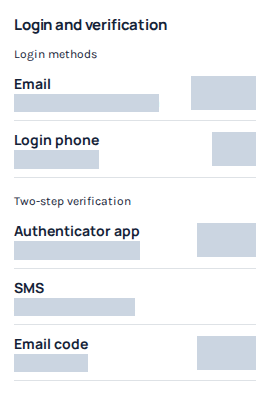
Login and verification separates the login email and phone from two-step verification methods. Identifiers, current states and action buttons are hidden. Use your own account’s available action and follow its verification prompts; no identifier change was started. Open the image for a larger view.
Complete the verification steps
- Choose the email or login-phone action and enter the new identifier carefully. Use the international format for phone numbers.
- Confirm that it is you using the verification method requested by the form.
- Verify the new address or number using the code sent for that step. Follow the delivery channel displayed on screen.
- Wait for completion and confirm that the saved account details show the change. Merely entering the new value or receiving a code does not complete it.
If you cannot continue
If the identifier cannot be added, use another identifier you control or contact Support. The message does not confirm whether another person's account exists. Repeated changes can be temporarily limited; follow the displayed waiting period instead of submitting many attempts.
For a missing email, check spam and the spelling. Request a fresh code when offered and use the latest code for the current step. If the page is checking whether a change completed, let it finish before starting again.
Keep recovery access
Keep access to the old verification method until the change is confirmed. Never send verification codes to anyone. If you have lost the required method, contact Support rather than creating another account to work around the check.