
Use the Caller audio settings of an IllyVoIP queue to choose what callers hear while the queue tries its agents. You can select an available default track or upload your own audio. This guide concerns queue waiting music, not every Hold button on a phone or application.
Prepare the queue and audio
You need access to manage the intended queue. Before changing a live queue, note its current audio selection and choose a suitable time: uploading replacement audio can update that queue immediately.
Use audio you have permission to play to callers. The current upload control accepts WAV, GSM, MP3, OGG and M4A files. Check the size limit shown in your Portal. The service validates the file itself, so changing a filename extension does not convert an unsupported file. Listen to the source file first for silence, distortion or an unexpectedly loud introduction.
1. Open the intended queue
- Open the Portal's inbound queues page and select the queue you want to change.
- Confirm its name and members. A similarly named queue may serve another department.
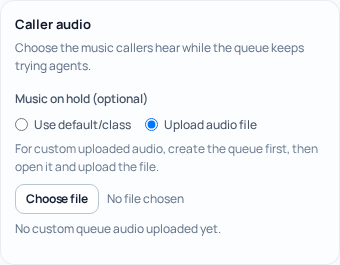
- Locate Caller audio and Music on hold.
- Review the existing default or uploaded selection before replacing it.
2. Use a default track
- Select the default-audio option.
- Choose from the default tracks offered by the Portal.
- Use the preview player when available to check the selection.
- Save the queue settings and reopen the queue to confirm the saved choice.
The browser preview checks the selected audio. It does not prove that your public phone number currently routes to this queue.
3. Upload audio to an existing queue
- Select Upload audio file.
- Choose the audio file. Check its filename and the current size limit.
- Select Upload audio. This is an action on the selected queue, not just an attachment waiting for a later Save.
- Wait for the upload result. When successful, the queue details show the current file and a preview player.
- Play the preview and check that it is the intended recording. Reopen the queue to confirm the saved audio selection.
If you also change other queue settings, review and save those deliberately. Do not assume that leaving the screen reverses an audio upload that has already succeeded.
4. If the queue is new
The new-queue form shows the Caller audio options and currently advises creating the queue first for custom audio. The clearest workflow is to create the intended queue, reopen it and use its Upload audio action as described above. Check the queue list before retrying a creation that returned an uncertain result.
Queue creation and audio upload are separate service steps. If a creation flow reports that the queue was created but its audio upload failed, open that existing queue and fix the upload there. Do not create another queue just to retry the file.
5. Check the incoming route and caller experience
- Check the phone number, menu or other incoming route that should send callers to this queue.
- Check agent readiness and the queue's waiting and timeout rules. Music does not make an unavailable agent available.
- When you are ready to make an authorized test call, call the incoming number from another phone and verify that it reaches the intended queue.
- Listen during the waiting stage, then verify that the call reaches an agent or follows the configured timeout path. A call answered immediately may never spend enough time waiting to demonstrate the track.
Normal call charges can apply to your test. No live call is needed just to preview the file in the browser.
Troubleshoot an upload or unexpected audio
- Unsupported format or empty file: export a real audio file in an accepted format; do not rename a document or an empty download.
- File too large: check the displayed limit and export a smaller file, then listen to it again.
- Upload rejected or temporarily unavailable: read the exact message. File validation or service availability may prevent the upload. Keep the current working selection and try again only after addressing the reported problem.
- Old music still plays: reopen the queue and inspect its saved choice, then check whether the incoming route reaches another queue. Browser playback and the caller route are separate checks.
- Nothing plays during a test: confirm that the call actually enters the waiting stage. Review the queue and route before replacing a file that previews correctly.
Related guides
See setting up an inbound queue for members and routing. Application developers controlling audio through an API should use Voice API waiting music and hold.
Reviewed 10 October 2026 against the current IllyVoIP Portal and service implementation. Options depend on account access and current service availability.