
Prepare the browser phone
Sign into your account and open the webphone. Allow microphone access when asked, choose the intended microphone and speaker or headset, and check the connection state. A visible dial pad alone does not prove that the phone is ready to call. Availability depends on your account and calling permissions.
If the webphone says it is active in another tab or device, decide where you want to use it. Take over only when intended: this moves browser-phone control away from the other session. Do not treat takeover as a way to seamlessly move an ongoing conversation between devices.
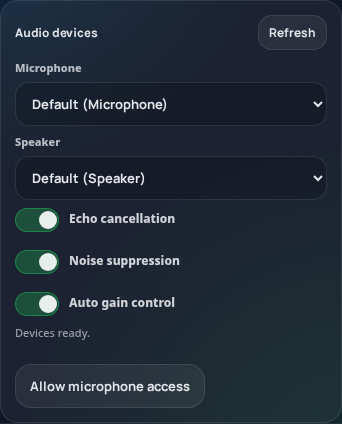
Audio devices are selected in the webphone’s Settings. The device names shown here are browser defaults; allow microphone access to discover the devices available on your computer. This capture does not demonstrate a connected call. Open the image for a larger view.
Place or answer a call
- Review the available line and outgoing Caller ID controls. Use a number you are allowed to present.
- Enter the destination in international format, or use your configured local-dialing preference. Check the destination and current rate before calling.
- Start the call and follow its state: ringing is not the same as answered.
- For an incoming call, use the answer or reject control. An incoming number must be active and routed to the correct destination.
- Use the end-call control when finished. Closing a panel should not be treated as confirmation that a call ended.
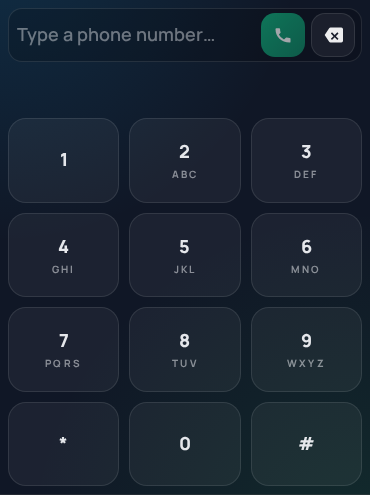
The idle dialer provides a destination field, call button and keypad. Check the destination before calling. No call was placed for this screenshot. Open the image for a larger view.
Controls during a call
- Mute: stops your microphone from being heard; it is different from hold.
- Hold: pauses your participation; use the control again to resume as shown.
- Keypad: sends digits to a telephone menu during the connected call.
- Transfer: choose an available agent or PSTN number, review the destination, confirm and follow the transfer status. Do not assume success just because you clicked the button.
Calls and external transfers can incur charges and remain subject to destination and Caller ID rules. Contacts and recent history help you find a number, but check the identity before dialing it.
If a call cannot proceed
Read the connection or call error, check permissions and audio devices, and consult the troubleshooting guide. Avoid repeatedly placing paid calls to diagnose the same unresolved issue. Give Support the time, destination and public call reference, not your password.
See webphone troubleshooting, Caller ID and connection testing.