
Open the intended Voice Agent in Studio, choose Edit Business Hours and set the weekday and weekend intervals in the account timezone shown. Then review the after-hours greeting and the published routing outcome. Changing hours alone does not create a staffed after-hours destination.
This guide covers the web Studio checked October 9, 2026. It assumes you already have an agent prepared with the Voice Agent setup guide. Editing a live agent can affect future callers; first record its current settings and intended fallback.
1. Confirm the account timezone
- Open Voice Agents and edit the intended agent.
- Find Business Hours and select Edit Business Hours.
- Read Timezone of your account and Current local time.
- Compare that time with the office’s intended business timezone before entering intervals.
The current editor shows the account timezone; it does not provide a separate per-agent timezone selector. If it is wrong, review the account preference through the normal settings workflow, consider the effect on other uses and reopen the agent before continuing. Do not compensate by entering a guessed UTC offset into each interval: daylight-saving changes can make that unreliable.
2. Set explicit weekday and weekend hours
The editor groups the schedule into Weekdays (Mon–Fri), Saturday and Sunday. It provides opening intervals, Add, 9–5, 24h, Closed and Default controls.
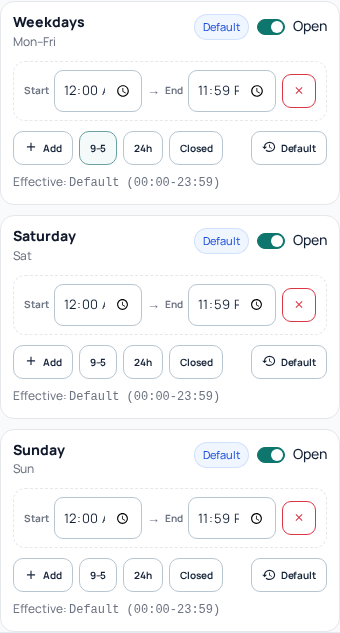
- For Weekdays, choose 9–5 or set the interval explicitly to 09:00–17:00.
- If reception closes for lunch, use two non-overlapping intervals, such as 09:00–12:00 and 13:00–17:00, using Add.
- Choose Closed for Saturday and Sunday if nobody should handle normal office calls then.
- Read the effective schedule shown below every group. Check each group rather than assuming the weekday change applied to weekends.
Default is not Closed. Blank/default schedules currently inherit the open schedule, shown as 00:00–23:59. Use the explicit Closed control for a closed day. The screenshot shows unsaved default controls, not the recommended 09:00–17:00 schedule.
An interval’s end must be after its start, and intervals cannot overlap. The weekday block applies to all five weekdays; it is not five independently editable days. Do not enter 22:00–06:00 as one interval or assume a holiday exception calendar exists in this editor. If the real schedule cannot be represented by the offered groups, confirm an appropriate design before routing customer calls to it.
3. Write an after-hours greeting that matches the action
In the same workspace, fill in the after-hours greeting. For example: “Our reception is open Monday to Friday, nine to five. We are currently closed. Please call during opening hours.” If the actual fallback offers another service, explain that accurately.
Do not say “leave a message” unless the configured path really records one. Do not promise that someone will answer an unattended queue or that a callback will happen automatically. The greeting and the action after it are separate parts of the caller experience.
4. Review the fallback derived from Call Flow
Open Call Flow and inspect the entry menu or assistant, its no-input/fallback connection and the destination at the end of that connection. The current publisher derives its fallback from supported flow routes; the visual label “Working Hours” is not a free-form second routing tree.
For a straightforward menu setup, connect its no-input outcome directly to the intended supported Transfer or Hangup step. Configure a Transfer step’s real destination; its display name alone is not a destination. A Hangup fallback is appropriate only when the greeting clearly tells callers that the interaction will end.
Read the publication routing preview. Depending on the flow, it shows No input or separate work-hours and after-hours summaries. When the latter appears, check No input (after hours). If the derived outcome is not what you intended, resolve it before applying the agent; do not infer behavior from arrows or node names alone.
Changing a shared fallback can also affect no-input behavior during opening hours. Review both outcomes. For more complex flows, use the flow and integration guide and confirm the published result rather than assuming every visual branch becomes an independent after-hours route.
5. Apply the agent and verify its published state
- Close the hours editor and recheck the Business Hours summary and after-hours greeting.
- Resolve validation errors in the complete agent, including missing destinations.
- Use Update or Publish, as offered, and wait for the operation’s result.
- Check the published state and routing preview. An unsaved editor change or an in-progress job is not a live configuration.
- Before routing an incoming number to this agent, verify that the saved number destination selects the intended published agent.
6. Check open, closed and boundary behavior
Plan controlled tests for a weekday during an open interval, the lunch gap if present, after closing and a closed weekend day. Compare the account’s displayed local time for each test. At an opening/closing boundary, check the actual result rather than assuming minute or second precision from the text of the schedule.
Test the greeting and the actual fallback, including a destination that is unavailable. Simulator checks can help inspect a flow but are not proof of real phone ringing, successful transfer or live timezone behavior. An HTTP step can contact its configured system even in a simulator, so review it before running a test. Normal charges can apply to live calls.
Common problems
- The agent behaves as open all weekend: check for Default/blank weekend schedules, then set Closed explicitly and apply the agent.
- The schedule is shifted: compare the account timezone and local time, then the published version.
- The greeting is right but the destination is wrong: inspect the derived fallback and publication preview, not only the hours.
- The phone still uses old behavior: check publication completion and the incoming number’s saved destination.
Keep the agent identity, applied version, local test time and observed path for Support. Do not change the production clock or a shared account timezone just to force a demonstration.