
Plan the outcome before adding steps
Open Voice Agent Studio and the intended agent’s Call Flow. Start with the basic setup or telephone menu guide. A useful flow has a clear entry, a response or action, and a safe path when input or an external service is unavailable.
Work only on the intended agent and review its existing destinations before editing. A step’s label does not configure its target. Changing an active flow can affect future customer calls.
Collect input and use variables
- Add a Collect step and choose Menu for digit choices or Capture input for a value.
- Select keypad, speech or the offered combined input mode. Set the prompt, input limit and timeout.
- Give the captured value a clear variable name. Use the variable selector or
{{var_name}}where the editor supports it. - Connect valid input, no-input and invalid-input paths as offered. Use Conditions to branch on an expected value rather than assuming every answer is usable.
Fresh input is the normal choice. If the editor offers reuse of a previously supplied answer, use it only for suitable ordinary information. Do not configure reuse for passwords or verification codes. Avoid speaking private values back unnecessarily.
Connect an HTTP service deliberately
A Webhook/HTTP flow step calls your receiving application; it is different from account webhooks that notify you about call or SMS events. Choose the method, HTTPS URL, timeout and required headers/body. Insert only the variables the receiver needs. If using response extraction, check the returned JSON fields and configure both success and failure paths.
An HTTP step can call the configured receiving application. Use a safe test endpoint while developing. A timeout does not prove the receiver did nothing; check its result before retrying any action that changes real records.
Keep credentials out of greetings, knowledge, URLs that will be shared, and screenshots. Limit access to the integration settings. Never send more personal data than the workflow needs.
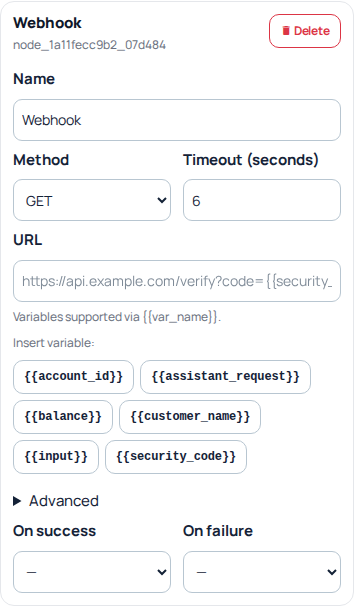
A Webhook node exposes the method, timeout, URL, variables and success or failure destinations. The URL shown is placeholder text. This new node is unsaved and has not called an endpoint; configure both outcomes before applying a flow. Open the image for a larger view.
Review hours and transfers
Check Business Hours, the displayed timezone and after-hours greeting/path. Review each day and test the intended closed-hours result. For transfers, choose the actual SIP line, queue or offered destination and verify that someone can answer it. Configure the offered failure/no-answer path instead of assuming an unavailable destination will find another person automatically.
Apply and verify the complete path
Resolve validation errors, use Update or Publish as offered and check the resulting state before changing an incoming number’s destination.
With permission, test ordinary input, no input, an external-service error and the human transfer. Calls and integrations can incur charges. Use call history and the Voice Agent report to compare the public call reference, start time, duration, transcript and recording when available. A missing transcript may reflect the storage setting; a transcript does not prove a complete recording exists. A report’s call result is not proof that your external booking or update succeeded.
For problems, keep the public reference, agent name, time/timezone, step and sanitized error. Do not repeatedly publish or replay external actions without identifying what failed.
Configure a Condition with two clear outcomes
A Condition compares a value and chooses an If true or If false destination. It needs an earlier step to provide the value; creating a condition does not collect input by itself.
- Open the intended agent’s Call Flow and select or add a Condition step.
- Set the Variable to the ordinary input or variable you intend to inspect. Enter the variable name used by the earlier capture step.
- Select the Operator.
- Enter the Right value to compare with the left value.
- Choose both If true and If false destinations.
- Review the earlier input step’s no-input and invalid-input paths, then apply the complete agent update with the offered action.
equals and not equals compare the intended values. greater than and less than are useful for suitable numeric input. contains checks whether text includes the comparison text. regex requires a deliberately designed pattern; use a simpler comparison when it expresses your rule clearly.
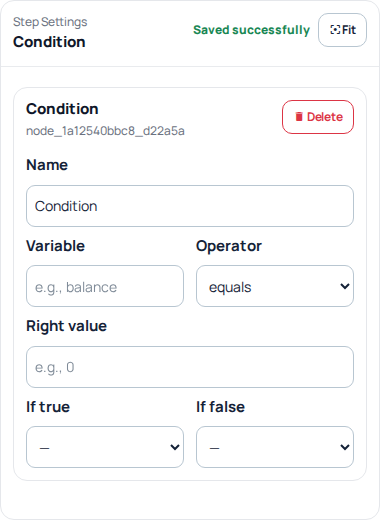
Example: choose a department from captured input
Suppose an earlier input step stores a department choice in a variable named department. Set the condition’s Variable to that variable, choose equals, and enter the value representing Sales. Set If true to the prepared Sales path and If false to a useful alternative such as another choice or a help path.
Use the actual value saved by the earlier step: a digit such as 1 is not the same input as the word Sales. Do not depend on undocumented case conversion or missing-value behavior. Check the value format and both outcomes deliberately.
Check the whole path before relying on it
Review a matching input, a nonmatching input and an empty or invalid input. Confirm that each can reach a useful outcome without looping indefinitely. An If false branch should not silently send every unexpected value to an unrelated department.
After applying the changes, verify the saved/published state. A permitted real-call check is still needed to establish that the intended destination answers and audio works. Do not use customer secrets, passwords or verification codes as sample variables. If an HTTP action changes real records, confirm its result in the receiving application before repeating it.
For the result after a real interaction, see Voice Agent reports and usage charges.
Reviewed 10 October 2026 against the current IllyVoIP Portal and implementation. Available controls depend on account permissions and service state.