
If calls intended for a Yealink T57W ring somewhere unexpected, inspect the phone’s forwarding settings as well as the IllyVoIP incoming-number destination. A phone can apply always, busy or no-answer forwarding, and managed provisioning or server feature codes can introduce another layer of behavior.
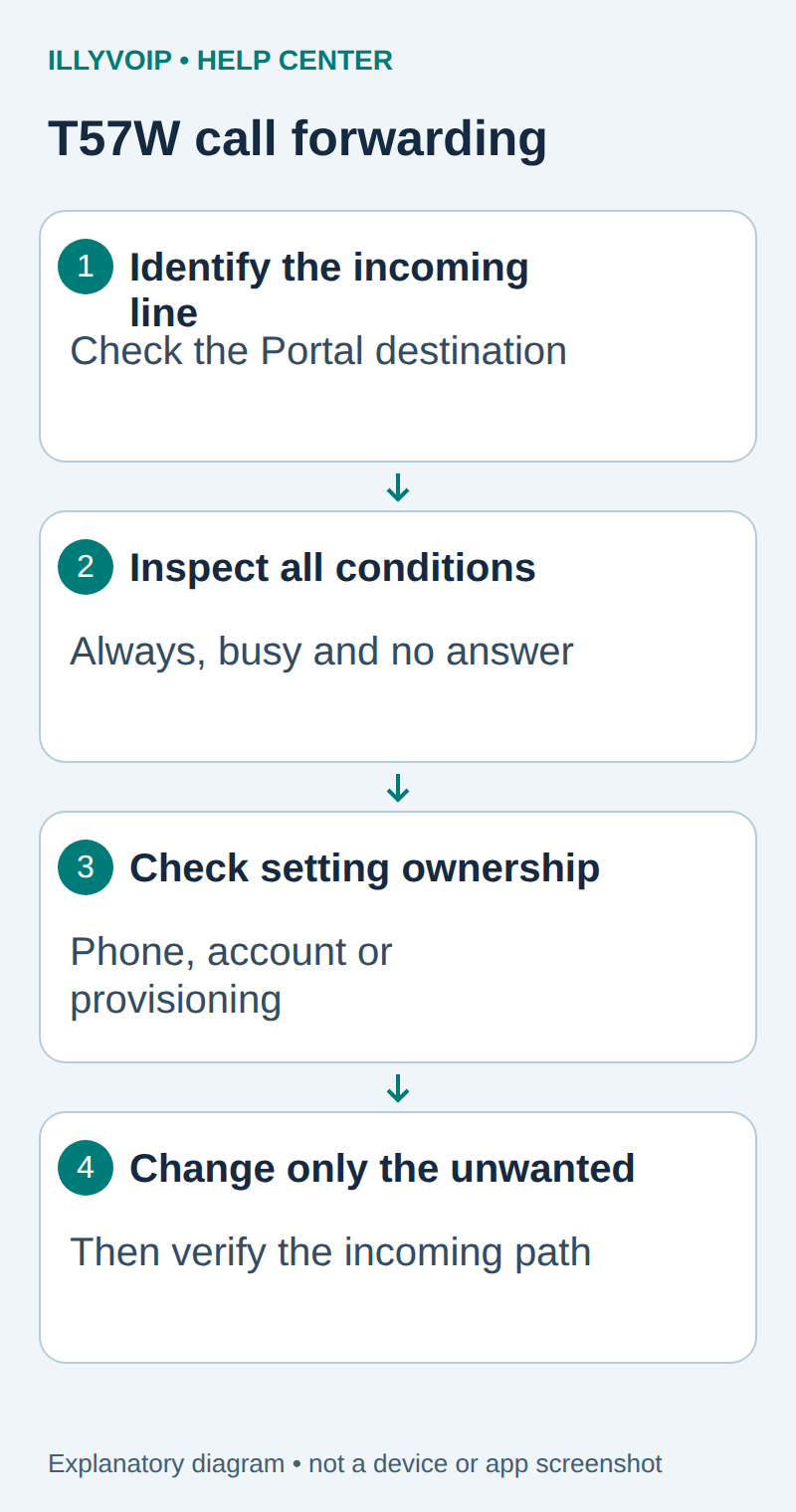
1. Confirm which line and route are involved
Identify the T57W account label receiving the call and the intended IllyVoIP SIP line. Check the purchased number’s current destination in the Portal before changing the phone. If the incoming route points somewhere else, turning off a local phone setting will not repair that route.
Distinguish forwarding from transferring an active call and from Do Not Disturb. Note whether the problem happens for every call, only while the phone is busy, or only after ringing for a while. Those observations help identify the relevant forwarding condition.
2. Review the phone’s management context
Confirm that this is a T57W and record its firmware version. Open the phone’s authorized web interface on your trusted network using its administrator-approved access method. Do not use a guessed default password or expose the interface to the Internet.
If a PBX or provisioning service manages the device, check with its administrator before editing local settings. A provisioned value can return after a reboot or configuration refresh. Keep a private record or backup of the intended settings before changing them.
3. Inspect Forward settings
Yealink’s T57W documentation places the web controls under Features → Forward&DND → Forward. Labels can differ with firmware or provisioning. Inspect the forwarding mode and the selected account before changing a switch.
| Item | Meaning or action |
|---|---|
| Always forward | Applies immediately to incoming calls for the relevant scope. |
| Busy forward | Applies when the phone/account reports the relevant busy condition. |
| No-answer forward | Applies after the configured ringing timeout. |
| Phone-wide mode | Can affect multiple accounts on the phone. |
| Account-specific mode | Review the individual account rather than assuming another line shares its settings. |
Record the enabled condition, target and no-answer timeout. A plausible-looking destination can still be an old colleague or an unintended external number. External forwarding can create an outgoing leg and charges; do not test it by guessing a destination.
4. Distinguish local settings from server codes
Yealink supports On Code and Off Code fields for server-side forwarding features, but the codes depend on the connected server. Do not copy another provider’s star codes or assume they are IllyVoIP commands.
If those fields are populated or the phone is provisioned, ask the PBX administrator which system owns the feature. A local toggle can invoke a configured server code. Disabling a phone display indicator is not proof that a separate server-side rule has been removed.
This guide identifies and removes an unintended existing setting. It does not promise that every SIP redirect or external forwarding arrangement is supported on your particular route.
5. Change only the unwanted condition
- Confirm the correct account or phone-wide scope.
- Disable the specific unintended always, busy or no-answer forwarding condition.
- Save using the interface’s offered action.
- Reopen the page and confirm the stored result.
- Keep any intentionally configured conditions unchanged.
If the setting returns, inspect provisioning or server-side ownership before repeating the edit. Do not factory-reset a working multi-account phone to remove one forwarding rule.
6. Test the actual incoming path
When authorized, place a controlled call to the relevant IllyVoIP number from a phone you control. Check the idle case first, then only the busy/no-answer conditions relevant to your configuration. Confirm the T57W rings and that the eventual destination matches the intended route.
If the problem remains, review the Portal number destination, PBX routing, DND and registration separately. No-answer routing on the PBX can remain active even when phone forwarding is off. Keep the test’s time and call reference for Support.
Troubleshooting
| Item | Meaning or action |
|---|---|
| Calls leave immediately | Inspect Always forwarding and the upstream destination. |
| Only unanswered calls move | Compare the phone’s no-answer timer with the PBX’s own routing timer. |
| Another account changed too | Review phone-wide versus account-specific scope. |
| The setting reappears | Check provisioning ownership and server feature state. |
| The controls are missing | Confirm model, firmware and administrator policy; do not borrow screenshots or codes from another device. |
Document the accepted setting and the responsible administrator so future firmware or provisioning changes do not recreate the same confusion.
Related guides and reference
Yealink T57W call-forward documentation. IllyVoIP API reference. Reviewed October 12, 2026. Examples are instructional: local checks do not establish a completed paid request, live third-party integration or production PBX acceptance.