
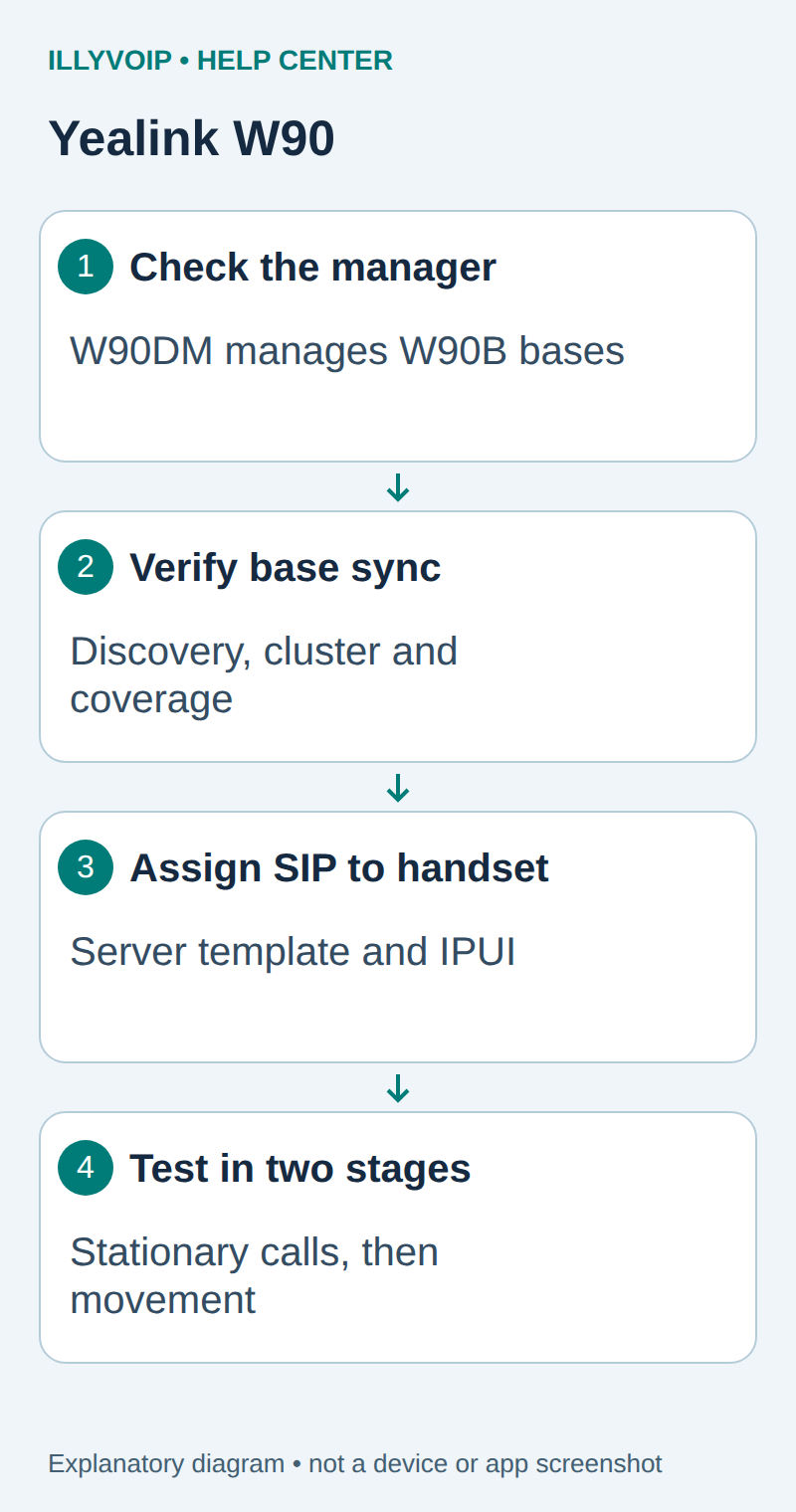
Use a Yealink W90 system when compatible cordless handsets need the coverage of an already planned multicell DECT installation. The W90DM manages the system; W90B units provide radio coverage. IllyVoIP supplies the SIP calling service. Base synchronization, handset subscription and SIP registration are separate checks.
This guide follows Yealink's current W90 system-setup and account-registration documentation. Start with one handset and a working manager/base connection. RF site design, network multicast policy, capacity planning and deployment of a Virtual Integrator Manager are outside this first-line setup.
Prepare your IllyVoIP line
In the Portal, open Services → SIP Lines and select the password-authenticated line intended for this device. Record its SIP username and obtain the SIP password securely. Expand Technical endpoints and use the displayed hostname, destination port and transport. Check the line's audio-encryption policy and permitted outgoing caller ID. Your Portal email and password are not SIP credentials.
If the device will be an extension of your own PBX, enter the PBX extension details on it instead. Configure IllyVoIP on the PBX trunk using the separate PBX guide. Start with one account and one test device; avoid copying a working reception line onto several devices without checking registration behavior.
1. Check the deployment before adding an account
- Identify the W90DM and each W90B by address and label. Record the installed firmware and check compatibility with the handset.
- Confirm that the intended management and voice networks are working and that the manager can discover or reach the bases.
- Open the W90DM web interface with the administrator account. Use the manager for centralized account configuration.
- Preserve existing clusters, synchronization sources, VLANs and provisioning settings. Coordinate changes with the DECT administrator.
A handset may show radio coverage even while a base is disconnected from the intended manager. Check the management interface rather than relying on the handset signal icon alone.
2. Register and check the base
In the manager interface, open Base Station → Base Station Registration. Locate the intended detected base and use its registration action. Confirm its name/location, cluster and synchronization settings against the site's design, then save.
The discovery process depends on the network design. If a base is absent, check its DM connection and the supported discovery or unicast procedure in Yealink's guide. Do not change multicast settings across the whole network to work around one missing base.
Inspect base status after registration. It must be active and correctly synchronized before you rely on coverage across cells. A successful SIP registration cannot compensate for an unsynchronized radio system.
3. Configure the SIP server and handset account
W90 separates the reusable SIP server configuration from the individual handset account. Configure the server entry/template for the IllyVoIP hostname, port and transport using the Handset & Account → SIP Server Settings page provided by the installed manager firmware. Then open Handset & Account → Handset Registration → Add Handset, or edit the intended existing entry.
| Account setting | Value |
|---|---|
| Account enable / Line Active | Enable the intended account. |
| Label / Display Name | A recognizable handset/line label; not caller-ID authorization. |
| Register Name / authentication name | The IllyVoIP SIP authentication identity. |
| User Name | The SIP line username. |
| Password | The SIP password for that identity. |
| SIP server template | The server configuration created for this connection. |
| IPUI, when used | The identity of the physical handset you intend to associate. |
Keep the account and handset mapping explicit. Yealink also supports CSV account import, but a single entry is easier to validate first. A registration CSV contains credentials and must be handled as a private configuration file.
4. Subscribe the handset
- From Handset & Account → Handset Registration, start the handset registration window.
- On the compatible handset, use Settings → Registration → Register Handset, or the documented registration shortcut for that model.
- Select the intended base/system and enter its configured registration PIN.
- Wait for the handset subscription confirmation. Check that the IPUI and account row correspond to that handset.
- Close the registration window and inspect SIP registration separately.
Do not enter the DECT PIN into the SIP password field. If several systems are discoverable, make sure the handset joins the intended manager.
5. Match media policy and test calls
Review transport and audio encryption before calling. TLS requires correct time and certificate trust; SRTP is a separate media setting. Keep a required security policy intact if the firmware cannot satisfy it.
- With the handset near a known working base, dial one authorized destination using the assigned line. Check the applicable rate before the test.
- Confirm outgoing caller ID, speech in both directions and hangup.
- Verify that the active IllyVoIP incoming number points to this line, then call it externally and check the intended handset.
- Only after stationary calls work, perform an agreed walking test across the designed cell boundaries. Record where any audio loss or call drop occurs.
Troubleshooting by layer
- Base missing: investigate DM discovery, addressing and registration.
- Base present but unsynchronized: investigate the DECT synchronization design.
- Handset absent: inspect compatibility, IPUI, PIN and registration window.
- SIP account unregistered: inspect account/server-template selection, identity, secret and transport.
- Stationary calls work but movement fails: investigate coverage and handover; do not randomly replace SIP credentials.
Keep manager/base/handset versions and the exact failed stage for Support. A first successful call does not certify maximum system capacity or seamless roaming across the site.
References: Yealink W90 system setup and account registration. Reviewed October 11, 2026.