
Your phone says Registered, but an outgoing call ends immediately, plays a rejection message or never reaches the person you dialed. Work through the checks below in order. They apply to a SIP desk phone, softphone or PBX using IllyVoIP; menu names inside your device depend on its model and software version.
Registration and calling are separate steps. A phone can register to a PBX while the PBX's provider trunk is unavailable. Even when that trunk registers successfully, each outgoing call still needs a valid destination, an eligible caller ID, account permission and an outbound route.
1. Start with one clear example
Use a recent failed call rather than repeatedly dialing. Write down the time and timezone, the destination as entered, the SIP line or PBX extension used, and the exact message or final error. Note whether every destination fails, only one number fails, or the problem appears when several people call at once.
- Every outgoing call fails: start with the selected line, PBX route, credentials and account state.
- Only some numbers fail: compare their number format, destination rate, package eligibility and restrictions.
- Calls fail only when busy: check simultaneous-call capacity, call-start rate and PBX limits.
- The call connects but audio is missing: investigate audio devices, media negotiation and the network path separately. An answered call with one-way audio is a different symptom from a rejected call.
If you need a fresh example, make one short, authorized call to an ordinary number you control. Normal charges can apply if it connects. Do not use emergency numbers or repeatedly call an unknown recipient for testing. Leave active calls undisturbed while checking settings.
2. Find out which connection is registered
On a phone connected directly to IllyVoIP, check the account assigned to the line key you actually use for outgoing calls. On a PBX, check both the extension's registration to the PBX and the PBX's IllyVoIP trunk. A green extension indicator does not confirm the provider trunk or outbound route.
Compare the selected line with its current IllyVoIP SIP details. Use the SIP username and SIP password for password authentication, not the Portal login. Confirm that the device uses the current regional hostname and supported transport from Technical endpoints. For TLS or WSS, use the hostname rather than replacing it with an IP address.
For an IP-authenticated trunk, registration may not be part of the setup at all. Authorization depends on the configured public source IP. A new Internet connection, VPN, backup WAN or cloud address can change the address IllyVoIP sees. Ask the network administrator to confirm that source address before changing the allowed IP. Do not switch authentication modes merely to make an indicator turn green.
If the password was recently changed, update the devices that legitimately use that line. Avoid resetting it as a first troubleshooting step: doing so can interrupt other devices. Use the SIP lines guide for the current account workflow.
3. Check the number that leaves your phone or PBX
Check the final called number sent towards IllyVoIP, not just the digits typed on the handset. A PBX can remove digits, add a country code, apply an outside-line access digit or prepend a routing-package prefix. More than one rule may run before the call leaves.
- Start with the destination's international number, including its country code. Follow your device guide for the accepted international format; do not assume a local dialing pattern will be expanded automatically.
- Check whether your PBX removes an outside-line access digit such as a locally configured dial-out digit. That digit should not accidentally become part of the destination.
- Check whether the country code is added twice or a domestic trunk prefix is being retained incorrectly. Use the numbering rules for the destination, rather than removing a leading zero indiscriminately.
- If you intentionally use an IllyVoIP technical prefix, copy the current value from the eligible routing package. Apply it once. Do not copy a prefix from an old screenshot or add it both on the handset and in the PBX.
- Compare the resulting number with the device/PBX log and the IllyVoIP call report, when available.
A technical prefix selects an eligible routing package; it is not a country code or a way around package permissions. The rates and routing guide explains that distinction.
4. Check your PBX outbound route
If the phone connects directly to IllyVoIP, continue to the next section. For a PBX, follow the failed call from the extension to the outbound route and then to the selected trunk.
- Does the route's dial pattern match the number this extension dials?
- Is this extension allowed to use that route under its class of service or permissions?
- Do route order, schedules or another more specific pattern select a different trunk?
- Are digit-removal and prepend rules producing the intended final number?
- Is the chosen IllyVoIP trunk enabled and using the correct outbound authentication details?
A PBX may play its own rejection announcement before it sends anything to IllyVoIP. Its call log can help distinguish “no matching route” from a response returned by the trunk. If there is no IllyVoIP report, check the filters and allow for reporting delay before deciding where the call stopped; absence alone does not prove that no request arrived.
Use the guide for your actual system: FreePBX or Asterisk PJSIP. Record the current route before making a narrow correction, and check other extensions that share it.
5. Confirm caller ID and package eligibility
Your SIP username identifies the line. Caller ID is the number presented on an outgoing call. A working username and password do not make every caller-ID value eligible.
Review the caller-ID mode on the exact SIP line used by the failed call. An owned number must belong to the account and be eligible; an external number must have completed verification before it can be used as a verified caller ID. Fixed custom values require the relevant access, including permission on the selected routing package.
With dynamic caller ID, the device supplies the number on each call. Compare what the PBX sends with what your account may present. An internal extension number or a display name is not a substitute for an eligible outgoing number. Changing the display name or selecting dynamic mode does not bypass caller-ID policy.
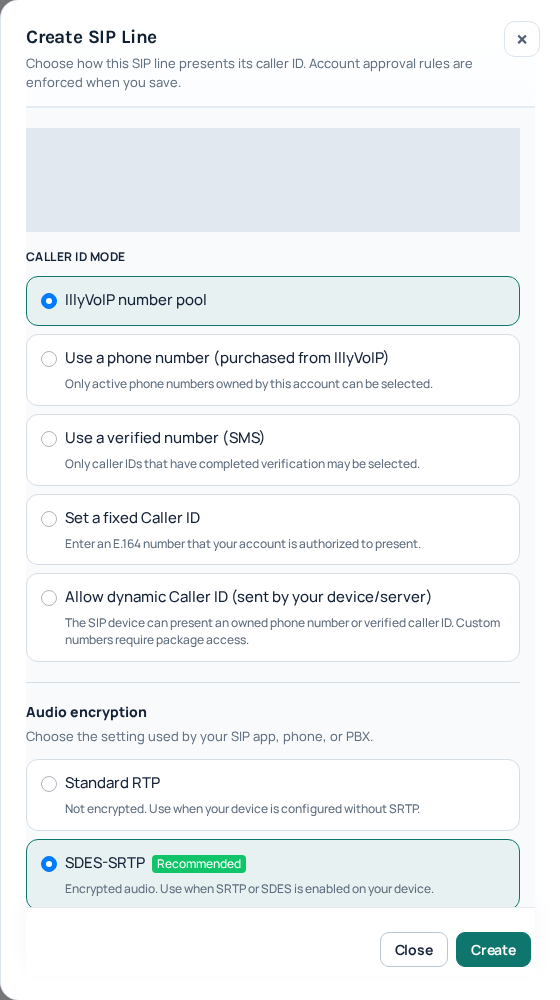
If the problem began after a package change, check whether the previous caller ID is eligible on the new package. Review the saved state and any warning. Ask the account owner or Support to review unavailable choices instead of selecting an unrelated number. See Choose and verify your outgoing caller ID.
6. Review balance, account status and destination rules
Confirm that the account is enabled for the intended calling activity and has sufficient available balance. A successful registration does not prove there is enough credit for a call. Check the applicable destination and package on Pricing → Voice, including any displayed minimum or connection charge. One country can contain multiple destination rates.
In Settings → Voice → Fraud control, review Outbound calls. Check the policy mode as well as the selected countries: “allow only” and “block selected” give the same list different meanings. Review prefix rules too; they can override the country selection.
Check Max price per minute (€ / min) if configured. A destination above that rate can be blocked even when the country is allowed. This field is a rate threshold, not a daily budget or a maximum total call charge. Review any recent Fraud Control activity associated with the example.
Keep legitimate restrictions in place. Correct only the rule that the account owner intends to change. Administrator-enforced restrictions require review by IllyVoIP; an account setting cannot override them. If an account review or recovery action is shown, follow that workflow rather than creating replacement credentials.
Review fraud-control rules explains the controls. Call failure handling changes whether certain pre-routing rejections produce a SIP response or a spoken explanation. Changing that response does not allow the rejected call.
7. Check capacity when failures happen under load
Open Settings → Voice → Routing and review your account's current capacity. Ports describe simultaneous calls; CPS describes the permitted rate of starting calls. They are separate limits. A burst of new calls can be a different problem from reaching the maximum number of ongoing calls.
Also check limits inside your PBX or dialing application. Compare the failure time with normal activity; do not generate a burst of test calls to prove a limit. If a higher limit is needed, use the request option or contact Support with your expected traffic. A pending request is not an active increase.
8. Read the final result in Call Reports
Open Analytics → Call Reports; the page heading may read Call History. Select the correct period and check the timezone displayed. Filter by the destination or call reference, then open the matching call. Confirm that you are looking at the right line and attempt.
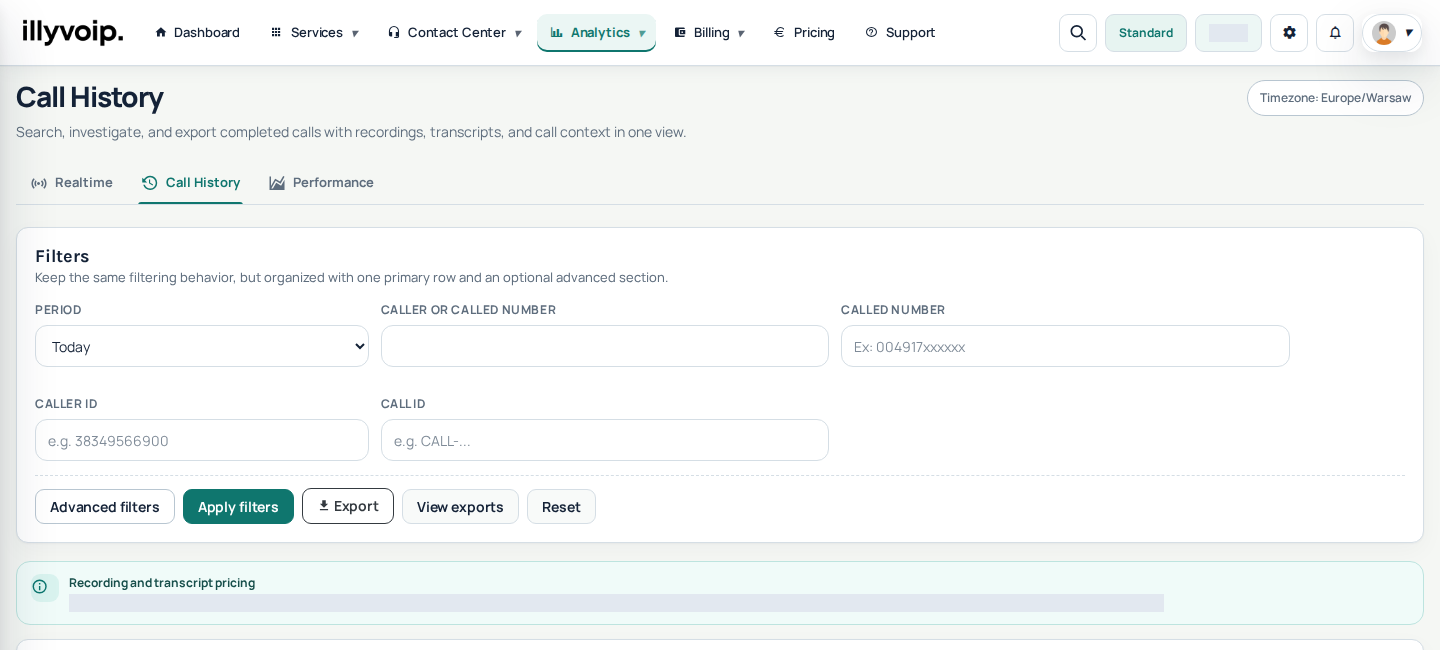
Read the final outcome and accompanying explanation together. A single SIP code is a clue, not a complete diagnosis. Intermediate responses can be normal parts of setup.
| Result or symptom | Useful next check |
|---|---|
| 401 or 407 during setup | An authentication challenge can be normal if the device retries successfully. Repeated challenges without success warrant checking outbound credentials and the authentication identity, not just registration. |
| 403 or a policy rejection | Read the reason and identify which system returned it. Check caller ID, package access, account state and destination restrictions; do not assume a wrong password. |
| 404 or a destination/route error | Compare the final called number and outbound route. The responding system did not find the requested target; the code alone does not establish that the person's number does not exist. |
| 408, timeout or no final response | Check the selected trunk, endpoint, transport and network reachability. Save the timing and logs for the administrator or Support. |
| 480 or 486 | Check whether the destination was unavailable or busy. Compare another authorized destination before changing account-wide settings. |
| 488 or a media-negotiation error | Compare the device's codecs and RTP/SRTP mode with the SIP line. TLS signaling and encrypted audio are separate settings. |
| 5xx response | Keep the final response and public call reference. The responding server encountered a failure; do not assume every 5xx means insufficient balance or a fault in your handset. |
| Answered call but silence or an unexpected announcement | Review the audio, outcome and duration. A successful response does not prove that the intended person answered or that two-way audio worked. |
The Call Reports guide explains the report fields. Keep the SIP response-code reference alongside the actual call details rather than diagnosing from a code in isolation.
9. Narrow down network or device problems
If the evidence points to a timeout or negotiation failure, compare the current endpoint, transport, audio mode and device configuration with the relevant setup guide. A wrong RTP/SRTP match can prevent setup or cause missing audio. Do not copy another phone's security settings without checking what your device supports.
The Portal's Connection quality test can check reachability and response time from the browser running it. It does not test your desk phone's registration, the PBX's network path, actual call audio, jitter or packet loss. A browser on a laptop and a PBX on another network can have different results.
Change one setting at a time and keep a record of the original. Ask your administrator to investigate firewall, NAT or SIP ALG behavior against the device's documented requirements. Do not disable the firewall, expose PBX administration or open a broad range of ports as a general fix. See Test your connection; browser users should also use Webphone troubleshooting.
10. Confirm the fix or send Support a useful example
After a deliberate correction, make one short authorized call to a number you control. Confirm that it reaches the intended phone, presents an eligible caller ID, carries audio in both directions and produces the expected report. If you changed a shared trunk or SIP line, check the other affected workflows, including incoming routing where relevant. A single successful call confirms that example, not every destination or load condition.
If the issue remains, open a private Support request with:
- The public call reference, if available, plus the exact time and timezone.
- The destination, selected SIP line and intended caller ID, shared only through the private support channel.
- The final error or announcement, and whether all destinations or only some are affected.
- The phone/softphone/PBX model and software version, authentication mode and network type.
- What changed before the issue started and the checks already completed.
- A cropped screenshot or limited log excerpt containing the relevant result, with secrets removed.
Never include SIP or Portal passwords, API keys, authorization headers, verification codes or unrelated customer records. If Support needs a trace, follow its secure collection instructions. Avoid attaching a full unreviewed packet capture to a public forum.
Scope and references
Portal controls and linked IllyVoIP guidance reviewed on 7 October 2026. This is a diagnostic workflow, not certification of every phone or PBX version. Genuine Portal screenshots are reused from reviewed October 2026 captures; available controls and account-specific values can differ.
For the protocol distinction between registration, call setup and authentication challenges, see RFC 3261, particularly sections 10, 13 and 22. Use the setup guide for your exact PBX or device for its field names.