
This guide connects a Grandstream GXP1625 or GXP2170 directly to an IllyVoIP SIP line. If your phone registers to an office PBX, use the extension credentials supplied by that PBX instead; the provider trunk belongs on the PBX.
The menu references follow Grandstream's GXP16xx administration guide, version 1.0.7.13. This is a documented interface reference, not a recommendation to install or downgrade to that firmware. Check the model and installed firmware first. GXP and GRP phones have separate guides; use our GRP instructions for a GRP device.
GXP2170: select the correct account and line
The GXP2170 follows the same IllyVoIP identity/server workflow as the GXP1625, with a different account and line-key layout. Use the GXP21xx administration guide for the GXP2170; the GXP16xx firmware reference below remains specific to the GXP1625.
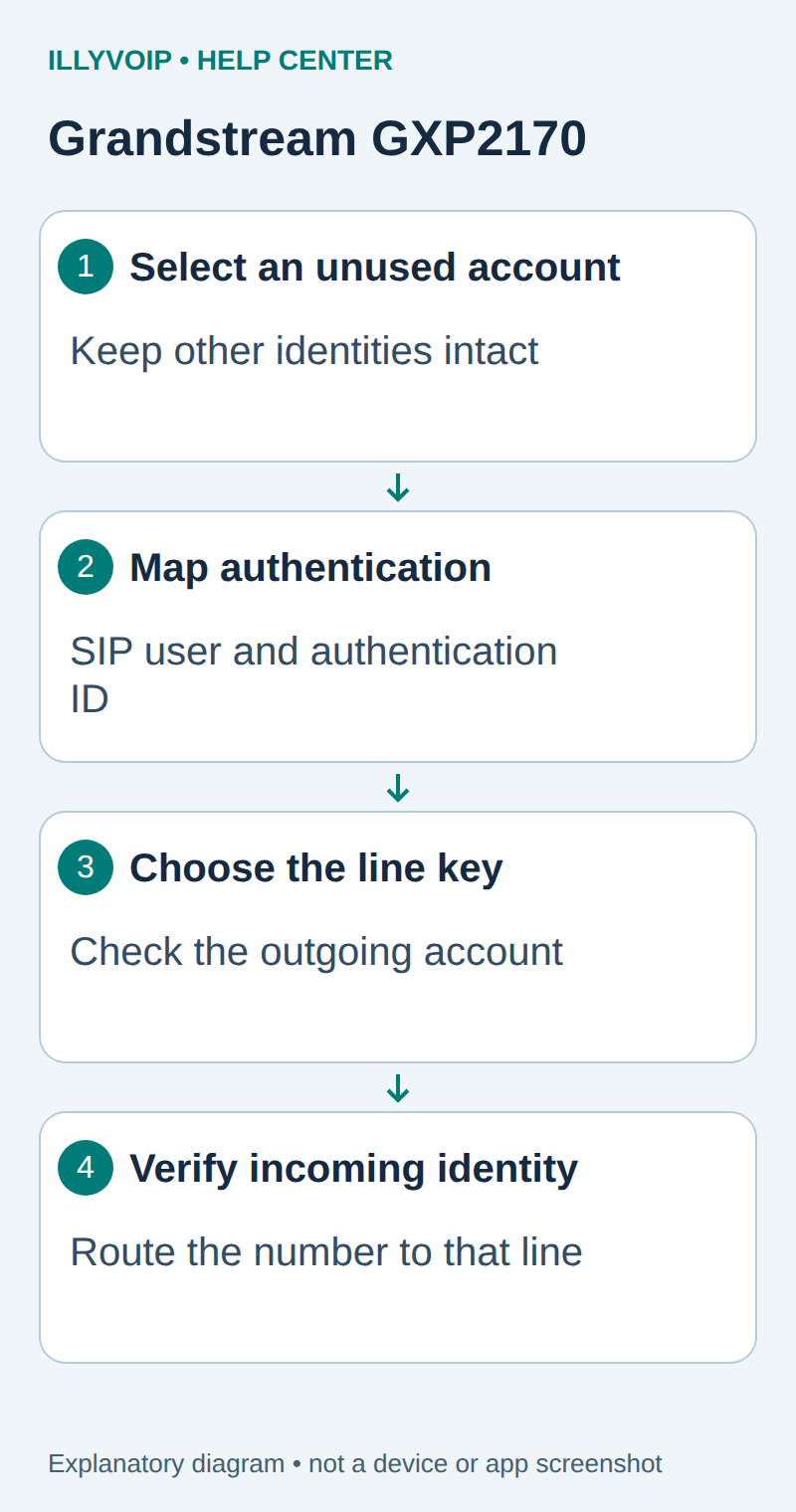
- Confirm the model and firmware in the phone's status information. Read the network address from the local status menu or the administrator's DHCP lease list.
- Open the phone's web interface and sign in as its administrator. Under Accounts, select an unused account, then General Settings.
- Enable Account Active. Enter Account Name, SIP Server and SIP User ID from the intended IllyVoIP line.
- Use SIP Authentication ID and SIP Authentication Password for that line's authentication details. These labels can differ from the shorter Authenticate ID/Password labels in the GXP16xx interface.
- Under that account's SIP and audio settings, match registration, transport, codec and SRTP policy. Save/apply and inspect Status → Account Status for the same account.
- Select the account on the phone before dialing. Check the account-to-line-key assignment if pressing a key chooses another identity.
For incoming calling, route the intended IllyVoIP number to this identity and verify that its line appearance rings. Extra programmable keys do not automatically create service accounts. BLF, presence, shared-line and expansion-module behavior depend on a separately supported PBX arrangement; they are not established by this direct SIP setup.
If the account registers but a different identity places the call, fix account selection first. Keep every other account and key assignment intact during the initial test. Continue with the shared transport, call and troubleshooting checks below.
Reference: Grandstream GXP21xx administration guide. GXP2170 expansion reviewed October 11, 2026.
1. Prepare the phone and your SIP line
Connect the phone's network port to your trusted network and power it using a supported supply or suitable PoE connection. Keep a record of any existing accounts before changing them. For a company-managed phone, check whether provisioning will replace local settings after a restart.
- In IllyVoIP, open Services → SIP Lines and select the intended line.
- Confirm it uses password authentication. Obtain its SIP username and SIP password; these are not your Portal login details.
- Expand Technical endpoints and note the regional hostname, destination port and transport.
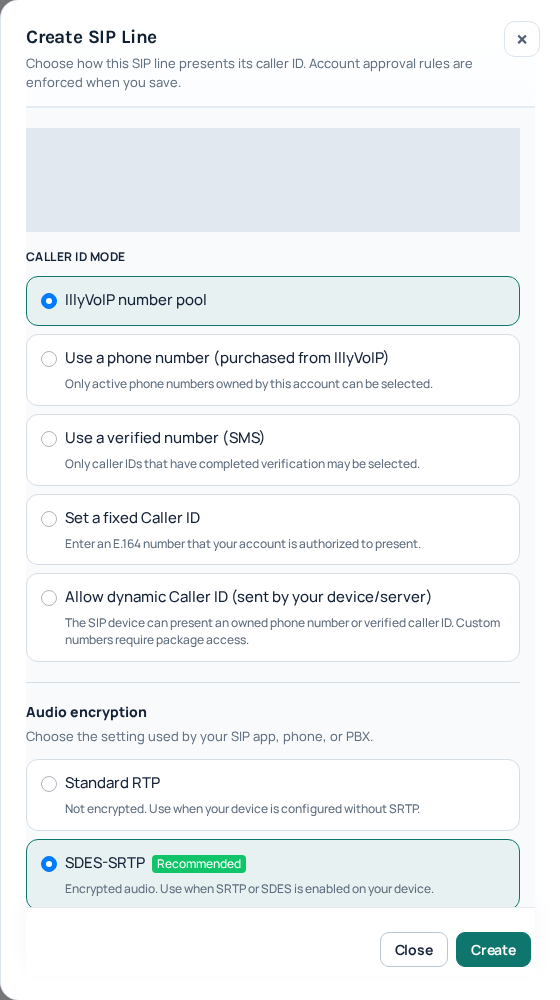
- Note the line's audio-encryption setting and authorized caller ID. Check required verification, available balance and calling package.
If the line uses IP authentication, do not change its mode just to follow this guide while another device depends on it. Use an appropriate password-authenticated line or agree the change with the administrator. See manage SIP lines for the Portal workflow and any applicable charges.
2. Open the GXP1625 administration page
- On the phone, open MENU → Status → Network Status and read its current IP address.
- From a computer on the same trusted network, open that address in a browser. It is the phone's management address, not the IllyVoIP SIP server.
- Sign in with the phone administrator account. Use the credentials managed for that device, and complete any first-login password-change prompt.
- Check the model and firmware in the status information before editing an account.
If the page does not load, first check the computer's network, the phone's IP and any management-access policy. Resetting your IllyVoIP password will not fix access to the phone's local page. Do not expose this page to the public internet.
3. Enter the SIP account
Open Account x → General Settings, choosing the account you intend to use. The GXP1625 supports two accounts, so verify which account and line key you are editing.
| Phone field | IllyVoIP value or action |
|---|---|
| Account Active | Enable the selected account. |
| Account Name | A recognizable local label, such as IllyVoIP. |
| SIP Server | The current regional hostname and required port from Technical endpoints. Follow the phone's server-field format; do not paste a website address. |
| SIP User ID | The SIP username of the selected IllyVoIP line. |
| Authenticate ID | The authentication identity for that line, normally the same SIP username. |
| Authenticate Password | The line's SIP password, copied without surrounding spaces. |
| Name | An optional display name. It does not authorize an outgoing caller-ID number. |
Leave Secondary SIP Server and outbound-proxy fields unset unless your connection instructions specifically require them. Do not copy another provider's proxy or invent a backup endpoint. Save the account settings.
4. Match signaling, audio and keypad settings
Under Account x → SIP Settings → Basic Settings, review SIP Registration and SIP Transport. Registration should be enabled for this password-registration workflow; transport must match your IllyVoIP connection. A phone's local SIP port and the provider's destination port are different settings.
Under Account x → Audio Settings, match SRTP Mode to the line's audio setting. Standard RTP is unencrypted; SDES-SRTP requires compatible SRTP configuration on the phone. Do not assume that the presence of an SRTP option means support for every key-exchange method, or choose DTLS simply because the webphone uses it.
For TLS, retain the endpoint hostname and configure certificate validation using the supported phone settings. Check the device clock. TLS protects signaling; the audio setting is separate. Select mutually supported codecs, and review the DTMF method if you need telephone-menu input. Grandstream may label RTP telephone events RFC2833.
Save and apply the changes. If the phone requires a restart, do it outside active calls. If a setting returns to its old value later, resolve the provisioning policy instead of repeatedly editing the local interface.
5. Confirm the correct account is registered
Open Status → Account Status and inspect the selected account. Check its SIP identity and registration state. A line label on the display is not proof of registration, and another account being registered does not prove this one is ready.
If registration fails, compare the username, authentication ID, password, server and transport with the same Portal line. Note the final error rather than changing several fields at once. An initial authentication challenge can be normal; a persistent rejection or timeout needs investigation. Our SIP response-code reference explains the messages.
6. Test outgoing and incoming calling separately
- Select the IllyVoIP account deliberately and call a number you control, using the intended international format. Check the rate first; this can be a chargeable call.
- Confirm the recipient can hear you and you can hear them. Check the presented caller ID.
- If menu input is needed, test keypad digits after the remote menu answers.
- For incoming calls, route an active IllyVoIP number to this SIP line, then call that number externally.
- Check that the GXP1625 rings on the intended account and that answering produces two-way audio.
Registration does not purchase a number or choose its incoming destination. Follow the incoming-number guide and caller-ID instructions for those separate tasks.
7. Troubleshoot the result
| What happens | Next check |
|---|---|
| Administration page unavailable | Local IP, trusted network and management-access rules. |
| Account does not register | Account Active, authentication mode, credentials, hostname and matching transport. |
| Registered but outgoing calls fail | Selected account, dialed digits, balance, package and permitted caller ID. |
| Outgoing works but incoming does not ring | Number destination, selected SIP identity, Do Not Disturb and forwarding. |
| Call connects with one-way audio | Handset/headset selection, mute, media settings and network path. |
| Settings disappear after reboot | Provisioning or administrator policy overriding local changes. |
Use call reports to record the time, timezone and public call reference. Give Support the model, firmware and symptom, with credentials hidden. Keep private configuration backups out of public forums.
Frequently asked questions
Can both accounts use IllyVoIP?
They can be configured as separate account choices when supported by your service arrangement. Do not assume copying one identity creates two independent incoming destinations or increases the account's call capacity.
Should I factory-reset the phone first?
Not as a routine setup step. A reset can erase working accounts and provisioning information. Establish administrator access and ownership, and save the current configuration before considering a reset.
Does Name set my outgoing telephone number?
No. A local display label is separate from the caller-ID policy applied to your IllyVoIP line.
Documentation and verification scope
Grandstream GXP16xx administration guide, including genuine device-interface illustrations.
Reviewed October 8, 2026 against the manufacturer guide and IllyVoIP workflow. No physical GXP1625 or live-call test was performed for this article. The Portal image is genuine; it is not a phone-interface screenshot.