
To connect Issabel to IllyVoIP, create a PJSIP trunk with your SIP line details, add an outbound route and configure an inbound route for any incoming number you want to receive. Your phones remain registered to their Issabel extensions; the trunk connects Issabel to IllyVoIP.
This guide follows the Issabel 5 PJSIP workflow, with field names checked against Issabel's published documentation and upstream PBX code on October 8, 2026. Installed module versions can differ. Select Add PJSIP Trunk; the older SIP/chan_sip screen uses different settings. If your installation does not offer the fields below, check its version before proceeding.
1. Prepare the PBX and a test extension
- Have administrator access to Issabel and permission to manage the intended IllyVoIP SIP line.
- Save a private PBX configuration backup and record the existing trunk and route order. Schedule changes around active calls.
- Use a working internal extension with a phone or softphone already registered to Issabel. Confirm internal calling before troubleshooting a provider trunk.
- Choose one external destination you control for testing. Review the calling rate and balance first; external test calls may be charged.
- For incoming testing, have an active IllyVoIP number and a known extension that should ring.
Start with one trunk and a narrow test route. Leave the office's existing connection available until you have checked outgoing calls, incoming calls and two-way audio.
2. Collect the correct IllyVoIP line details
- In the Portal, open Services → SIP Lines and select the identity intended for Issabel.
- Check whether that line uses password authentication or IP authentication. The main walkthrough below uses password authentication.
- Expand Technical endpoints and note the current regional server hostname, destination port and transport for the connection.
- For password authentication, securely obtain the line's SIP username and SIP password. These are separate from your Portal email and login password.
- Review the line's audio-encryption and caller-ID settings. Complete any required account verification and confirm the applicable calling package and balance.
Use the existing identity where appropriate. If you need a separate line for the PBX, follow Create and manage SIP lines and review any displayed charges before creating it. Do not switch the authentication mode of a line already used by other devices without planning their update.
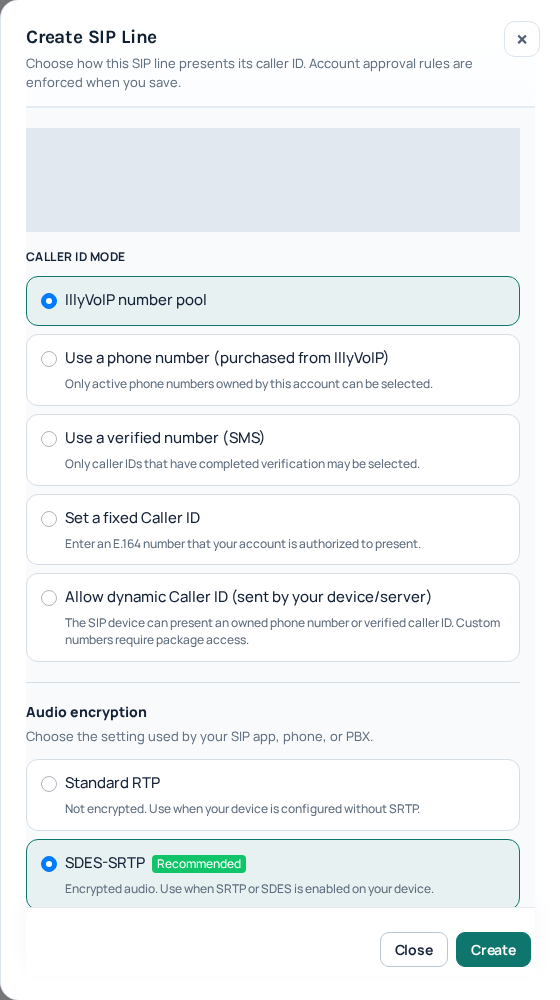
3. Add the password-authenticated PJSIP trunk
In Issabel, open PBX → PBX Configuration → Connectivity → Trunks, then select Add PJSIP Trunk. Use a recognizable name such as IllyVoIP. If the form has both a general trunk name and a name under PJSIP Settings, give both a clear, consistent name.
Enter your connection details in PJSIP Settings. The values below are mappings, not sample credentials to paste unchanged.
| Issabel field | What to enter |
|---|---|
| Username | Your IllyVoIP SIP username for this line. |
| Secret | The same line's SIP password. Keep this value out of screenshots and support attachments. |
| Authentication | Outbound for this password-authenticated provider connection. |
| Registration | Send. Issabel sends registration to IllyVoIP; do not select Receive. |
| SIP Server | The current regional hostname from Technical endpoints. Enter a hostname, not a website URL. |
| SIP Server Port | The provider destination port shown for your selected transport. Verify the effective destination after applying the configuration, as explained below. |
| Context | from-pstn, the external incoming context used by this Issabel form. Do not use from-internal for provider traffic. |
| Transport | The matching configured UDP, TCP or TLS transport. Confirm that the selected transport exists and is configured on the PBX. |
Important port check: the upstream Issabel PJSIP generator reviewed for this guide does not consume the separate Port value when building the trunk's server URI. Do not treat a saved port field as proof that the intended destination is in use. Check your installed build's effective registration/AOR and a private signaling trace when necessary, especially for TLS or a non-default port. If the destination is wrong, have the PBX maintainer resolve it through that release's supported configuration method before continuing. Do not edit generated files or downgrade security as a workaround.
Do not paste chan_sip type=peer details or a username:password@server registration string into these fields. Issabel generates the PJSIP objects from this form. Its official trunk documentation includes genuine interface illustrations for navigating the module; select the PJSIP form rather than copying another trunk type's parameters.
4. Set audio, caller ID and advanced options
Review PJSIP Advanced Settings before applying the trunk:
| Setting | How to use it |
|---|---|
| Media Encryption | Match the IllyVoIP line. Standard RTP corresponds to No; SDES-SRTP corresponds to sdes. A dtls option alone is not a complete DTLS configuration; use it only with the required working DTLS setup. |
| DTMF Mode | Use RFC 4733 for the RTP telephone-event workflow, then verify keypad digits with a menu you are authorized to call. |
| Direct Media | Use No for the initial setup so Issabel remains in the media path. |
| Codecs | Select codecs supported on both sides. For a straightforward starting point, use G.711 A-law/µ-law where enabled for your connection; Issabel/Asterisk may label them alaw and ulaw. |
| From User / From Domain | Leave blank unless your connection instructions require explicit values. These change the SIP From header; they are not replacements for Username and Secret. |
| Contact User | Leave at the default initially unless a specific incoming contact identifier is required. A custom value can change the called identifier seen by your inbound route. |
| Match (Permit) | If explicit source matching is needed, enter only the current approved incoming signaling addresses supplied for your connection. Never use an all-addresses rule. |
Issabel can generate a default source match from SIP Server when Match (Permit) is empty. That is not evidence that the registrar hostname covers every possible incoming signaling source. Confirm the correct sources with Support if incoming calls are not recognized as this trunk.
In the trunk's general settings, configure an outgoing caller ID permitted by the IllyVoIP line. Review any route or extension caller-ID overrides too. Entering a number in Issabel does not verify ownership or override the account's caller-ID policy. See Choose your outgoing caller ID.
TLS protects SIP signaling; it does not select the audio-encryption mode for you. For TLS, use the endpoint hostname and a properly configured TLS transport with certificate validation. Keep the PBX clock correct. Save the form, then use Issabel's configuration-apply control and wait for completion. Do not assume saving a form alone has loaded the new trunk into Asterisk.
5. If the IllyVoIP line uses IP authentication
Follow this section instead of the password-registration choices when the selected line is explicitly configured for IP authentication.
- Confirm the actual public source IP used by Issabel's outgoing SIP traffic. If the PBX is behind NAT, this is normally the egress address, not its private LAN address.
- Make sure that exact source address is authorized on the intended IllyVoIP line. Plan for any address change before moving the PBX or changing internet connections.
- Set Issabel Authentication = None and Registration = None. Do not insert a Portal password or expect this trunk to appear as Registered.
- Keep the correct server, transport, effective destination port, external incoming context and audio settings. Apply the configuration.
- Configure the incoming-number destination separately. Without registration, IllyVoIP still needs a valid destination for delivering incoming calls to the PBX.
Outbound IP authorization and Issabel's inbound source matching solve different problems. Setting Authentication to None does not authorize arbitrary internet callers to use your PBX. Retain the firewall, restricted incoming context and approved source matching.
6. Create a narrow outbound route
Open PBX → PBX Configuration → Connectivity → Outbound Routes. Add a route named IllyVoIP-Test and choose the new trunk in Trunk Sequence for Matched Routes.
- For the first test, enter your exact controlled destination in match pattern. Leave prefix and prepend empty if the digits already match the international format you intend to send.
- If your users dial an access digit, put only that access digit in prefix so it is removed. Use prepend only when you intentionally need to add digits. Write down both the dialed number and the number Issabel should send.
- Check route order. An earlier matching route may send the call through another provider. Do not move a broad test route above existing special-purpose routes.
- Restrict the route to the intended test users through the access controls available in your installation. Naming it Test does not restrict who can use it.
- Save and apply. Expand patterns and user access only after the narrow test succeeds.
Do not add a catch-all international pattern simply to make a failed call go through. It can change which provider handles other calls. Check IllyVoIP rates and routing plans before widening the permitted destinations. Keep existing emergency-routing arrangements separate; this guide does not establish emergency calling support.
7. Route an incoming number to the right extension
There are two separate routing decisions: IllyVoIP must deliver the call to this connection, and Issabel must direct the received call to an internal destination.
- In IllyVoIP, open the intended active incoming number and review its saved destination. For the registered-line workflow, select the SIP line used by this Issabel trunk. For an external PBX destination, use the approved reachable address and connection details for that arrangement.
- In Issabel, open PBX → PBX Configuration → Connectivity → Inbound Routes and add a descriptive route.
- Set DID Number to the called identifier actually delivered to Issabel. Do not assume it is identical to the displayed number or that it includes a leading plus sign.
- Leave CallerID Number blank unless you deliberately want to match a particular calling party. It is a filter for who is calling, not the number they dialed.
- Under Set Destination, choose the known working test extension. Save and apply, then make a controlled incoming test.
If you need to obtain a number first, follow the incoming-number guide. A SIP registration does not purchase or route a number.
If the PBX receives s, a SIP username or a custom Contact User rather than the DID, inspect the received request before changing the route. A registration contact can affect that identifier. Do not leave both incoming match fields empty as a permanent shortcut: an unrestricted fallback can capture unrelated calls. For several DIDs, establish how each number is delivered before designing their separate destinations.
8. Check NAT and network access
On a PBX behind NAT, check the advertised external signaling/media addresses and the local-network definitions in the installed PJSIP settings module. Ensure the firewall permits the required signaling and the PBX's configured media range for the approved peers. The provider's destination port is different from the port on which your own PBX listens.
Do not copy a generic port-forwarding list or turn off the firewall. Confirm the actual network arrangement, including whether the router rewrites SIP traffic. Options such as RTP Symmetric and Rewrite Contact can help in particular NAT arrangements, but they do not replace correct addressing. Use the Asterisk NAT reference to understand the parameters, applying changes through Issabel's supported controls.
9. Verify each stage before staff use the trunk
If you have authorized Asterisk console access, these read-only commands help inspect the loaded configuration:
pjsip show registrations
pjsip show endpoints
pjsip show aors
pjsip show transports
For details of a trunk named IllyVoIP, use pjsip show registration IllyVoIP, pjsip show endpoint IllyVoIP and pjsip show aor IllyVoIP. Substitute the actual object name shown by the list commands. The registration and AOR details help confirm the configured server URI and destination contact.
For a password-registration trunk, identify the entry belonging to IllyVoIP and confirm successful registration. Inspect the corresponding endpoint, destination contact and selected transport. For an IP-authenticated trunk, the absence of an outbound registration is expected. Neither a reachable contact nor registration alone proves that routing and audio work.
- Call your controlled destination from the test extension. Confirm Issabel selected the IllyVoIP trunk and sent the intended digits.
- Check two-way audio and the presented caller ID. Test keypad input where required.
- Call the incoming number externally and verify the intended extension rings, answers and has two-way audio.
- Test any transfer workflow your team needs before expanding access.
- Compare the Issabel call record with IllyVoIP call reports. Keep the time, timezone and public call reference for troubleshooting.
10. Troubleshoot the stage that failed
| Symptom | What to check first |
|---|---|
| No registration entry | For password mode, verify Registration is Send and the applied trunk exists. For IP mode, no registration entry is expected. |
| Registration rejected | Confirm the correct SIP username/Secret, Outbound authentication and selected line's mode. Inspect the final response; an initial authentication challenge alone is not a failed login. |
| Registration times out | Check DNS, effective destination port/transport and network reachability. Verify the loaded destination rather than relying only on the saved port field. |
| Registered, but outbound call fails | Check route order, dial transformations, trunk selection, caller-ID eligibility, account status, balance and destination permissions. |
| No incoming request reaches Issabel | Check the IllyVoIP number's saved destination, registration/contact or external PBX address, and network access. |
| Incoming request arrives but no extension rings | Check source identification, external context, the received DID/contact identifier and the chosen extension's status. |
| Call answers with missing or one-way audio | Check advertised media addresses, firewall/media access, Direct Media, codecs and matching encryption modes. |
| Keypad digits are not recognized | Check the negotiated telephone-event method and DTMF Mode. Use a controlled menu test instead of changing codecs and transport together. |
For Support, provide the Issabel and Asterisk versions, authentication mode, affected direction, timestamp/timezone, public call reference and sanitized response details. Keep passwords, authentication material and customer information out of screenshots. If an administrator enables SIP logging for a short test, collect it privately and disable logging afterward.
If the new route disrupts existing calling, restore only the changed route order or destination using your recorded pre-change settings. Avoid restoring an entire old PBX backup over unrelated recent work.
11. Frequently asked questions
Should I add a SIP trunk or a PJSIP trunk?
Choose Add PJSIP Trunk for this guide. A legacy SIP/chan_sip form with PEER Details and a registration string requires a different configuration. Do not mix their syntax.
Can I use my extension password for the trunk?
No. The phone-to-Issabel extension and the Issabel-to-IllyVoIP trunk are separate connections. Use the selected IllyVoIP line's SIP credentials for password authentication.
Why does outgoing calling work while incoming calling fails?
Outgoing authorization, the number's Portal destination, source recognition and the Issabel inbound route are separate checks. Follow the incoming path in that order and inspect the actual called identifier.
Can I edit pjsip_additional.conf to fix a setting?
Do not edit generated files as the configuration method. Issabel can overwrite them when settings are applied. Use the supported interface or an administrator-reviewed method appropriate to the installed release, then inspect what Asterisk actually loaded.
12. Official references and scope
- Issabel trunk navigation and interface illustrations
- Issabel inbound and outbound routes
- Issabel PJSIP field definitions reviewed for this guide
- Issabel configuration generation, including source matching and registration
Reviewed October 8, 2026 against official documentation, upstream source and the current IllyVoIP workflow. The source revision is a reference, not a claim that every installed Issabel 5 package is identical. No live Issabel-to-IllyVoIP call was performed for this article. The Portal illustration is genuine; Issabel's own illustrations are linked in its documentation.