
Choose language and appearance
Open Settings → Preferences → Interface. Choose your portal language and a Light, Dark or System theme. System follows your device setting.
Use Save changes when your selections are ready. These are portal interface preferences; check the separate settings in your mobile or desktop app when you want to change its behavior.
Set the timezone you work in
Select the timezone used for dates and times across the portal, then save. Choose the named location that matches your working timezone rather than relying on a fixed UTC offset.
When comparing a portal record with your own application logs, include the timezone with the time. This also helps support locate the right call or message.
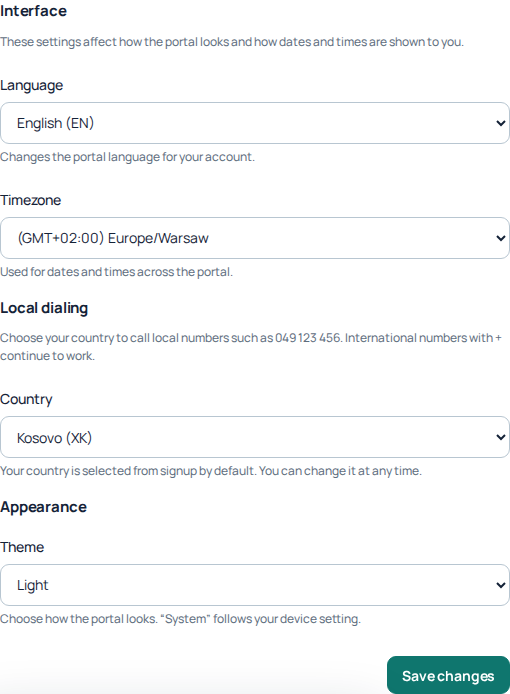
Preferences brings together interface language, timezone, local dialing country and theme. The displayed selections are an example of one account, not recommended defaults; no settings were saved. Open the image for a larger view.
Choose how you enter local numbers
Under Local dialing, choose your country to enter local-format numbers. International numbers beginning with + continue to work. The country selector also offers International numbers only.
A dialing preference, not a routing plan
Changing your local dialing country does not order a phone number or choose a voice region. Use Phone Numbers for incoming numbers and Routing settings for your voice setup.
Review optional email messages
Open Preferences → Notifications. Review Promotions, Product updates, Billing, Support and Rate change emails, then save the choices you want.
The Billing and Support controls apply to optional news. Required invoices, payment receipts, balance notices, account-service messages and direct ticket replies are not switched off by these preferences. Critical security emails are always sent.
Rate-change announcements have their own setting. A separate Rate change recipient email can receive those messages instead of your login email.
Separate appointment reminders from call alerts
Appointment Reminders has separate controls for agent defaults and owner visibility. Choose timing and portal, email or push delivery as appropriate. Allow agent override lets agents choose their own reminder settings instead of inheriting the defaults.
Portal reminders appear in the portal and mobile notification feed. Mobile push requires a registered device. Browser incoming-call alerts are managed separately from these appointment preferences.
Choose notification categories and delivery channels
Open Notification preferences to review each category's Portal, native push and email options. This is more specific than the general marketing-email preferences above. Save your choices and check the confirmation.
- Portal: controls eligible notices in the notification feed. A Required option cannot be switched off.
- Native push: controls eligible notifications sent to the mobile app. The device must be registered and allow notifications; selecting this box alone does not grant operating-system permission.
- Email: controls eligible email notifications for that category. Required security or service communications can have separate rules.
These choices are not a universal mute switch for incoming calls, and they do not change when an appointment is scheduled. Review call alerts and appointment-reminder settings separately.
If a notification is missing
Check the category and channel, your app's notification permission and whether you are signed into the intended account. For email, check the address and spam folder. A preference change applies to eligible future notifications; do not expect it to resend old events. Give Support the event type, time and affected device if a new notification still fails to arrive.
Profile details and advertising privacy
Use the Profile tab to review your personal and contact details. Some verified information may be read-only; do not try to change a login identifier through an ordinary contact field. Use the dedicated Security workflow for your login email or phone.
Advertising privacy asks whether signup and purchase information may be shared for advertising measurement. Read the scope shown for the current browser or app journey and save your choice. This choice does not affect your service and is separate from marketing-email preferences. If the page directs you to app settings, follow that instruction rather than assuming a browser selection covers every device.
Read dates and notifications in context
Choose a named timezone such as Europe/Berlin instead of mentally adding a fixed number of hours. When comparing a call with a colleague, include the date, timezone and public call reference; the same event can display a different local time.
Open Notifications to read the relevant event and follow its destination. Marking a notice as read is not the same as completing an order, approving a review or paying an invoice. Open the linked service to check its current state.
Manage the notification feed
- Open Notifications and find the event by its message and date.
- Use Open when the notice has a destination. Check the current state on that service page; the original notification can describe an earlier event.
- Use Mark read on an unread notice when you have reviewed it.
- Use Mark all read only when you intend to clear unread status across the feed, rather than one notice.
- Select Load more when offered to inspect older notices.
An unread badge describes whether a notice has been marked read. It is not the status of a payment, document review, support request or call. Marking everything read neither completes those tasks nor changes future delivery preferences.
For example, a notice can tell you that an export finished. Open its destination and check whether the file is still available; marking the notice read does not download or preserve that file. Similarly, a review notification may require a response in the relevant service, not merely opening the feed.
Resolve feed and delivery problems separately
If an older event seems missing, use Load more and check the account and date. If an action fails, read its error and check the resulting unread state before repeating it. Do not interpret an unavailable feed as proof that no service events occurred.
Use Notification preferences for future category/channel choices. The feed’s read controls do not enable mobile push, grant operating-system permissions or resend an email. For a persistent issue, tell Support the event type, time/timezone and whether the problem concerns feed visibility, unread state, email or push.
Reviewed 10 October 2026 against the current IllyVoIP Portal and implementation. Available controls depend on account permissions and service state.