
Create the campaign basics
Open Auto Dialer → Campaigns and select New campaign. Enter a recognizable name, choose Power Dialer or Predictive Dialer, select newest-first or oldest-first dial order, and add a call script if needed.
Choose the mode before creating
The current portal fixes the dial mode when a campaign is created. It cannot be changed later in that campaign’s settings.
Select Create campaign when the basics are ready. The dedicated campaign page is where you then manage agents, contacts and calling rules.
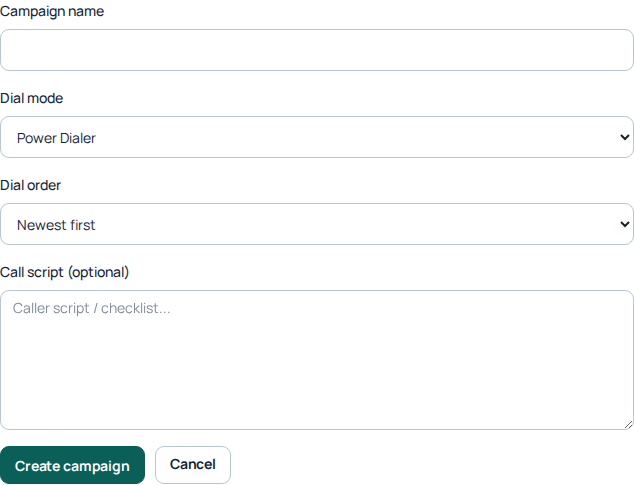
The new campaign form collects the name, dial mode, dial order and optional call script. These displayed defaults are not recommendations for every campaign. The blank form was not submitted. Open the image for a larger view.
Prepare agents and contacts
Use Assigned agents and Contacts on the campaign page to prepare the team and calling list. Check the campaign’s callable-contact count and agent readiness before starting.
Review the numbers, ownership and purpose of the list. Give agents the script and a clear process for recording outcomes and follow-ups.
Review calling rules
Review the options shown for your dial mode. Predictive settings include the outbound caller-ID approach, aggressiveness, customer waiting audio and the decision required after a connected call.
Caller ID
Use each agent line’s default, one caller ID or rotating caller IDs as available. Confirm the identities you are authorized to use.
Waiting audio
Choose what a contact hears after answering while waiting for an agent.
Wrap-up decision
Decide whether agents must complete a decision and wrap-up before proceeding.
Advanced settings
Review pacing and limits with someone who understands the team’s capacity. Do not copy another campaign’s values without checking its needs.
Review current destination rates and account restrictions as part of preparation.
Check readiness before starting
The campaign page separates status from Preflight. An Active label alone does not mean the campaign is ready to place calls. Check the readiness information, callable contacts and ready agents.
Have the team check their calling device and audio. Start only when the people handling the campaign are ready and the intended settings have been reviewed.
Monitor the first activity
Use Open monitor to review campaign activity. The campaign also provides Start and Pause controls; use them deliberately because they affect outbound work.
Review early call outcomes before expanding the workload. If the campaign remains unready, record the displayed reason and the relevant time for support rather than repeatedly pressing Start.
After preparation
Use Run and supervise a calling campaign for Start, Pause, Archive, readiness and contact outcomes. Saving campaign settings does not prove that agents are ready or that any calls have been placed. Check the campaign name and current state before starting.
Choose Power Dialer or Predictive Dialer for the actual workflow
Choose the mode before creating the campaign; the current Portal fixes that choice for the campaign afterward. Review the explanation shown beside the selector instead of assuming that modes from another dialer exist here.
For an agent-led workflow, prepare the Power Dialer campaign around the person handling its contacts and recording each result. For Predictive Dialer, prepare the assigned team's readiness and the controls for caller ID, pacing, waiting audio and wrap-up. Predictive settings need to match real available capacity; assigning several agents does not establish that they are online, unpaused or able to answer.
If you chose the wrong mode, stop and plan the correct campaign before operation. Do not try to compensate by changing unrelated settings or duplicating an active calling list without reviewing which contacts remain eligible.
Use a readiness checklist before the first Start
- Campaign: verify the name, selected mode and intended contact order.
- Contacts: check that the list contains the intended people, usable numbers and the right current statuses. Do not reset completed or opted-out contacts merely to increase the callable count.
- Agents: confirm assignment and actual readiness separately. Check device/SIP availability and paused state.
- Conversation: review the saved call script and the team's rules for notes, dispositions and callbacks.
- Calling rules: review approved caller IDs, allowed hours, account balance, destination restrictions and mode-specific capacity controls.
- Preflight: read each current warning. Resolve its stated cause rather than treating creation of the campaign as proof that it is ready.
For example, a campaign with two assigned agents and a full contact list can still wait if neither agent is ready. Increasing aggressiveness cannot repair their device registration. Likewise, changing the script cannot make a restricted destination callable.
After preparation, use the existing start and supervision workflow below. Write the script in the campaign editor, save it and have the agent check its loaded wording before the next conversation.
Reviewed 10 October 2026 against the current IllyVoIP Portal and service implementation. Options depend on account access and current service availability.