
Use Settings → Profile to keep your personal, company, address and tax details current. Review the saved result before relying on the change. Login identifiers and existing invoice corrections have separate workflows.
Before you begin
Check that you are signed into the intended account and can access Profile settings. An employee's account and an owner's account can have different access; editing your own profile should not be assumed to update the owner's billing information.
Have the accurate name, company and billing address available. Use real personal names and the correct business details rather than test values. If you need to correct an issued invoice, keep its reference and contact Support instead of relying on a profile edit to replace the document.
1. Review Personal details
- Open Settings and choose Profile.
- Under Personal details, review your first name, last name and contact number.
- Enter the correct personal names. A changed name is checked before the update can be accepted.
- Review the contact number and correct it if needed. This is not the Security workflow for changing a verified login phone.
- Read the email field without trying to overwrite it: an existing email is read-only in this form.
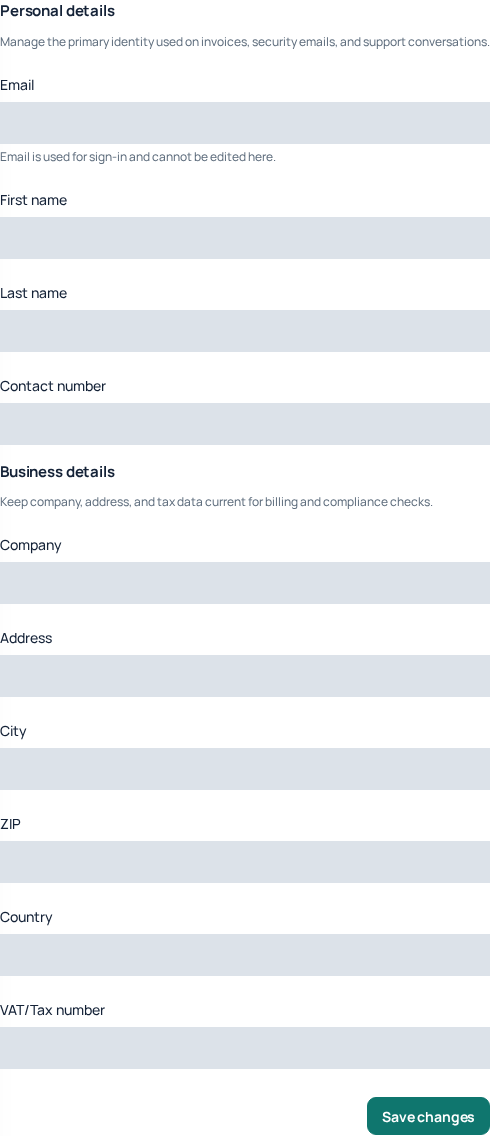
If your account does not yet have an email, use Add email to open the dedicated Security process. To replace an existing login email, use Change login email in Security and complete its verification. Do not try to work around the read-only field.
2. Update Business details
- Review Company and enter the correct business name when applicable.
- Check the street Address, City and postal/ZIP code. Keep the complete address within the field's limit; the address accepts up to 150 characters.
- Select the appropriate Country. Inspect the current selection rather than assuming that opening the list changed it.
- Review VAT / Tax number and enter your applicable identifier accurately.
- Read all fields together before saving, especially when correcting an existing business record.
Entering a company or tax number does not, by itself, prove that identity verification, a service agreement or a tax-related review is complete. Follow the separate status and instructions shown for those processes. The Profile form does not issue a new phone number or change your calling country restrictions.
3. Save and verify the result
- Select Save changes once.
- Wait for confirmation or read the validation error.
- Reopen Profile and check the name, address, company and other fields you changed.
- If the result differs from your intention, compare the current saved values with the original information before editing again.
A value typed into a field is not a saved change. If the page reports that your profile changed elsewhere, refresh and reconcile the newer details; do not blindly reapply an older form. This protects changes made from another session.
Resolve a rejected or unavailable save
Real-name validation: enter your actual first and last name. If name verification is temporarily unavailable, wait and try again rather than inventing a different identity. Address too long: shorten the formatting while preserving the address information within the displayed limit. Email-change instruction: use Security; the Profile form cannot replace the login email.
If an error persists, contact Support with the page, time and exact message. Include only the details needed to understand the correction; never send a password, verification code or an unrelated identity document through a general screenshot.
Understand what happens to invoices and login access
Keep these details accurate before future billing activity, then inspect the billing document that is actually issued. Do not assume a profile change regenerates an earlier invoice or changes its recorded customer details. For a historical correction, give Support the invoice or payment reference and explain what needs review.
The contact number in Profile is separate from the verified phone used for login. Changing it is not proof that login or recovery messages will go to a new phone. Complete the dedicated verification process when changing a login identifier.
Related guides
Add or change your login email and phone · Understand transactions and invoices · Account verification and setup
Reviewed 10 October 2026 against the current IllyVoIP Portal and service implementation. Available controls depend on account access and service state.