
SIP signaling and call audio do not necessarily use the same ports. A phone can register while its media path is blocked, or audio can work in one direction while a firewall drops the return path. This guide helps you build a firewall worksheet from your actual IllyVoIP endpoint, phone or PBX settings and one controlled call.
There is no single port-forwarding rule that is correct for every phone, PBX, browser and network. Use this process to find the specific flow that needs attention. It is not an instruction to expose your phone’s administration interface or forward a large UDP range to every device.
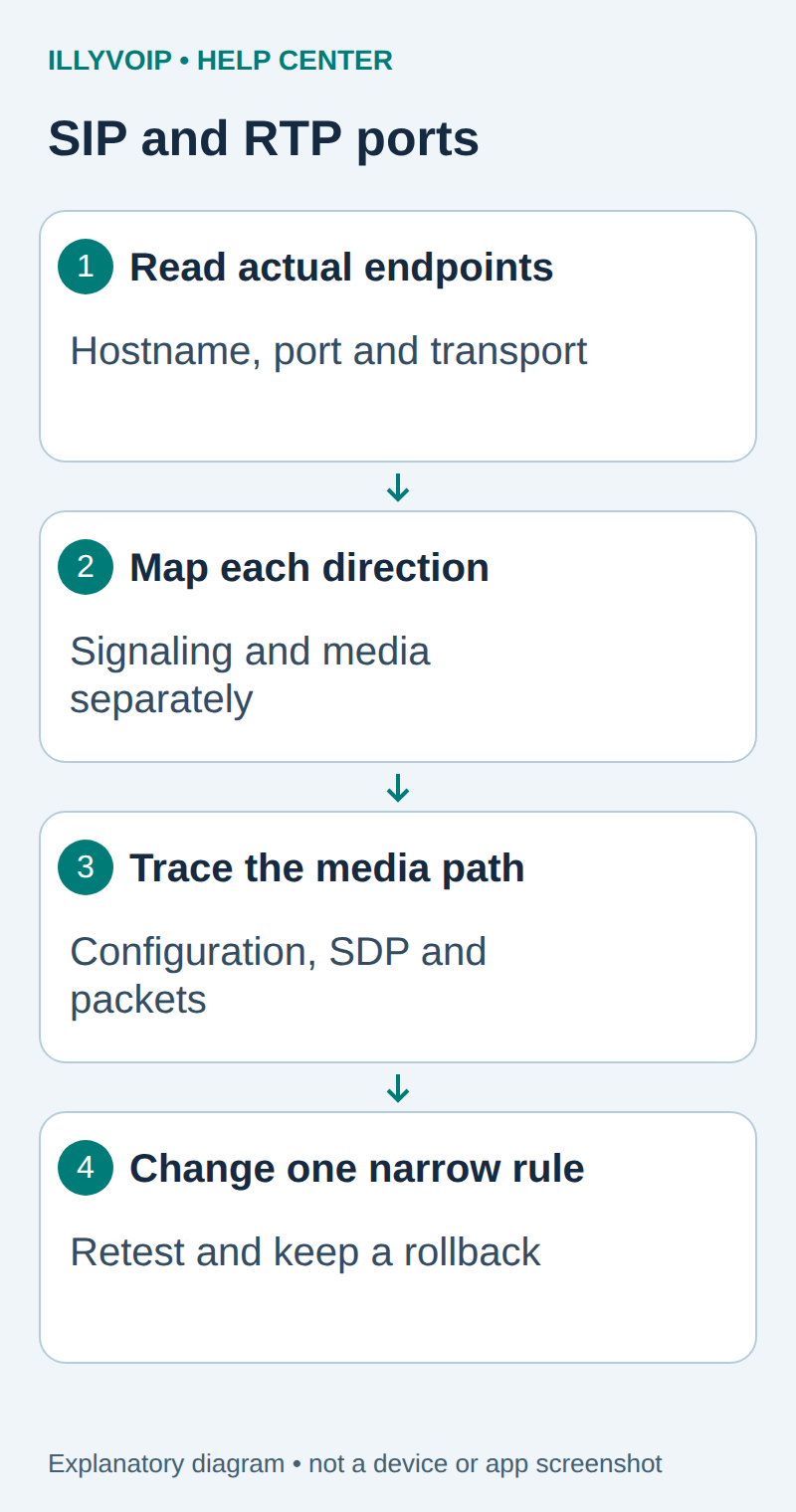
1. Draw the real connection path
Start with the system that connects directly to IllyVoIP. Is it a desk phone, a softphone, an office PBX or the browser Webphone SDK? If desk phones register to your own PBX, the phones use that PBX’s addresses and credentials. The PBX has a separate IllyVoIP trunk and may anchor the media between the two sides.
Write down the relevant client VLAN, router/firewall, VPN or SBC and any second NAT device. Note whether the connection uses IPv4, IPv6 or both. Do not apply an IPv4 port-forwarding recipe to an IPv6 path without reviewing its firewall policy. Keep private addresses and infrastructure details in your own operational worksheet.
2. Read the current IllyVoIP connection details
- In the Portal, open Services → SIP Lines and choose the intended line.
- Expand Technical endpoints and record the account’s selected SIP hostname, destination port and transport.
- Check whether the line uses password authentication or authorized source IPs. Preserve any working IP-authenticated trunk until its owner approves a change.
- Check the line’s audio-encryption setting and compare it with the client: Standard RTP, SDES-SRTP and DTLS-SRTP are different modes.
Use the hostname for TLS and WSS, as the Portal instructs. Do not replace it with a remembered IP address or use an example from another account. If the hostname resolves to several addresses, a rule based on one observed address may stop working when the selected endpoint changes. Use your firewall’s supported hostname policy or a currently verified provider destination set.
Transport security and audio security are separate. TLS does not by itself mean RTP audio is encrypted, and opening a firewall port cannot repair an incompatible SRTP mode. The managed browser webphone uses its own WSS/DTLS-SRTP connection process; it should not be configured as a generic UDP desk phone.
3. Separate the different kinds of port
| Traffic | Where to obtain its actual values |
|---|---|
| SIP signaling to IllyVoIP | Current Technical endpoints and the client’s configured destination transport/port. |
| Phone or PBX local SIP listener | The installed client/PBX configuration. This can differ from the remote destination port. |
| RTP/SRTP media | The local RTP allocation range, the negotiated SDP and the actual media path. Provider-side source ranges need current authoritative confirmation when your firewall requires allowlists. |
| Browser media traversal | The SDK’s current bootstrap/ICE configuration and selected candidate pair, including any TURN relay actually used. |
| DNS and time services | Your managed network configuration. Broken name resolution or clock synchronization can affect setup and certificate validation. |
| Device administration | Your private management network policy. It is not an incoming-call requirement. |
A familiar SIP port number is not evidence that your line uses that port or transport. Likewise, a UDP range from an Asterisk example describes that example’s local configuration, not a universal IllyVoIP media range. Do not invent a provider-side range when the current account view does not supply it; obtain it through Support before writing a restrictive media allowlist.
4. Fill in a directional firewall worksheet
For each relevant flow, record the following in a private change request. Keep signaling and media on separate rows.
| Field | Question to answer |
|---|---|
| Source and destination | Which actual device/network sends the packets, and which peer receives them? |
| Protocol and ports | UDP, TCP or another transport? What are the local and remote port values? |
| Connection initiator | Who sends first? Is return traffic part of an established state entry? |
| NAT translation | Does the firewall rewrite an address or port? Is another router translating it again? |
| Evidence | Which endpoint view, configuration line, SDP field or firewall log supports the rule? |
| Scope and rollback | Which source, destination and service are allowed, for how long, and how will the specific rule be removed? |
A stateful firewall may allow responses to an outbound connection without a new inbound forwarding rule. Media can have a different initiation pattern. Inspect the actual state and packet path instead of treating “inbound audio” as proof that every installation needs a public inbound port mapping.
5. Compare configured media with negotiated media
On a PBX you administer, inspect the effective local RTP configuration. For Asterisk, the RTP settings are commonly in rtp.conf, but a PBX distribution may generate that file. Use its supported administration method rather than editing generated configuration blindly.
In a readable SIP/SDP trace, the c= line and m=audio line describe the offered media address and port. Compare both sides of the exchange with the observed packet path. A PBX, SBC, symmetric-RTP behavior or browser ICE negotiation can affect the final selected path, so an initial offer alone is not complete proof of where every media packet will go.
For an Asterisk PJSIP trunk behind NAT, inspect the relevant transport’s local-network and external-address settings and the endpoint’s supported NAT behavior. The official Asterisk NAT guide explains their distinct roles. Do not copy a public address, local subnet or RTP range from its sample into your own configuration.
6. Test one path and inspect the drop point
- Record the current firewall rule and state behavior before changing anything.
- Check whether registration or the initial SIP request reaches the configured peer. If it fails, verify DNS, transport and signaling policy first.
- For one authorized call, confirm whether media leaves the client/PBX and whether the expected return packets arrive at the firewall.
- Compare captures or counters on the two sides of the suspected firewall boundary. Use the same timestamp and flow; aggregate interface traffic alone is not a call trace.
- Make the smallest supported rule correction, then repeat the original test and check both audio directions.
Do not disable the firewall, use a DMZ-host shortcut or expose a management page as a diagnostic fix. If SIP ALG is involved, follow the guide for your specific router and change it as a controlled test, preserving a rollback. An ALG checkbox is not a substitute for tracing the failing flow.
7. Verify idle and incoming behavior
After the immediate test, check a deliberate incoming call following an idle interval appropriate to the installation. A NAT binding that expires early may allow outgoing calls while later incoming calls fail. Review the client’s supported registration and keepalive behavior before changing global firewall timers.
Separately verify that the IllyVoIP number is routed to the intended SIP line or PBX. A working network path does not choose a number destination. Test outgoing and incoming audio, keypad digits where relevant, and the selected transport/media policy. Keep the test limited to destinations and numbers you control.
8. Escalate with evidence and preserve the working rules
If the local network sends the expected traffic but you cannot establish the remote path, give Support the timestamp, direction, client/PBX version, selected endpoint and a private trace reference. State which firewall boundary you observed and which parts remain unverified. Do not publish your complete firewall export or SIP credentials.
Once a correction works, document the narrow rule and its reason. Remove temporary diagnostic allowances, preserve unrelated rules and retain the before/after evidence. If there is no improvement, restore the exact change rather than accumulating increasingly broad exceptions.
Related IllyVoIP guides
- Fix One-Way or Missing Audio on SIP Phones and PBXs
- Capture a SIP call trace for IllyVoIP Support with Wireshark
- Diagnose DNS lookup problems for an IllyVoIP SIP server
- Troubleshoot IllyVoIP calls behind a FortiGate firewall
- Check the MikroTik SIP helper when IllyVoIP calls fail
- Diagnose IllyVoIP SIP and audio traffic through OPNsense
- Check pfSense NAT when an IllyVoIP phone has missing audio
- Diagnose an IllyVoIP SDK call with preflight checks and WebRTC statistics
Sources and verification
Reviewed 11 October 2026 against current IllyVoIP documentation and the linked primary sources. Use the options available in your own account. Documentation and local checks do not establish a delivered SMS, a completed live call or a certified third-party integration.